Participating Frequently
March 17, 2021
Answered

Captions showing 2 caption tracks at the same time (2021 workflow)

  • March 17, 2021
  • 4 replies
  • 36521 views

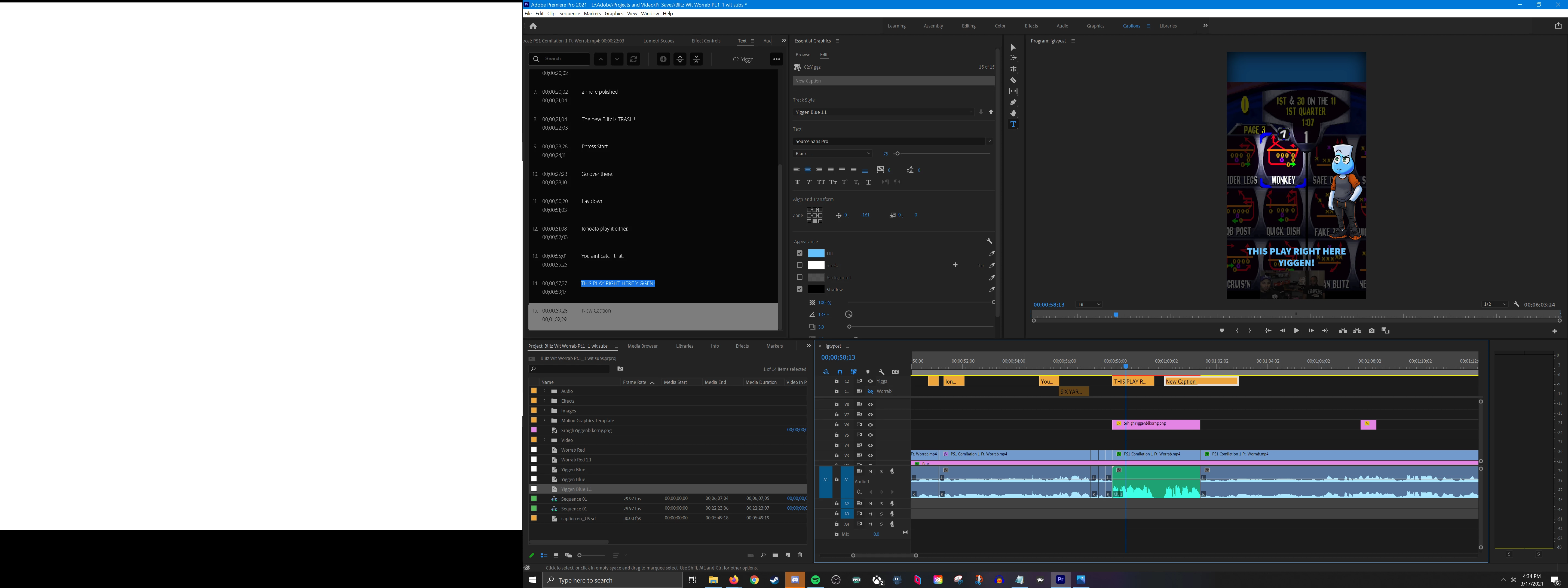
Does anyone know how to get multiple caption tracks to show at the same time? I have two people talikng at the same time and I wanted to time the captions seperately.

Im currently using the latest captions workflow introduced in the 2021 update.

Correct answer Randune23

When in doubt try to find the answer on YouTube.  I have found much better explanations to issues that I have had with Adobe PP on there.  You might have to do some searching but it's much better than trying to read through all the attempts to fix the issue through the feeds on your post.  I found a great quick video that was PERFECT for what I was needing.


In my video, both my wife and I each wore a DJI wireless microphone.  Since I was the only one filming, I still wanted to capture my wife's comments b/c they were priceless for the video.


Check it out here...


https://youtu.be/HmzgcgN6GSk?si=EuRcYwLIa0uoR3gG


Glad to help...and even though your post is from a few years ago, I hope you can add this trick to your creative toolbox.


I cannot wait to use this trick when I upload some of the podcasts I had the opportunity to be on this past year.  Some of them had just two people (1 host and 1 guest).  However, I have another podcast that I was on that had three people on screen at the same time (1 host and 2 guests).


Randy

4 replies

Randune23
Randune23Correct answer
Inspiring
March 14, 2024

When in doubt try to find the answer on YouTube.  I have found much better explanations to issues that I have had with Adobe PP on there.  You might have to do some searching but it's much better than trying to read through all the attempts to fix the issue through the feeds on your post.  I found a great quick video that was PERFECT for what I was needing.


In my video, both my wife and I each wore a DJI wireless microphone.  Since I was the only one filming, I still wanted to capture my wife's comments b/c they were priceless for the video.


Check it out here...


https://youtu.be/HmzgcgN6GSk?si=EuRcYwLIa0uoR3gG


Glad to help...and even though your post is from a few years ago, I hope you can add this trick to your creative toolbox.


I cannot wait to use this trick when I upload some of the podcasts I had the opportunity to be on this past year.  Some of them had just two people (1 host and 1 guest).  However, I have another podcast that I was on that had three people on screen at the same time (1 host and 2 guests).


Randy
Stan Jones
Community Expert
Community Expert
March 14, 2024

Thanks for posting. There's now an additional method.


"Upgrade Caption to Graphic," was introduced with PR 23.1 - Dec 2022. See:
https://helpx.adobe.com/premiere-pro/using/working-with-captions.html


You reminded me to update my post that showed many of the old workarounds to add this information:

https://community.adobe.com/t5/premiere-pro-discussions/faq-workaround-nesting-to-apply-effect-controls-to-caption-track/td-p/11935335


Stan


Stan Jones
Community Expert
Community Expert
March 20, 2021

Hi, real,


I wonder if you are still working with two TRACKS, and not with one TRACK. What you want is ONE track, ONE caption SEGMENT, and TWO caption BLOCKS in that one segment. Some screenshots....


The terms used: a caption SEGMENT is what we ordinarily call a single caption, and it occurs in the range of a beginning and ending timecode. In that segment, you can have one or more caption blocks. But you can have only one segment in a timecode. The Blocks in that segment all appear for the same time.


A caption BLOCK is one or more text objects in a caption segment. A caption block can have the same, or different position, text color, background, etc. Note that a Caption Track "Style" applies to all captions/segments/blocks in a track, and so if you apply a style, they will all get the same treatment. Caption Blocks are not documented (yet), but this is what staff have said and/or I have concluded from my tests.


Right click on a caption in the Text Panel and you get a drop down that includes "Add new text block to caption.":


Once the second block is created, they share the same settings, so overlap each other. They are both at the same timecode range. You can select each separately in the Essential Graphics Panel, and apply different settings. So I selected the first (original) block, and moved it to the left bottom grid setting. Then I selected the second, moved it to the bottom right, changed the text color, and added a background.


So you might make all the captions for speaker one in block one, and the other speaker block two. I don't know if this is a practical method. I'd like to see more tools to allow grouping blocks and treating them in some more automatic manner.


I have more screenshots if this does not make sense.


Stan

Participant
December 6, 2021

Hi Stan,


In my case the captions are not happening simultaneously. However I want to apply different settings so it is clear who is speaking. 


I have tried what you suggested, but for the length of all the audio I can just apply one setting. As I change the setting of another block all the other blocks change to that one setting. 

Participant
July 1, 2022

Hi, Thank you for all the help discussing multiple block in one track.


I have a slightly different issue, I would like to display on the video two separate tracks on the same video.  Not as a second block but a whole truck.  In essence, now when click on the eye, one eye goes off and the other remain, toggles between the two. 

Why this helps, I can build two track with a language on each one fairly straightfoward by manipulating SRT files and importing.  I want to show two translation caption at the same time.  If I have to build a second block there would be, for a long video, a huge amount of copy and paste uncessary if I could just display two tracks. 


Can I disable the toggle?


I have no idea if this is still helpful or even if it was already mentioned but i did find that you can NEST a caption track with it's accompanying video track and thus create a sub-track for the first set of captions, then add in the second track of captions inside the sequence above. 

Hopefully that helps or at least makes an already-stated answer more obvious to others!
Sarwu

R Neil Haugen
Legend
March 17, 2021

EDITED:

Right-click on the caption text in the Text window, and one option is "Add Track". That gives you a second caption block on that track. Make sure you type something in both text blocks.


Then in the Essential Graphics Panel, you will see two lines of text. Select one, and then use the movement controls to place it on the screen where you want it.


Neil

Everyone's mileage always varies ...
Participating Frequently
March 18, 2021

Thanks for the response! Im not getting what your saying though as adding a new track doesnt add the track to the same block. As you can see I have two seperate tracks. The issue is when I click the eye to reveal on one the other goes hidden automatically. Am I not understanding what a Block" is?

Participating Frequently
March 17, 2021

Clicking the eye disables the other track.