
December 9, 2018
Question

Captions Text Poor Quality

  • December 9, 2018
  • 7 replies
  • 18839 views

Hello,

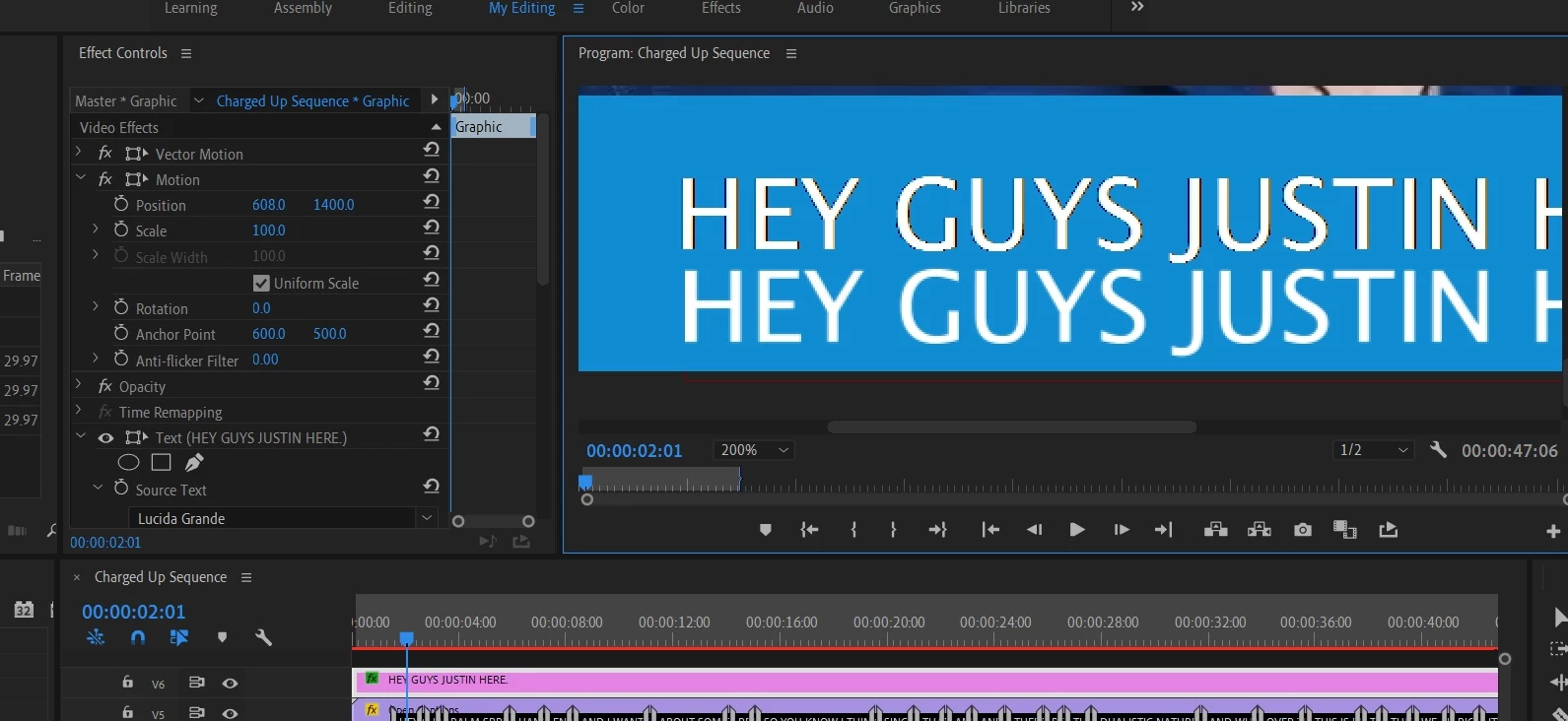
I'm working on the project where I need to create Subtitles and I was using Captions. The problem is that the text comes quite poor quality with really hard edges. I was browsing the internet to find a solution and found quite a few issues like that but no solution. I have a screen-grab where the top text is the captions and the lower is the standard title but the same font and size was used. You can see the difference and just wonder if there are any settings I can change to show captions as nicely as the title?
This topic has been closed for replies.

7 replies

Participant
March 5, 2021

Hi! I just read another post:


Premiere CC Open Captions - Poor rendering (aliasing) (Premiere Pro 14.9 and earlier)


And it worked peeeerfect for me! Please try it! This is the solution:

Try this to see if it helps:


right click in project manager on the caption file, go to modify > interpret footage.

Under Alpha Channel, select "Conform Alpha Premultiplication" to: and check "Premultiplied Alpha"

Regards,

Aljosa


Love you Aljosa 😄

Participating Frequently
August 19, 2020

Hey, after a pain of trying to figure this out I actually found the solution. Instead of scaling the captions, go into the caption editor and change the font size. The captions remain crisp doing it this way.

Participating Frequently
November 19, 2019

Hi guys, 
I think, that I have a solution for that. It could work. Try it.
If you have a white color subtitle (100%) --> use the blending mode to "Screen" for the Subtitle.
If you have a black color subtitle (100%) --> use the blending mode of it to "Multiply" for the Subtitle.
In my case it works. 


Best regards
Orhan

June 28, 2019

Hi guys,
I have the same problem under win10 and premiere pro. Open caption are aliasing like hell... Any fix ? Is this real that Mac doesn't have the issue ? 

Participating Frequently
November 19, 2019

Hi guys, 
I think, that I have a solution for that. It could work. Try it.
If you have a white color subtitle (100%) --> use the blending mode to "Screen" for the Subtitle.
If you have a black color subtitle (100%) --> use the blending mode of it to "Multiply" for the Subtitle.
In my case it works. 🙂 

Best regards
Orhan

Participating Frequently
June 20, 2019

Hello!

I just saw your posting about poor quality of captions. Having the same problems here, I found a solution that worked for me, and I hope it's working for you as well (Premiere CC 2019, Windows)

Here is what I've done:

Display a video with captions in the program monitor window and zoom to 100% (to see the difference clearly)

Go to the project panel and select the Tab for the captions

Right click on one of the captions and choose "select all"

click the button for text edge color

go to the input box for opacity (0-100%) and type "1"

The value "0" will cause the issues for the text. Maybe this depends on the graphics card. In my case (nvidia gtx 970 and 1060) the value "1" solved the problem.

Stan Jones
Community Expert
Community Expert
June 20, 2019

Interesting. And yes, improved - not regular graphics text quality, but much better.

What Edge value and color are you using? With edge zero, when I changed edge opacity, the edge value jumped to 5.8. Then I was able to reduce it.

I used Arial as the caption font, white text color, matching (white) edge, black background at opacity 100% and 0%.

Participating Frequently
June 20, 2019

Hi Stan!

I've found that both the edge opacity value of "0" and the edge value of "0" causes the poor quality of the text.

So if you don't want any edge effect you can work with the "1" value because the effect is not visible.

kjetilw70676393
Participant
January 31, 2019

any fix here yet? I have the same problem, however on mac it works great? Is this a Windows problem only?

Stan Jones
Community Expert
Community Expert
January 31, 2019

kjetilw70676393  wrote


any fix here yet? I have the same problem, however on mac it works great? Is this a Windows problem only?

No fix. See this other thread for another workaround that I could not replicate.


Premiere CC Open Captions - Poor rendering (aliasing) (Premiere Pro 14.9 and earlier)


Are you saying that you have confirmed that Mac's do not show poor burned in quality using the captioning tools?

kjetilw70676393
Participant
February 1, 2019

Yes I am very sure, I will provide an example in around 10 days! (going on vacation next week)

edit: I could also not replicate the workaround, setting opacity to 100% gives better results tho!

Stan Jones
Community Expert
Community Expert
December 9, 2018

Does the caption stream pixel size match the sequence size?

What specific dot version of PR are you running?

At 200%, my matching captions still show antialiasing, but not as badly as ones that are a smaller pixel size than the sequence. I wonder if that is it.

December 9, 2018

I run CC 2019 and the sequence and the captions the same settings exactly.

Stan Jones
Community Expert
Community Expert
December 9, 2018

Mmm. Not sure what to say. It does appear difficult to get an appearance that will handle any upscaling. I certainly see antialiasing.

What font, size, etc.? No edge, correct?

Try Arial as a comparison. Yours appear to be sans-serif, but with a descender (J).

Curious whether some fonts work better.