
Participant
November 18, 2023
Answered

Clip resolution stays the same after using the "Crop" effect

  • November 18, 2023
  • 2 replies
  • 1203 views

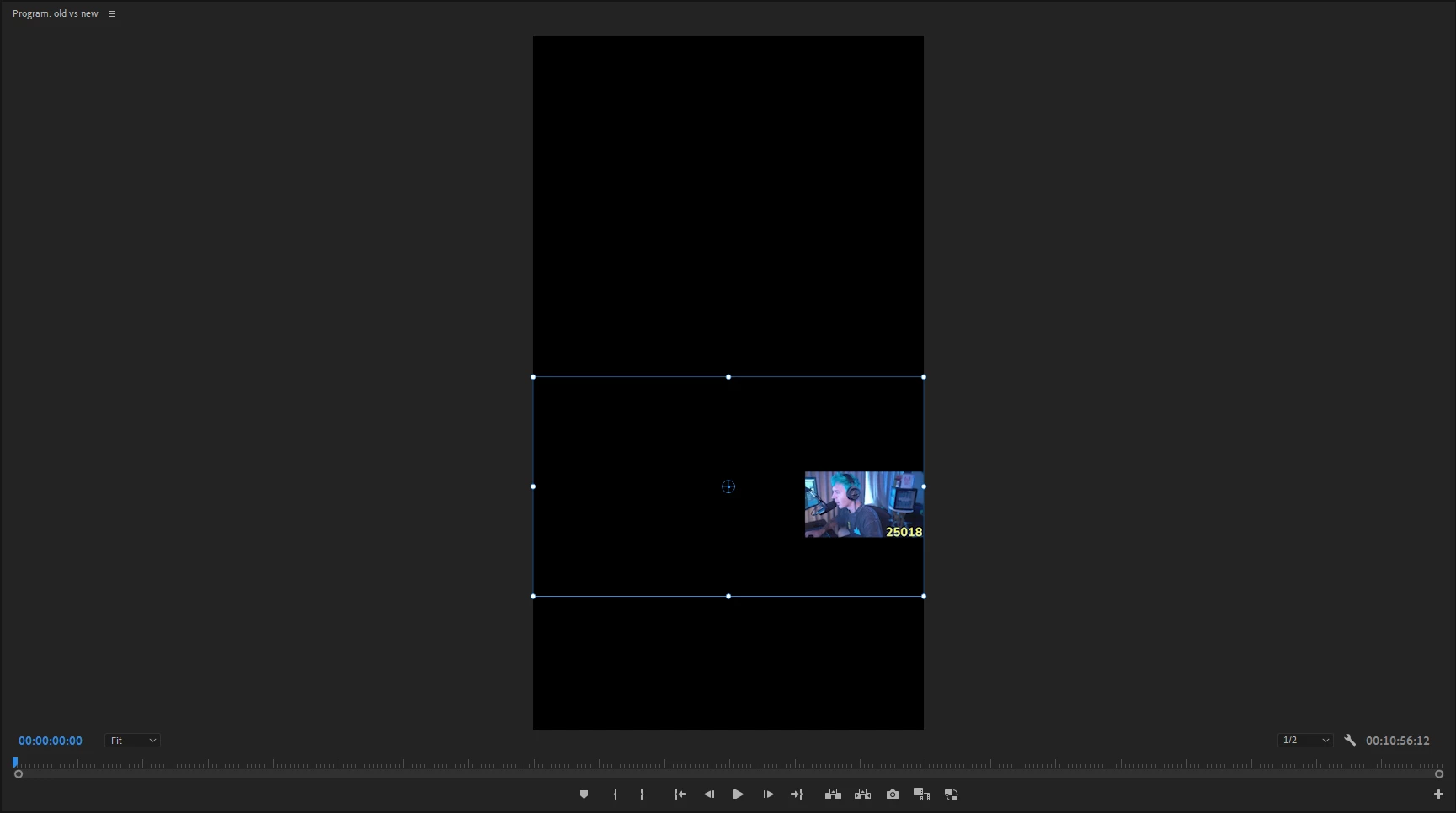
I'm trying to crop out a YouTuber's face cam for a video that I'm making, & after using the Crop effect, the previous resolution before cropping the clip stays, you can see this in the screenshot that I provided. This is pretty annoying as I'm trying to snap the face cam, and it's using the old resolution instead of the newly cropped resolution.
This topic has been closed for replies.
Correct answer Ann Bens

I attached a video, sorry I wasn't able to explain it well in text.


Crop effect does not change the resolution of the clip. It just cuts off the sides. The actual size  of the clip has not changed. Original boarders are still visible.

Turn off snap and eyeball the position.

You can also make a shape in the EGP, drop your video in the EGP and mask with the shape.

2 replies

Shebbe
Community Expert
Community Expert
November 19, 2023

Another way to approach this is to make a Nest sequence out of that clip. And since you know the webcam feed is 16:9 you can change the resolution of that nest to a resolution as close to matching the actual dimensions of that webcam feed in 16:9. Inside the nest you would position and scale the footage till the point only that part is visible. Then outside the nest it'll be handled the way you wanted it.

Kevin J. Monahan Jr.
Community Manager
Community Manager
November 18, 2023

Hi @etherealftw,

Not quite sure what you are looking to do. Are you trying to fill the frame with the cropped clip? Let us know.


Thanks,
Kevin

Kevin Monahan - Sr. Community and Engagement Strategist – Adobe Pro Video and Audio
Participant
November 18, 2023

@Kevin-MonahanDid my recent reply make more sense, just want to make sure, as I'm unsure on how to word it. 🙂

Kevin J. Monahan Jr.
Community Manager
Community Manager
November 18, 2023


Somewhat. To see the border of the crop instead of the clip, click on the word "Crop" in the Effect Controls panel. Then, you'll see the borders of the crop effect. You can click and drag these blue lines to taste. Does that help? 


Thanks,
Kevin

Kevin Monahan - Sr. Community and Engagement Strategist – Adobe Pro Video and Audio