
Inspiring
October 2, 2018
Answered

Clips on Timeline Replaced By OTHER Clips Or Don't Work!

  • October 2, 2018
  • 5 replies
  • 4618 views

I am INCREDIBLY Furious.  Wow..  It's like Adobe pulled a prank on me.

What IS THIS?!?!??!
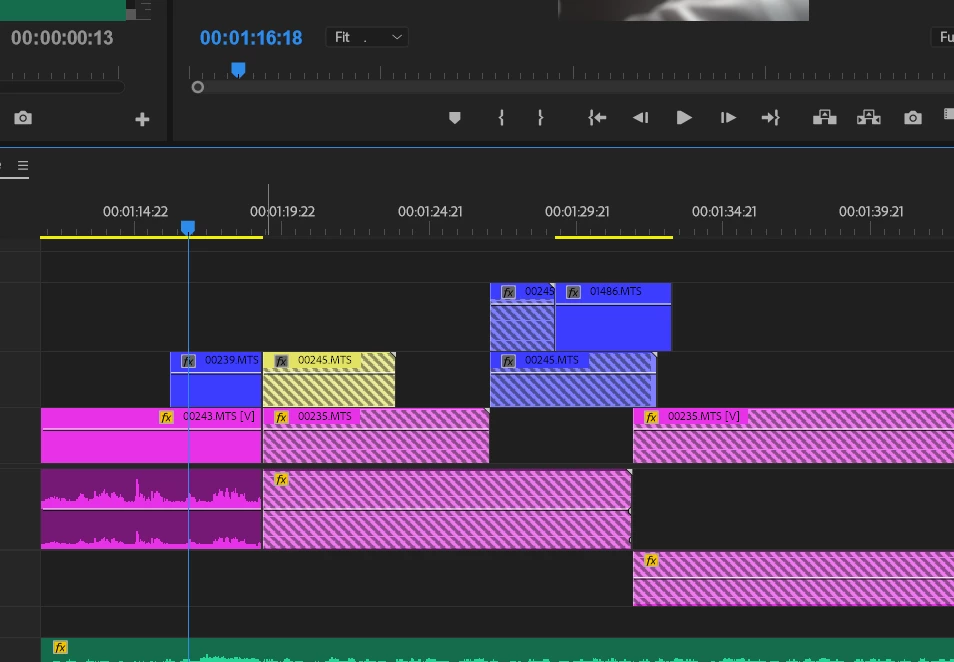
You see the ones that have the diagonal bars through it?  OUT OF NO WHERE that happens, when I exit and go back in.

What it does is, 1) it either replaces it with another video file that I did not select.  incredibly random.  or 2) It doesn't work. The audio or video clip.

I now FEAR that my project files will get corrupt like this.  Now I export the unfinished project, so I could at least have a video file of the video that I'm working on.

Wow, someone please help me.  I'm doing this for work, too, this isn't my personal project.  Stuff like this shouldn't be happening.

Someone help me!!!!!!!!!!!!!!!!!!!!!!!!!!!!

I really hope I am just ignorant and this is a common thing with a simple fix.

This topic has been closed for replies.
Correct answer Averdahl

The fastest way, depending on the complexity of the project, to fix it is to un-link all media and re-link it again. When moving media and Premiere Pro promts to re-link the media again it is very easy to link 00000.MTS to 00000.MTS from another card and by that get the result you see, iow lots of files are linked to the wrong footage. When you link to the wrong 00000.MTS the rest of the file gets wrongly linked.

If you are organized and have all video in one top folder and keeping separate subfolders for each memory card the easiest way is to close Premiere Pro and then rename the root folder from let´s say Project-Name to 00Project-Name. Next time you open Premiere Pro you will get a dialog that promts you to link the media. Click Offline All and save the project and close Premiere Pro. Now, rename 00Project-name back to Project-name and open the project and do carefully link up the files. If you have spread the memory cards in several top folders and/or HDD´s it is easier to manually un-link the media in Premiere Pro before starting to re-link the media again. It is possible to unlink all media in a Bin in Premiere Pro by right clicking on the Bin and choose Unlink.

Both methods gets the job done and the better organized the media on are the HDD´s and in the project it can be done under a minute.

It is wise to make a backup of the project file before doing this in case it gets worse.

Yes, i have seen this happen when changing drive letters, swapping HDD´s, moving media around on HDD´s. The good thing is that it is easy to get the project back on track again.

5 replies

Legend
October 2, 2018

No really, keep VENTING, it will absolutelly encourage people to help you.

Legend
October 2, 2018

The lines you see are the Missing Media indicator.  They're telling you that media for that portion of the clip is no longer present in the file on the hard drive.  This often happens when relinking to the wrong file.

Some things you can do to help are Steps 2C, 3G and 3H below.

Unofficial Premiere Pro Troubleshooting Guide

Averdahl
Community Expert
AverdahlCommunity ExpertCorrect answer
Community Expert
October 2, 2018

The fastest way, depending on the complexity of the project, to fix it is to un-link all media and re-link it again. When moving media and Premiere Pro promts to re-link the media again it is very easy to link 00000.MTS to 00000.MTS from another card and by that get the result you see, iow lots of files are linked to the wrong footage. When you link to the wrong 00000.MTS the rest of the file gets wrongly linked.

If you are organized and have all video in one top folder and keeping separate subfolders for each memory card the easiest way is to close Premiere Pro and then rename the root folder from let´s say Project-Name to 00Project-Name. Next time you open Premiere Pro you will get a dialog that promts you to link the media. Click Offline All and save the project and close Premiere Pro. Now, rename 00Project-name back to Project-name and open the project and do carefully link up the files. If you have spread the memory cards in several top folders and/or HDD´s it is easier to manually un-link the media in Premiere Pro before starting to re-link the media again. It is possible to unlink all media in a Bin in Premiere Pro by right clicking on the Bin and choose Unlink.

Both methods gets the job done and the better organized the media on are the HDD´s and in the project it can be done under a minute.

It is wise to make a backup of the project file before doing this in case it gets worse.

Yes, i have seen this happen when changing drive letters, swapping HDD´s, moving media around on HDD´s. The good thing is that it is easy to get the project back on track again.

Known Participant
May 18, 2024

Hello, from what I understand, I seem to have the same problem as ChickenBawkBawk. I opened my project file and got the prompt "missing media files." The video files that the project file is trying to find are/were not even in my project - never have been, they are media files saved in another folder (on the same drive) . . . Looking closer at the sequence in the timeline, these missing (incorrect) video files have replaced (correct) clips/video files. I have tried to understand your suggestion on how to fix this situation, but I am just not understanding it. I have worked really hard on this project, was almost finished, and wham-o, this unpleasant surprise. Can you please offer help? Thanks.

Inspiring
October 2, 2018

Hi.  This is the Original Poster.

I found out it swapped location for only SOME of the files.

The project file used to draw clips from C:/Folder1/Folder2

Now...it some how,...out of no where..without my permission, after I exited Adobe and went back in, is now drawing it from C:/Folder3/Folder2/FolderA

It's like a PRANK!!!! Serrrrrriously.  Wow.  So what I'm doing now to fix this, is to one by one going to each clip click "Reveal In Project", then on the Media Library Right Click and  choose  Replace Footage.

When I do that, I'm IN that "C:/Folder3/Folder2/FolderA"

WHY is it doing that?  How do I prevent this?

Is some hacker on my computer????

Peru Bob
Community Expert
Community Expert
October 2, 2018

I've never seen that happen.  Are you sure that you didn't move any files around or choose the other folder by mistake?

You might want to try creating a new project and import the old project into it.

Legend
October 2, 2018

I suspect that you have multiple files with duplicate names.

PPro has, at some point, relinked to files and chosen the wrong ones.

My approach, when dealing with media like this (00xxx.MTS, C0001.MP4 etc) is to batch rename the clips before I start editing so they have unique prefixes. Usually I use the shoot date (and the shooter initials if there is more than one) so 0001.MTS becomes 20180903_JB_0001.MTS. That is useful info to have in the clip name anyway.

Inspiring
October 2, 2018

But this has never happened before.  Only recently it started doing it.  And the different files are in DIFFERENT FOLDERS.  Isn't that good enough?

But hmm, very interesting theory.  That may be some clue.  But still....how would the different folder not be good enough?

But look, I think its deeper than that....because....some clips....STRAIGHT UP DONT EVEN PLAY!

It's as if they don't exist!  But they take up space on the timeline.

Someone please help me.


Another clue is my files are on my HardDrive.  But I've been doing it on my harddrive just fine for many months...

UPDATE:  WHAT?!  IT'S SPREADING!!!!!  This project file has 2 sequences.  The first one was fine and I felt safe with it.  But the second one I made is what got corrupt.  Now I exit adobe and reopen it, now ITS CORRUPT!  IT IS LIKE RUSSIAN ROULETTE TO TURN OFF ADOBE PREMIERE!

Wow... how on earth am I supposed to continue my career like this? SERIOUSLY?  I am working on a huge documentary, too.

Am I supposed to leave the computer on ALL DAY EVERYDAY until the video project is done?

Adobe Staff Members, PLEASE look into this and help me!!!!!

What this is cuasing me to do, is to EXPORT collection of video clips as a video file, so I can use those video files again without sitting for hours snipping them from footage.   THAT has become my way of adapting to this.  How many times do I have to do this?  And then I bet that video file, too, may be corrupted within the timeline, so I'l have to keep exporting a file.

Has ANYONE gone through this?

And NO I didn't pirate this software!  I've paid over $1,000 for the software before Cloud, and now I'm paying monthly with Cloud.