
Participant
October 21, 2013
Answered

Closed Captions Not Working (Premiere Pro 14.9 and earlier)

  • October 21, 2013
  • 14 replies
  • 152459 views

I am trying to create a closed caption in premiere pro cc (trial version) but when I am in the captions tab, am unable to select the 'add' caption button. I have enabled the captions and have watched many video tutorials and searched the web for answers but there is nothing about why the 'add' caption option might not be available?


[Please choose only a short description for the thread title.]


Message was edited by: Jim Simon
This topic has been closed for replies.
Correct answer Mark Mapes


I see two issues:

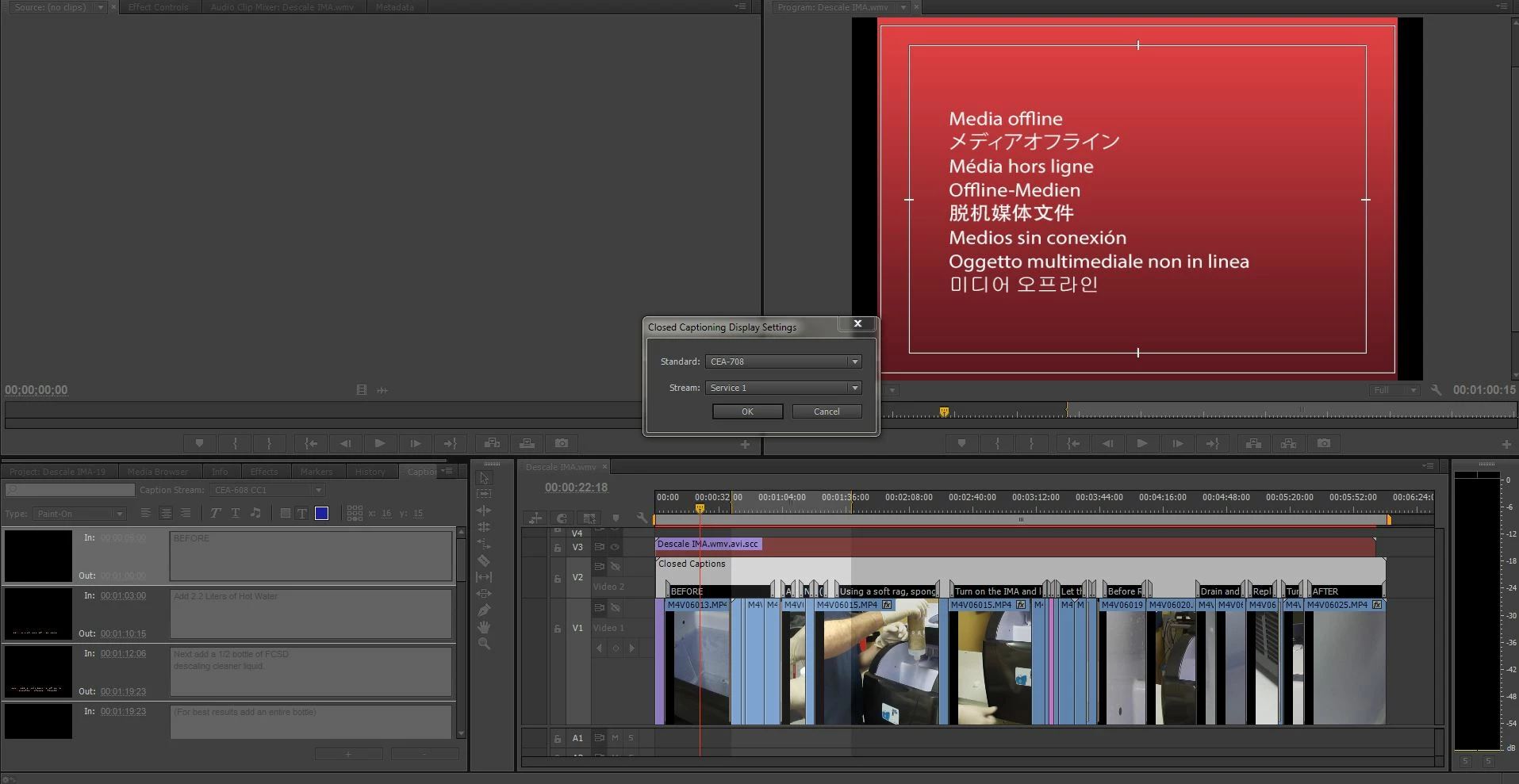
  1. If we're talking about the closed captions on Video 2 in the screenshot, then I notice that the track is disabled, as indicated by the slash across the eye icon.
  2. The caption clip that's loaded in the Captions panel is 608, but the Captions Settings panel is set to 708.

So you may need to set the Caption Settings to 608 and enable V2 by clicking the eye icon.

14 replies

Dude1x
Participating Frequently
February 4, 2015

I'm using Premiere CC Pro 2014.

I tried every hint in this thread to try to make closed captions show up, they won't.

This is ridiculous.

This is my workaround.

Create a title (CTRL+T).

Set a text and a background and there you have your subtitles and they are even more versatile than scc, you can use any font you want and place them wherever you want.

Adobe Employee
February 4, 2015

Sorry to hear you are having problems with closed captioning. Try this:

1. Import a caption file (sidecar or embedded MOV or MXF) into the program. Or go  File-> New-> Captions and make a native closed caption

2. Double click on it in the Project Area to verify what type it is -- 608 or 708, and the channel

3. Go to the wench icon in the monitors, click on them, make sure captioning is enabled. Make sure it is set to whatever standard and channel the caption file says it is

4. Put the caption file in a Sequence, or double-click it to load it to the Source

You should see closed captioning displaying -- if not -- let me know!

Dude1x
Participating Frequently
February 5, 2015

I tried all that, but to no avail.

The only thing you can't see on this screenshot are the "Settings..." below Closed Captionning Display->Enable. I tried both 608 and 708 there, but it makes no difference.

As you can see on the very left of the image, the subs show up in the thumbnails, but not in any of the preview panels in the upper half of the screen, even though the time cursor in the timeline is on the sub.

Am I missing something?

Adobe Employee
June 24, 2014

It should be as simple as

1. Go File-> New-> Closed Captions

2. In the "New Closed Captions" dialog, click <OK>

3. In the second "New Closed Captions" dialog, pick CEA-708, click <OK>

4. Double-click on the native 708 closed caption you created in the Project area

5. Captions panel should open

6. Add 708 captions by clicking on the "+" button


And


Make sure in both Monitors, in the wing menu, that 'Closed Caption Display' is Enabled and under 'Settings' the standard is 708


atldsl
Participating Frequently
June 24, 2014

When I follow these steps and then export as an XDCAM HD422 with the caption embedded and then play back on a Harris Nexio, I see errors on a few different scopes:

1. 708 caption block sequencing error.

2. 708 Triplet precedes 608 Triplet.

So, I think there is an issue with embedding the captioning.  I can upload the files to Harris (now Imagine) to review, but in past experience this is a lingering issue that will affect not everyone, but will affect many.

I also use a Ross CDP100 which is a specific hardware device designed to find CDP errors with caption streams to give an idea of how this might impact broadcasters with their downstream equipment.

I would like to know what Adobe uses to qualify their closed captioning streams as that might help in better understanding their process?

Adobe Employee
June 24, 2014

Thanks for the information -- putting the files somewhere where I can get at them would be awesome. I do thank you for the time you have spent on this, send me a private message when you allocate the files. Then I can take a look.

Participant
November 15, 2013

Jess,

Did you ever figure this out?  am having the same problem and I don't know what to do. I have my captions and I can see them in the caption tab but it doesn't show up on my video.

Mark Mapes
Participating Frequently
November 16, 2013

Please be more specific about what you mean by "it doesn't show up on my video." Do you mean that you can't see the captions displayed in the Source Monitor? In the Timeline? In the Program Monitor? In encoded outputs with captions set to be embedded?

If you're referring to either or both of the monitors in PPRO, have you enabled caption display and made sure in each monitor's Closed Captions Display Settings dialog that the Standard and Stream match your source captions?

harryfear
Participating Frequently
April 5, 2018

harryfear it is amazing! This is one of the reasons the industry is afraid of Premiere. In places with broadcast heavy works it is unthinkable to stumble upon this type of problem. There is no soft way of putting it, AVID's Media Composer is still king.

In this new update, they is said some bugs where corrected on the caption system, but it is still highly unusable. We still hace lots of problems with CEA-708, varying from persistent captions and the inability to format the text in some cases. The most absurd bug seems to continue too, the one where POP-UP captions choose not to show! Outrageous!

What is more absurd even, is that they have implemented the Export Caption Selecting The Timeline option, which enables us to make corrections to the captions as a whole, but they did not announce it. CRAZY!

And Premiere can't even read MCC files right! So, even if you export the files from the likes MacCaption or CaptionMaker and import them to Premiere (which is supposed to work) IT DOES NOT!

Man... frustration is the name of the game.


I'm with you man!

Here is a write-out for anyone joining the mess at this stage:

Known issue with 708 captions

If you take a caption file from any source and put it into Premiere and set the caption to 708 you are likely to run into the issue of some random captions not displaying. They don't display in the Captions editor thumbnail or in the Program Monitor or Source Monitor.

Oftentimes it appears to be the first caption in a series of captions after a break of no captions. Sometimes the duration of the caption seems to matter (e.g.  shortening a caption makes the caption appear).

I spent a few hours today playing around with different versions of Premiere and different caption files. Even if you export the caption into different formats, verify it in a plain text editor for errors (exploring the XML, SCC, etc. formats), Premiere still bugs out. If you export the caption, fiddle with it in another editor and reimport it, the text is still liable to not display correctly.

Intended behaviour?

I can't find anything in the 708 specification that should cause Premiere to behave like this. Other apps like MacCaption that @Joao.Gri mentioned don't weird out like this.

Avoid 708

You can switch the whole caption to another format like Teletext and the dodgy caption in question suddenly displays correctly. So you can switch your caption to another format to avoid this issue.

Switch from Pop-On

If it doesn't matter to you how the subtitle appears, you can switch to another display method for that dodgy caption like Roll On instead of Pop-On but switching back doesn't clear it. This is a closer fix than anything else I know of.

SCC files

If you take a dodgy 708 Premiere caption into a caption editing application and then export to SCC format and inspect it in a plain text editor you can see that there is a missing clearance flag before the very caption that is failing to appear properly in Premiere. So it looks like there is an issue with Premiere and misunderstanding or not setting 'clearing' flags properly for previous captions. If there is not a 'clear' signal then the caption doesn't display properly somehow. The whole concept of clearing a caption before showing another one is part of the way these very proprietary and weird caption systems work.

Illustration

You can test this by creating a caption just before the one that doesn't appear and ensure the new one has at least one character in it. That then sets a kind of 'clear' flag that allows the next (dodgy) caption to display correctly. In this example there are two captions. The second short one in the timeline is the one that won't display. The long caption before it is the 'remedy' caption for this illustration. The remedy caption must contain a character (in this example a period/full stop character only). When the remedy caption that precedes the dodgy caption has a character, the dodgy caption is no longer problematic and its contents show in the Program Monitor, etc., etc.. In the image linked to below: left is with the remedy full stop (causing the dodgy caption to appear), and right is without it (the dodgy caption doesn't appear).

https://image.ibb.co/jOFSbc/708_bug.jpg (right click open – doesn't open in preview properly)

Ann Bens
Community Expert
Community Expert
October 21, 2013
JessTAuthor
Participant
October 21, 2013

Hi Ann,

Thanks for this, I have tried that option and seen that adobe help page. The captions still don't show up on my video - I have enabled the closed captions in the top right hand drop down menu, I have selected the correct time that I want the caption to appear and it just doesn't appear.

If anyone could help me that would be great, the following is what I have done:

Is there any reason why it wouldn't be showing up?

Known Participant
October 30, 2013

I am having this same problem. I partially moved to Premiere CC for the closed captioning feature and it is not working. As you have done, I have read the help files and watched many videos on how to do it. I'm doing it exactly the way the describe and show, but the text is simply not appearing on the footage. It is enabled, everything is in place. but no text. Need a solution to this.