

this is the pope
Participant
December 23, 2012
Question

color banding in Premiere exports

  • December 23, 2012
  • 7 replies
  • 29303 views

I have imported QT animation codec files into Premiere and then re-exported them in variety of lossless formats and it seems like Premiere always introduces an ugly banding on gradients.

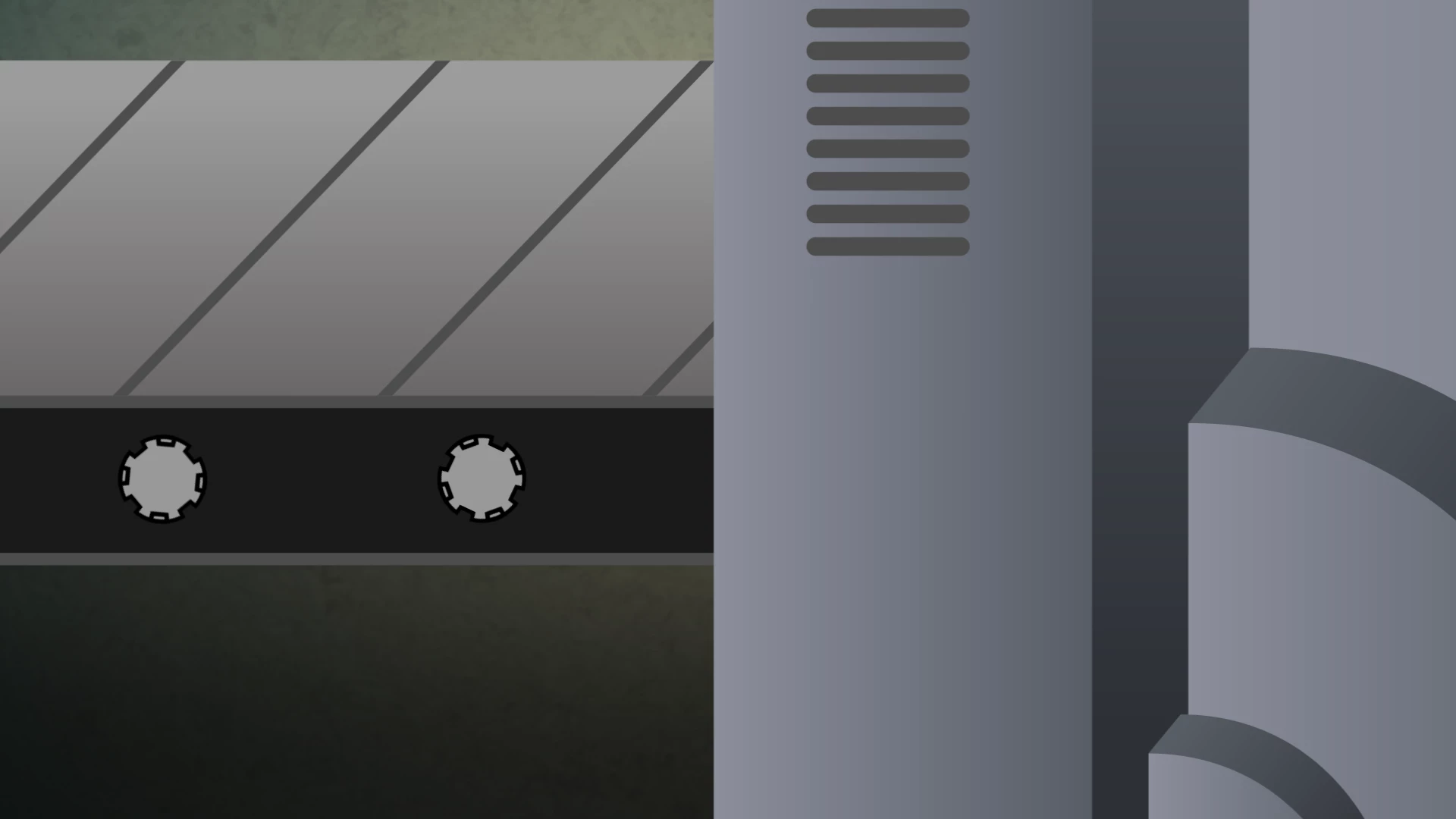
The original files are vector art with loads of gradients that are outputted from AE and look fine (they do exhibit some slight banding but nothing serious):
I export them from Premiere at maximum bit depth, without using the preview files and in a variety of codecs but they all introduce more banding  (mostly evident in the dark grays which introduce a visibile fringing):
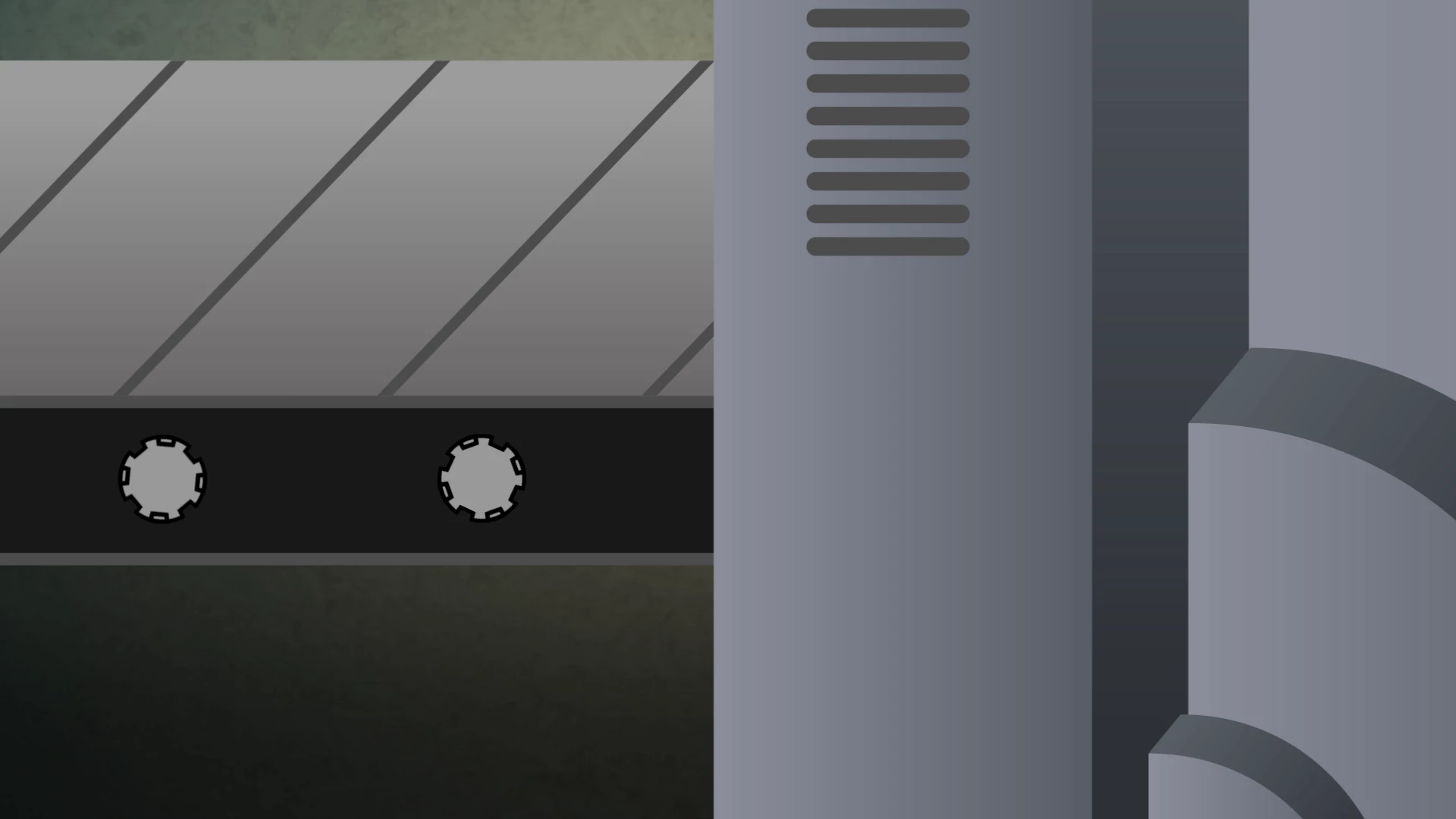
The thing is that the fringing is introduced when the source files are ingested. When I open them in the source monitor they already have this banding.

I'm on

PP CS6

Win7 x64

This topic has been closed for replies.

7 replies

Participant
January 2, 2018

I experience the same all the time. I do film airplanes at Amsterdam Airport. When filming by daylight or lowlight,it doesnt matter.

It has banding all the time.

With new years eve I was filming the fireworks from a position at the 11th floor. The result afer encoding is dramatic.

Adobe is required to solve this ultimate problem asap. When Adobe think they have the smartest employees.....than show it THIS MONTH,starting to work on it TODAY.

Known Participant
December 14, 2016

I can confirm this is STILL and issue under Adobe Premiere CC 2017.

I've also seen subtle color shifting occur when exporting out of Premiere. But I digress back to the original topic.

To preface I should state that each of our guys tasked on attempting to solve this problem in the studio have well over two decades of post-production technical experience.

Source media in the Premiere timeline are ProRes4444 (also tried ProRes422HQ).

Viewing them in Premiere they look perfect. However, the exported file has significant banding introduced into the output file.

We have tried exporting in every single ProRes format available... without any difference in the introduced banding.

We've tried every thing possible we could think of:

1) Setting sequence to maximum color depth

2) Setting sequence to maximum render quality

3) Setting export to maximum quality

4) Disabling metadata at the export

Nothing changes the output.

We've attempted exporting an animation codec version which also has the banding, but slightly reduced overall.

HOWEVER... if you IMPORT this project into After Effects and render the timeline from within After Effects.... there isn't any banding at all. So clearly there is a major issue within the export engine that Premiere uses. Our only work around to ensure there isn't banding, as well as not having the color shift I briefly mentioned, is to import the timeline into After Effects and rendering from there.

This is a significant flaw in Premiere that is just mind-boggling that it has existed for at least 4 years at the minimum. Adobe should be putting this problem at the top of their bug fix list for Premiere.

Let me reiterate that our exports from Premiere were set to Maximum bit depth and maximum render quality. And we rendered to ProRes4444 files.... the same format in which the files were sourced... but banding was introduced.

Participant
November 24, 2016

Add noise to remove banding.

September 23, 2014

This isn't an issue with Adobe - this is an issue with how the technology works.

Here are solutions:

- Use 16bpc for best results. Export quicktime > animation for fully uncompressed with 100% quality. Make sure the bitrate is actually set at 16,000 since it defaults to something like 12,000. Banding will be about the lowest you will ever get at that level.

- Exporting down to DVD is 10bpc. You'll get some banding. If it's displayed on something like a TV, it will be even worse. That's just how things work/

- Any compression format (H.264) will be around 8bpc which will obviously have banding. Either make the light to dark shades further apart (more pronounced) so more colors can fill the band or add some grain to try and mitigate the banding. All said and done, you're working with compression and that's just what happens with bands.

Final note - even if you export at the uncompressed format, if you're going to upload it to Vimeo or YouTube then THEY are going to compress it and there will still be banding after that. It's life at the moment. There is no perfect solution.

Known Participant
December 14, 2016

Actually the problem IS with Adobe's export engine. See my post above.

pimh2105415
Known Participant
December 17, 2016

Ok guys,same problem here:

If i export my canon c300 mark 2 materiaal shot in 10 bit 4k, its not possible to get a clean export. I tried almost all export settings, and i get banding in al my shots, so suddenly it looks like 8 bit. terrible. al 'maximum quality options' are selected. and even proves 444, or dnxhr 444 looks bad. Now i'm using an export to xml, and let davinci export my timeline, which looks like the original, and like it should.

This is another major let down, its looks like, next to the lack of automatic timecode syncing or being able to link files in a batch, this also is a non-pro feature.

Maybe premiere should change its name, or am i doing something wrong? please help...

thanx Pim

Participant
February 4, 2013

I have the same Problems. I am cutting with H264 files from a Canon 5D Mark III. When I render the sequence the preview files have banding problems. When I export the sequence, I also have banding problems. I tried different setting and codecs for rendering and export. Also ProRes 422HQ, 4444 does not work.

When I export a H264 to ProRes422HQ directly in quicktime I get perfect results without banding.

El_Plates
Participating Frequently
February 5, 2013

That's interesting. Thank you. Whichever settings I choose, I must make sure it produces the best possible results for uploading to Vimeo.

Participant
February 5, 2013

Quicktime is not the best programm for every format. For flash I prefer Adobe Media Encoder. But when you make quicktimes like H264 or ProRes you get much more better results with Quicktime Pro than exporting the files with Media Encoder. I don´t know why but thats my experience.

The main issue ist getting a good result out of Premiere to encode it in any other format. When the export from premiere ist not satisfying (like ist is in my case) you won´t get a better result with quicktime pro.

El_Plates
Participating Frequently
February 1, 2013

Did you find a solution to your banding problem ?

I ask because I'm experiencing a similar problem with gradients.

My .avi footage exported from a 16 bit  After Effects CS6 composition looks fine, but when I export the video from Premiere Pro CS6, in H.264 there's terrible colour banding, whether I check Maximum Bit Depth or not.

Legend
February 1, 2013

That's because your export is only 8 bit.  This is normal.

El_Plates
Participating Frequently
February 1, 2013

Does choosing H.264 for export limit it to 8 bit ?

Jeff Bellune
Legend
December 23, 2012

It's very dependent on the codec chosen for your sequence preview files and your choice of codec for export.  QT animation at 100% quality creates 4:4:4 chroma-subsampled files.  Many export codecs cannot duplicate that.  Read here:

http://en.wikipedia.org/wiki/Chroma_subsampling

Jeff

this is the pope
Participant
December 23, 2012

thanks Jeff,

So it's about what Premiere is using for a preview codec? Even though I am telling it not to use preview files for the final render?

Today I tried QT PNG exports out of AE and they look perfect. I simply imported them into PP and spat them out to QT PNG and they have the same banding. As I'm working on a PC I have no option of using QT previews, so I can only use I-frame only MPEG as a preview file format.

Should I try using the UT YUV422 codec instead?

Still not sure why PP is using the preview renders when I clearly specified it not do that...

this is the pope
Participant
December 28, 2012

no one else has any other input?