
abelh38106447
Participant
April 4, 2018
Answered

Color management - Color differences while importing clips

  • April 4, 2018
  • 1 reply
  • 612 views

Hi!

We have found colour + exposure differences when importing graded clips into a final edit of a project.

This means, in our workflow we create an initial edit, we send it to grading, and we substitute the original clips with the graded ones. The problem is that once we substitute them, they don´t reflect the same grading as what it is supposed to be according to the grading software(DaVinci Resolve Studio). We open the graded clip with a standalone player and it matches with the changes applied in Davinci, but then once loaded into Premiere or AfterEffects, we get different results.

We think it could be a matter of codec matching, but we have changed it and reinterpreted footage etc and we still find some differences.

Has anyone had a similar problem? Should we apply a different workflow or is there a simple way to manage this?

*******

This is a sample where you can see the differences of the SAME CLIP shown in a player (right) and AE (left).

The clip is in APPLE PRORES 422 HQ with a colorspace REC 709 2.4

***************
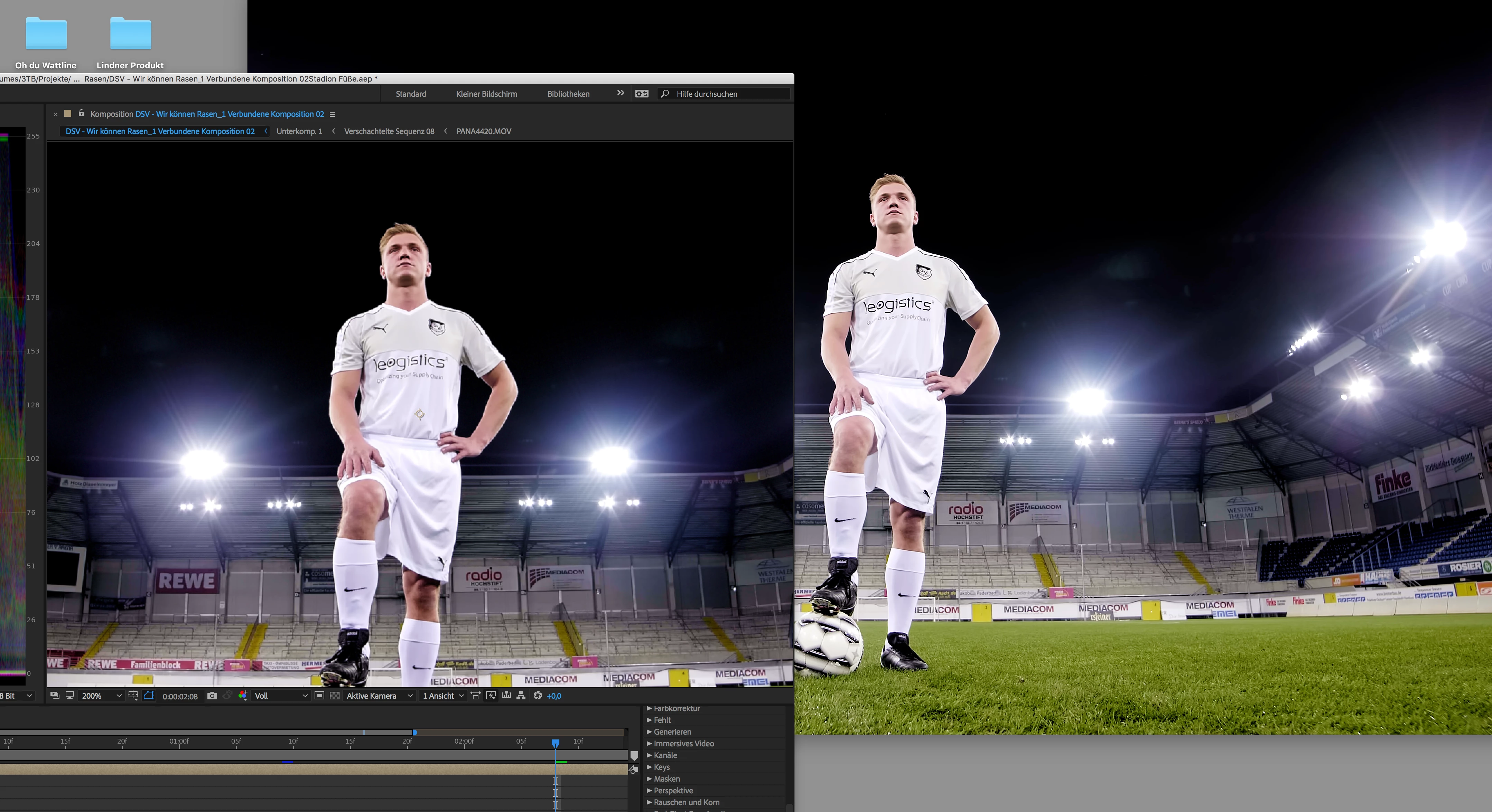
Thanks!!

    This topic has been closed for replies.
    Correct answer R Neil Haugen

    It looks like that is in Ae on the left, what's the other video player on the right?

    One thing that can be a gotcha ... in Resolve, I hope they're leaving the color management settings to Auto, as far as video/data levels (or legal/full, the 16-235/0-255 thing). PrPro is stock Rec709, but works in 'full' internally for most media. Resolve ... if left to 'Auto' for video levels, will show the same image. Set Resolve to specific video or data levels, all bets are off.

    I do wish we had full color management controls in PrPro. But again, if Resolve is 'auto' levels, it should work. And your monitor is sRGB Rec709 calibrated.

    Neil

    1 reply

    R Neil Haugen
    R Neil HaugenCorrect answer
    Legend
    April 4, 2018

    It looks like that is in Ae on the left, what's the other video player on the right?

    One thing that can be a gotcha ... in Resolve, I hope they're leaving the color management settings to Auto, as far as video/data levels (or legal/full, the 16-235/0-255 thing). PrPro is stock Rec709, but works in 'full' internally for most media. Resolve ... if left to 'Auto' for video levels, will show the same image. Set Resolve to specific video or data levels, all bets are off.

    I do wish we had full color management controls in PrPro. But again, if Resolve is 'auto' levels, it should work. And your monitor is sRGB Rec709 calibrated.

    Neil

    Everyone's mileage always varies ...
    abelh38106447
    Participant
    April 5, 2018

    Thanks Neil! The video player from the original screenshot is Quicktime player.

    We had our settings in Full instead of Auto in Resolve, we rendered the graded clips again and substituted them in Premiere/AE. Still no difference in the preview monitor. The funny thing is that once we RENDER IN PREMIERE or AE, the end clip has the same correct color as the graded clip, so it all points to be some kind of setting of the preview monitor, which is in a step in between.

    How can I make sure the preview monitor of Premiere/AE displays the same colors as both the graded source clip and the end clip? We need this to be accurate because it´s a middle step of the workflow, we can not simply trust that it will be ok after exporting in Premiere/AE.

    Thanks again for your kind cooperation!

    R Neil Haugen
    Legend
    April 5, 2018

    Premiere Pro works in sRGB Rec709/2.2 internally, period. And shows that in the Program and Reference monitors.

    My colorist acquaintances teach that if you just leave Resolve set on Auto, have a Rec 709 calibrated monitor set to sRGB, you're good to go. Some of the newer Macs are P3 or something, and of course, Apple doesn't like giving their users options, so setting that to sRGB isn't possible apparently. At that point, a separate monitor via the BlackMagic Decklink card with the right setup will fix the problem, giving you a correct screen to view.

    Neil

    Everyone's mileage always varies ...