
freyrb15078625
Participating Frequently
January 12, 2023
Question

Color mattes not showing in the final product

  • January 12, 2023
  • 6 replies
  • 2066 views

Hey everyone, just want to say that I have just recently started using premiere pro for personal use. Total noob here.


I've been working in this video for quite some while and I've had fun. This tool is really great. One problem though, when I have exported the video, both trough Premiere Pro and Adobe Media Encoder, the color mattes I have put into the sequences do not show up in the final product. Instead what happens is the last frame of the last video plays through the length of the color matte's duration. I want to have a black/blank screen between the sketches I'm doing.


I have been trying to fix it for the past 4 days trying out new options and prefrences but nothing seems to work. Sometimes Premiere Pro even doesn't finish exporting the video and is stuck at 100%.


I'm going insane. This is my last resort trying to fix it. I am going to show this to my family next Sunday but I want it to be perfect.


I am using Adobe Premiere Pro 2023 on Windows.
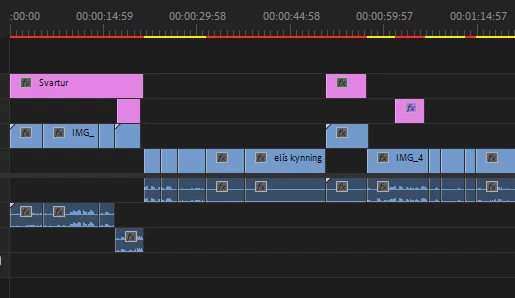


This is how my sequence is. The black color matte is on the top(V4).

This topic has been closed for replies.

6 replies

Christian.Z
Community Expert
Community Expert
January 14, 2023

what are your export settings? can you post a screenshot of that?


Mohammad.Harb
Community Expert
Community Expert
January 13, 2023

Check the visibitlity of the layer's  " EYE icon " it might be turned off !

freyrb15078625
Participating Frequently
January 13, 2023

Hi, I made sure that the layer was not hidden. Thanks though!

Ann Bens
Community Expert
Community Expert
January 13, 2023

Not sure what is what but looks like there are gaps: color matte not long enough.

Show use exactly what is what.


freyrb15078625
Participating Frequently
January 13, 2023

Hi, I made sure that there are no gaps. I noted that the color matte is on V4 (top layer).


V1 is the actual video.

V2 is videos that I am hiding.

V3 is Text

and V4 is the color Matte.

Ann Bens
Community Expert
Community Expert
January 13, 2023

Please show screenshot header timeline.


Peru Bob
Community Expert
Community Expert
January 12, 2023

What effect(s) did you apply to the color matte?

freyrb15078625
Participating Frequently
January 13, 2023

Hi, I did not use any effects, only color matte on the sequence timeline.

Peru Bob
Community Expert
Community Expert
January 12, 2023

Use Black Video instead of a black color matte.

Peru Bob
Community Expert
Community Expert
January 12, 2023

Delete the Media Cache and Media Cache files:
https://community.adobe.com/t5/premiere-pro/faq-how-to-clear-your-media-cache-in-30-seconds-in-premiere-pro-2020/m-p/11017257/thread-id/260446?page=1

If that doesn't work, try resetting the preferences:
https://community.adobe.com/t5/premiere-pro/faq-how-to-reset-trash-preferences-in-premiere-pro/td-p/8236158?page=1

If that doesn't work, try resetting the Workspaces:
Reset a workspace
Reset the current workspace to return to its original, saved layout of panels.
1. Do one of the following:
• Click the Workspace menu icon and select Reset to Saved Layout.
• Choose Window > Workspace > Reset to Saved Layout.
from here:
https://helpx.adobe.com/premiere-pro/using/workspaces.html

If that doesn't work, try Preferences > Audio Hardware and set Input to None.

If that doesn’t work, try updating or rolling back your graphics driver directly from the video card manufacturer’s site. If NVIDIA, do a clean installation of the 517.40 Studio Driver (NOT the Game Driver)

If that doesn't work, try creating a new project and import the old one into it.

freyrb15078625
Participating Frequently
January 14, 2023

Hi again. I have done all the options you listed. So far nothing has been the saving grace. 


I think I'm gonna uninstall and reinstall Premiere Pro again.

Ann Bens
Community Expert
Community Expert
January 14, 2023

Can you upload your project.