
Participating Frequently
March 7, 2022
Question

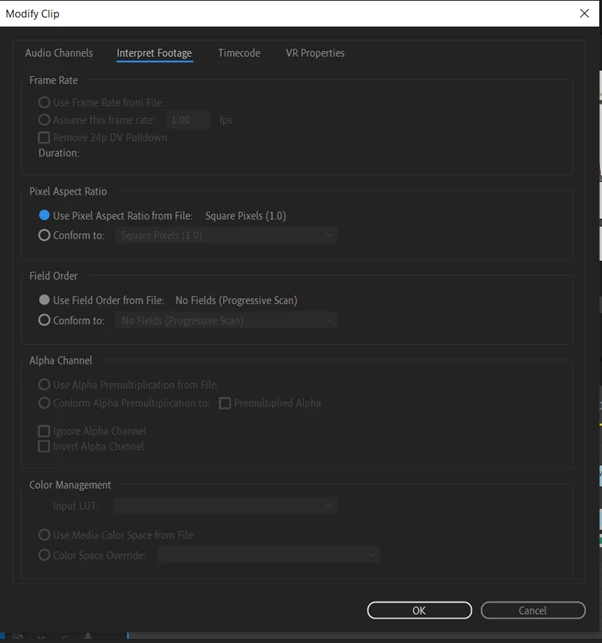
Colour Management is Greyed out in Interpret Footage

  • March 7, 2022
  • 2 replies
  • 25299 views

Hi,


I've been having a major problem with Premiere when moving the final edit of my film to another computer. All of the footage is oversaturated now and it is because they have all been interpreted in the wrong colour space by my computer, I hope this makes sense. 


I want to change the footage to Rec 709 but the Colour Management Section under the Interpret Footage tab is greyed out for most of the video files, not all of them though. I have heard that removing the clip from the timeline would do it but even this doesn't work. 


I hope the problem I have described makes sense, its a very niche and specific issue. 
This topic has been closed for replies.

2 replies

R Neil Haugen
Legend
March 12, 2022

LIke Sumeet says, we need to know the files, and what camera created them also. Which can make a huge difference.


Neil

Everyone's mileage always varies ...
Participating Frequently
March 13, 2022

Will the video file say anywhere the name of the camera that filmed it?

Participating Frequently
September 2, 2022

Yup, you got it "working."  That is how Premiere handles per clip gamma/log interpretations with RAW.  The idea is to set that to whatever it was shot as (it always defaults to interpreting as REC709), and then your project color management will interpret accordingly.  So I know you want REC 709 as your delivery color/gamma, but you would want to set that in your project color managment settings (or turn off color management completely if you are delivering to web), and then on the per-clip color management you select what it was captured as, and then you'll end up with a nice flat baseline to start coloring from.


alright so, I tried uninstalling premiere and had no luck, as well as copying it to a different drive. I tried opening the file I sent on my Gaming PC.  and it gave me the dropdown you both are describing. However still on my mac studio, Premiere does not give me any drop-down. 

Community Manager
March 12, 2022

Hi Jarlath23206630574w,


Sorry to hear about this. Let us know the exact version of Premiere Pro that you are using & the specifications of the media files (format/codec, frame rate & frame size) that needs to be color-managed.


Thanks,

Sumeet

Jake D - JDPS
Participating Frequently
March 12, 2022

Having the same issue.  Seems to mostly be affecting my 444 .mxf and DNxHR .mov files, whether from the camera or from After Effects.  As a sidebar, AE is correctly handling the files and allowing me to apply color management. 


Just updated to PPro 22.2.0 (Build 128) and having the same problems.  It should be noted that these files were unafected in November 2021 when I started work on this project, whichever version I was on then.  (I almost always update to the most recent versions before starting a new project.)


Here's a copy/paste from two of the affected file types I've got:


These are the file properties from the source files:

\A003C002_210419KF.mxf
Type: SonyRAW Format
File Size: 11.73 GB
Image Size: 4096 x 2160
Frame Rate: 24.00
Total Duration: 00:01:46:00
Pixel Aspect Ratio: 1.0
Alpha: None
Creation Date: 2021/04/19, 23:12:50 UTC

SonyRAW File Importer plug-in version: 22.2.0
Decoder mode: CPU (Using: Internal SonyRaw device)

Source Video Format: F55 SQ

Acquisition Metadata:
White Balance: 3200
Auto White Balance Mode: Preset
Exposure Index: 500
ISO Sensitivity: 500
Raw Black Code Value: Not found in file. Using: 512
Raw White Code Value: Not found in file. Using: 5472
Camera Attributes: "MPC-3610 0012279 Version5.00"


These are the file specs from the rendered VFX shots returned from AE2022 using the built-in renderer and DNxHR encoder:

\CR_BARGE_02a_V01.mov
Type: QuickTime Movie
File Size: 1.65 GB
Image Size: 4096 x 2160
Frame Rate: 24.00
Total Duration: 00:00:09:12
Pixel Aspect Ratio: 1.0 (1.0)
Alpha: None

QuickTime Details:
Movie contains 1 video track(s), 0 audio track(s), 0 closed caption track(s), and 1 timecode track(s).

Video:
There are 228 frames with a duration of 1/24th.

Video track 1:
Duration is 0:00:09:12
Average frame rate is 24.00 fps

Video track 1 contains 1 type(s) of video data:

Video data block #1:
Frame Size = 4096 x 2160
Compressor = DNxHR RGB 444 12-bit
Quality = Most (5.00)

Timecode:
Timecode track 1 contains 1 type(s) of data:

Timecode data block #1:
Start Time = 16:13:10:01
Reel name =


Hopefully that info helps.  In the mean time, I'll experiment with re-encoding them as some other format.  So far, 422 ProRes files seem fine, so I'll see if 16 bit 444 ProRes HQX files will work in place of the 444 12 bit DNxHR files I originally encoded.

Jake D - JDPS
Participating Frequently
March 12, 2022

Quick update, the files are also affected in PPro 15.0.0 (Build 41), so perhaps there is something else going on, such as a Windows update that messed things up...