Participant
October 8, 2021
Answered

creating shorter timelines?

  • October 8, 2021
  • 1 reply
  • 276 views

Is there a way to create shorter timelines? When I create a new sequence I get 10+ minutes of workspace.

Just curious.

Backslash is the zoom shortcut, yes.

I work on TV promos, 30 secs mostly. I need two minutes of space, tops.

Thx


This topic has been closed for replies.
Correct answer caroline_edits

Hey there, this is a great question!

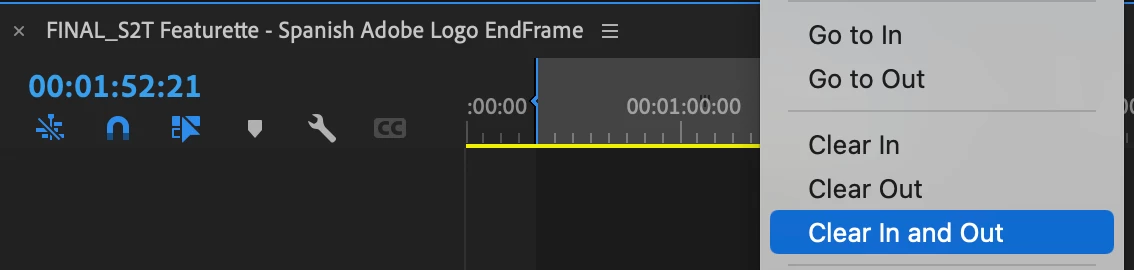
A Premiere Pro timeline can be as long or as short as you want it to be, but there's no specific setting to lock it in at a certain length. You can set "in" and "out" points to identify a work area anywhere in the timeline (doesn't have to start at 0:00) by pressing I on your keyboard for an "in" or start point, and O on your keyboard for an "out" or end point. I do this when working on promos that need to be a specific length! When you export your video, it respects those in and out points as your sequence and ignores the rest, so keep a close eye on them. After setting them, you can clear them by right-clicking within the space and select "clear in and out points." 


I would use the in and out points to identify the sequence length you want. More timeline tips & tricks can be found on our Youtube channel, I particularly like the "tips to edit fast" with Valentina Vee. 


Hope this helps!

Caroline

1 reply

caroline_edits
Community Manager
caroline_editsCommunity ManagerCorrect answer
Community Manager
October 8, 2021

Hey there, this is a great question!

A Premiere Pro timeline can be as long or as short as you want it to be, but there's no specific setting to lock it in at a certain length. You can set "in" and "out" points to identify a work area anywhere in the timeline (doesn't have to start at 0:00) by pressing I on your keyboard for an "in" or start point, and O on your keyboard for an "out" or end point. I do this when working on promos that need to be a specific length! When you export your video, it respects those in and out points as your sequence and ignores the rest, so keep a close eye on them. After setting them, you can clear them by right-clicking within the space and select "clear in and out points." 


I would use the in and out points to identify the sequence length you want. More timeline tips & tricks can be found on our Youtube channel, I particularly like the "tips to edit fast" with Valentina Vee. 


Hope this helps!

Caroline

Participant
October 8, 2021

Thx. It's a minor peave. I'd rather not have to zoom.

J