
Participant
March 14, 2020
Answered

Crop Effect Doesn't Work As It Supposed To

  • March 14, 2020
  • 4 replies
  • 17263 views

Hi!

I feel a bit embarrased, depressed and inferior. You know why? Becase I cannot crop.

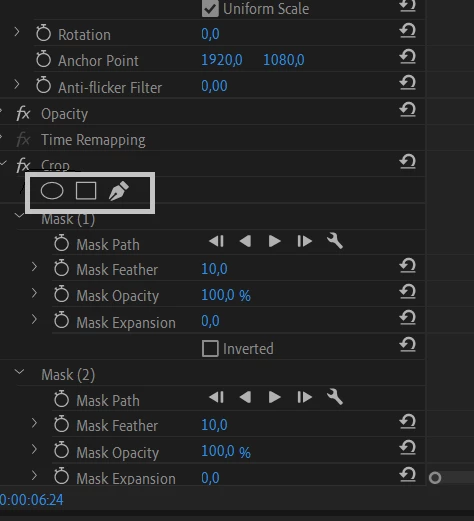
I mean those tools don't work. Just look at the image, you'll see what I mean.

If someone could help me, please, be patient since I'm a beginner , so I'd be really glad if you could post something like go there, click that, etc.

Thanx!
 

    This topic has been closed for replies.
    Correct answer Meg The Dog

    You currently have multiple masks created, is this your intention?

    If not delete those two masks ( 1 and 2), then move the playhead in the timeline to the clip on which you want to create the mask,  double click on the clip in the timeline so that the clip parameters opens in the Effects Controls Panel and the clip is selected.

    Go to the Effects Controls panel, go to Opacity and click once on either the Oval or Rectangle mask shape.

    You should see the mask appear in the Program monitor.

    MtD

    4 replies

    Legend
    March 15, 2020

    if all you want to do is a simple crop to a rectangle shape, why is using the opacity mask effects control any better than simply applying the crop effect?   I use both all the time, but if all I need to do is a "crop," that's what I use.  

    Ann Bens
    Community Expert
    Community Expert
    March 15, 2020

    The crop effect and its mask dont work to gether very well.

    Best is to use masks from opacity.

    Inspiring
    October 19, 2020

    this - this was the answer that solved this for me. Thank you.

    I just stopped trying to use the crappy crop, unfurled opacity, and used the hidden mask tools there and it all worked as expected.

    They should just remove the mask shapes from the crop tool as 1, they are dysfunctional, 2, the same tool exists in opacity and is functional.


    Thanks again!

    Legend
    March 14, 2020

    or do you want to do a simple crop?  go to the effects panel and search for crop and drag it to the clip you want to crop and then go to the effects control panel and adjust the top, bottom, left and right crops as desired.  No reason to feel depressed, etc.  We all got to start somewhere.  Premiere is a very flexible program and on the whole pretty intuitive but it sometimes takes a while to understand the interface.   Post back if you need more help.

    Inspiring
    May 18, 2020

    Twirl open the disclosure arrow to reveal the controls:

    MtD

    Participant
    October 6, 2020

    Hi. I have come this far because I opened my project and all the clipping effects stopped working out of nowhere. But if I take the clips and open it in After Effects they work. Any idea what could be happening? Thank you

    Meg The DogCorrect answer
    Inspiring
    March 14, 2020

    You currently have multiple masks created, is this your intention?

    If not delete those two masks ( 1 and 2), then move the playhead in the timeline to the clip on which you want to create the mask,  double click on the clip in the timeline so that the clip parameters opens in the Effects Controls Panel and the clip is selected.

    Go to the Effects Controls panel, go to Opacity and click once on either the Oval or Rectangle mask shape.

    You should see the mask appear in the Program monitor.

    MtD

    Participant
    March 15, 2020

    Thank you all so much!

    Meg_The_Dog, I did exactly what you suggested and it worked out!

    mgrenadier, Ann Bens, I do appreciate your time and attention