Participant
September 10, 2020
Question

Cross Dissolve only applying to one clip

  • September 10, 2020
  • 6 replies
  • 16705 views

Hi all

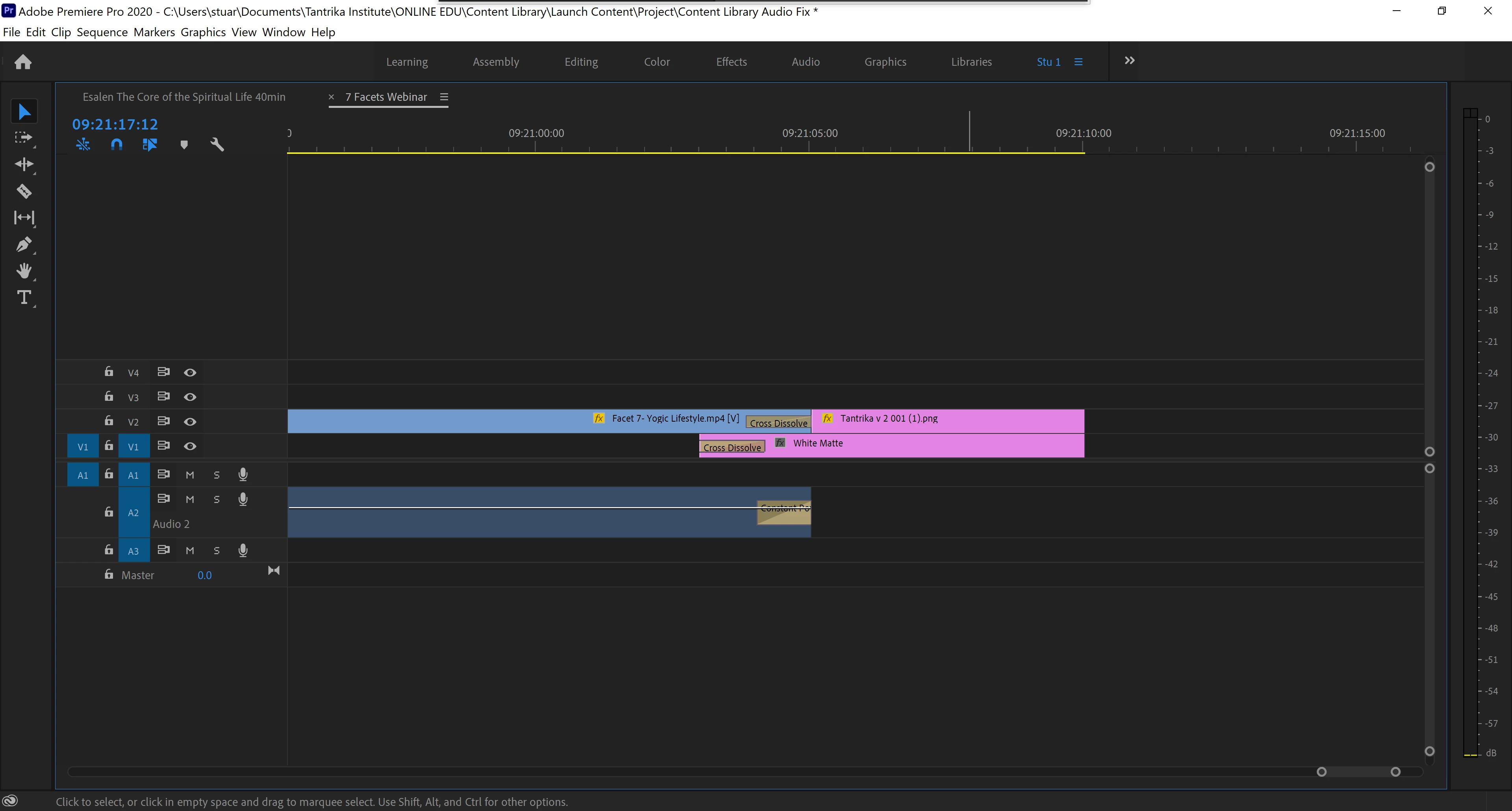
I'm assuming I'm missing something pretty simple but my timeline's suddenly started applying the cross dissolve to the first clip only. What am I missing? See the image below in the V2 track.



6 replies

Richard van den Boogaard
Community Expert
Community Expert
December 28, 2021

I have seen weird things happen to lossy format images before in PPro.


Consider running the PNG through Photoshop and create a PSD file out of it (RGB color space, 72 pixels per inch at the preferred resolution), before importing in PPro.


Please let me know if this solves your issue.

Ann Bens
Community Expert
Community Expert
October 29, 2022

@Richard van den Boogaard 

PPI does not mean anything in video that is for printing.: it's the height and width in pixels that counts.

Warren Heaton
Community Expert
Community Expert
October 29, 2022

@Ann Bens 


Very true, but I find it to be worth mentioning as Photoshop requires that a dpi value be specified with no option for skipping it because the intended use of the PNG is for video editing.

Participant
December 27, 2021

Double click the cross disolve marker on V2. 
Close the duration popup window.
Then, in the Effect Control panel under Alignement, chose "Center at cut". 
Voila. 

Participant
March 21, 2024

Awesome quick tip! Never knew about this. Thanks!

Peru Bob
Community Expert
Community Expert
September 10, 2020

Delete the Media Cache and Media Cache files:
https://community.adobe.com/t5/premiere-pro/faq-how-to-clean-delete-or-trash-media-cache-files/td-p/....

If that doesn't work,try resetting the preferences:
https://community.adobe.com/t5/premiere-pro/faq-how-to-reset-trash-preferences-in-premiere-pro/td-p/8236158?page=1

If that doesn't work, try resetting the Workspaces:
Reset a workspace
Reset the current workspace to return to its original, saved layout of panels.
1. Do one of the following:
• Click the Workspace menu icon and select Reset to Saved Layout.
• Choose Window > Workspace > Reset to Saved Layout.
from here:
https://helpx.adobe.com/premiere-pro/using/workspaces.html

If that doesn't work, try Preferences > Audio Hardware and set Input to None.

If that doesn’t work, try updating or rolling back your graphics driver directly from the video card manufacturer’s site.

If that doesn't work, try creating a new project and import the old one into it.

Peru Bob
Community Expert
Community Expert
September 10, 2020
Ann Bens
Community Expert
Community Expert
September 10, 2020

Clips need handles:

Warren Heaton
Community Expert
Community Expert
September 10, 2020

You are probably using the video clip (Facet 7 - Yogic Lifetyle.mp4) to the media end.  That is, you're using that clip to the last frame.  Assuming that this is the case, you need to set the Out Mark before the clip ends so that that transition has frames to work with.  Try selecting the Ripple Edit Tool, hover over the right edge of the video clip boundary and then click and drag to the left for 12 to 15 frames (more frames allows for a longer transition while fewer allows for a shorter one).


You can also select the Transition and adjust this in the Effect Controls.


This will shorten your edit and you may want to add time back to the tail of the PNG.  An audio adjustment may also be needed.

SkipperWAuthor
Participant
September 10, 2020

This is not the case. It is applying this irrespective of what two clips I place it on. As an example, here is the same clip shortened by a minute with an audio stinger on the end. 

It's been working without issue for the last month and a half. I'm also now expericing an inability to export a file as Premier crashes each time I do, which leads me to believe that there may be a corrupt file nestled in this project...