Participating Frequently
October 23, 2024
Answered

Current Mac OS Compatibility

  • October 23, 2024
  • 1 reply
  • 1001 views

Is Premiere Pro 23 or 24 or 25 compatible Mac OS Ventura, let alone Sonoma, or Sequoia?

Correct answer Warren Heaton

Issues may come up now and again with any software..

Here are the known issues: https://helpx.adobe.com/premiere-pro/kb/known-issues.html

Here are the fixed issues: https://helpx.adobe.com/premiere-pro/kb/fixed-issues.html

The minimum version of macOS required is macOS 12 Monteray.

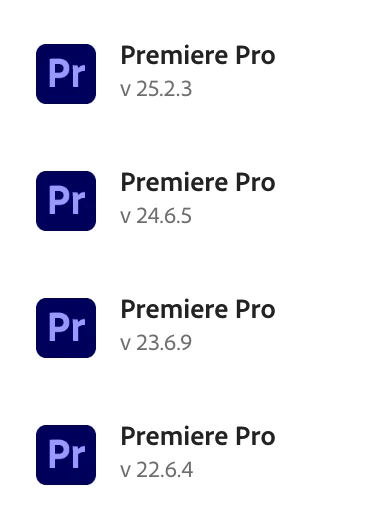
You can have 23.x, 24.x, 25.x and the public beta all installed at the same time.

It's important to note that the current release (25.x) and the prior major release (24.x) are what's officially supported.  Having 23.x or 22.x installed requires having had it from when they were the current releases and have not uninstalled them.  So, if doing a clean install, you'll only be able to choose from 25.x and 24.x.

I have pretty tight deadlines (same day or next day), so I do most of my work in the prior release 24.x; however, I keep the release version before that installed 23.x in case an older project doesn't open as expected or something unexpected happens and the current version 25.x to be ready to move up to it when the next major release drops.


My main work machine  (2019 Intel Mac Pro) is running macOS macOS Ventura 13, my slightly older laptop (16-inch MacBook Pro M1 Max) is running macOS Sonoma, and my newest laptop (16-inch MacBook Pro M4 Max) is running macOS Sequoia.
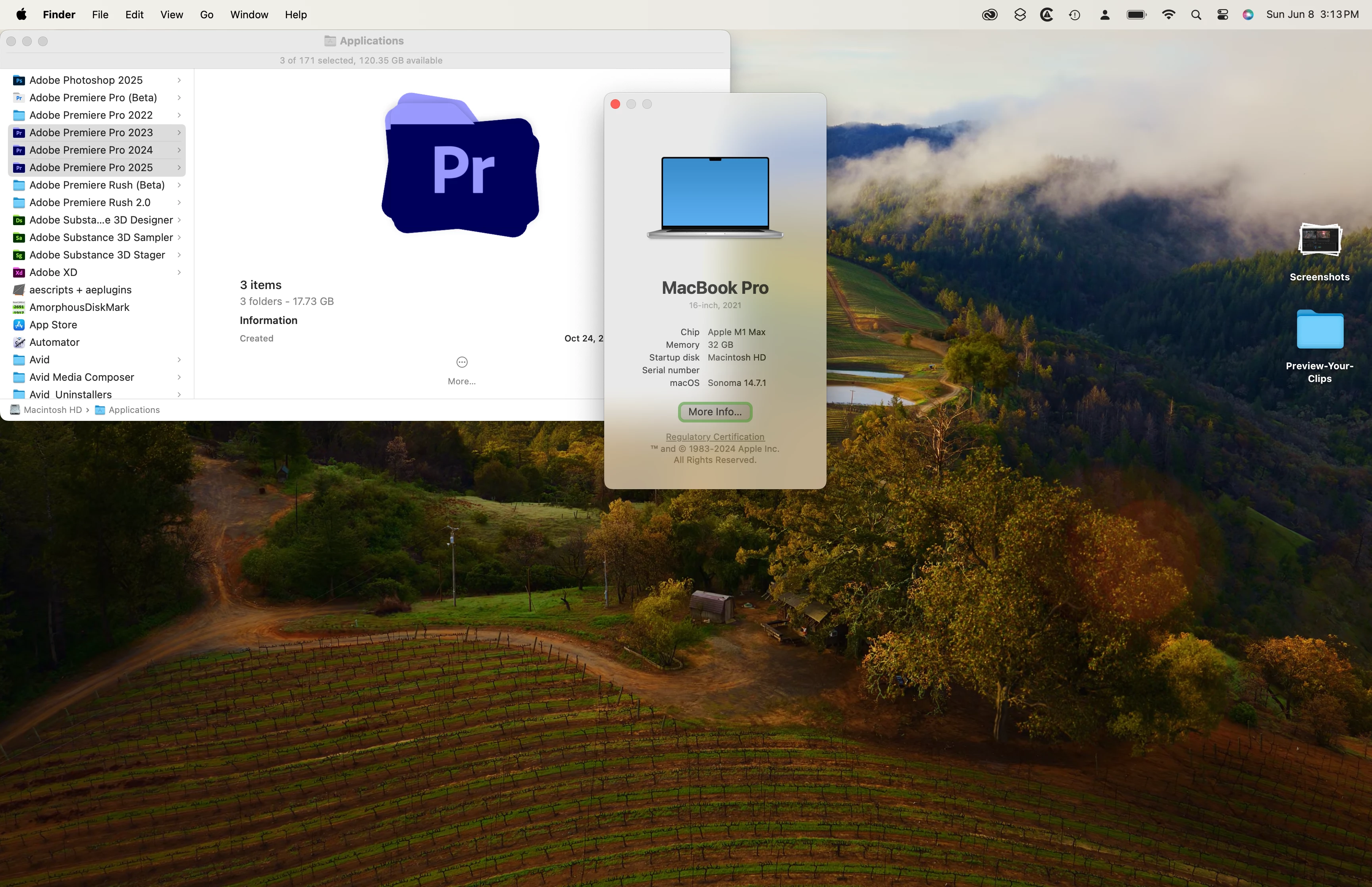
 

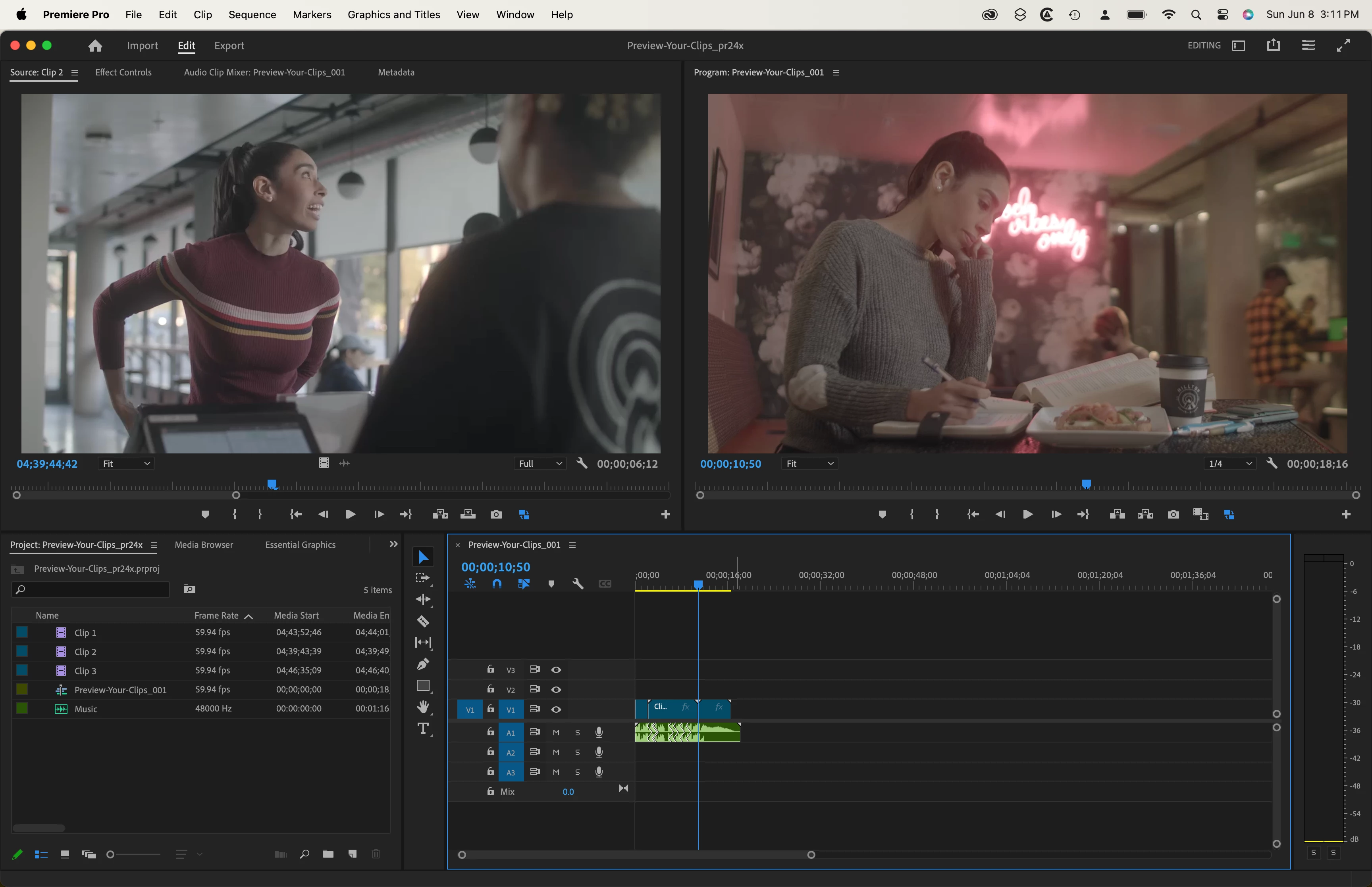
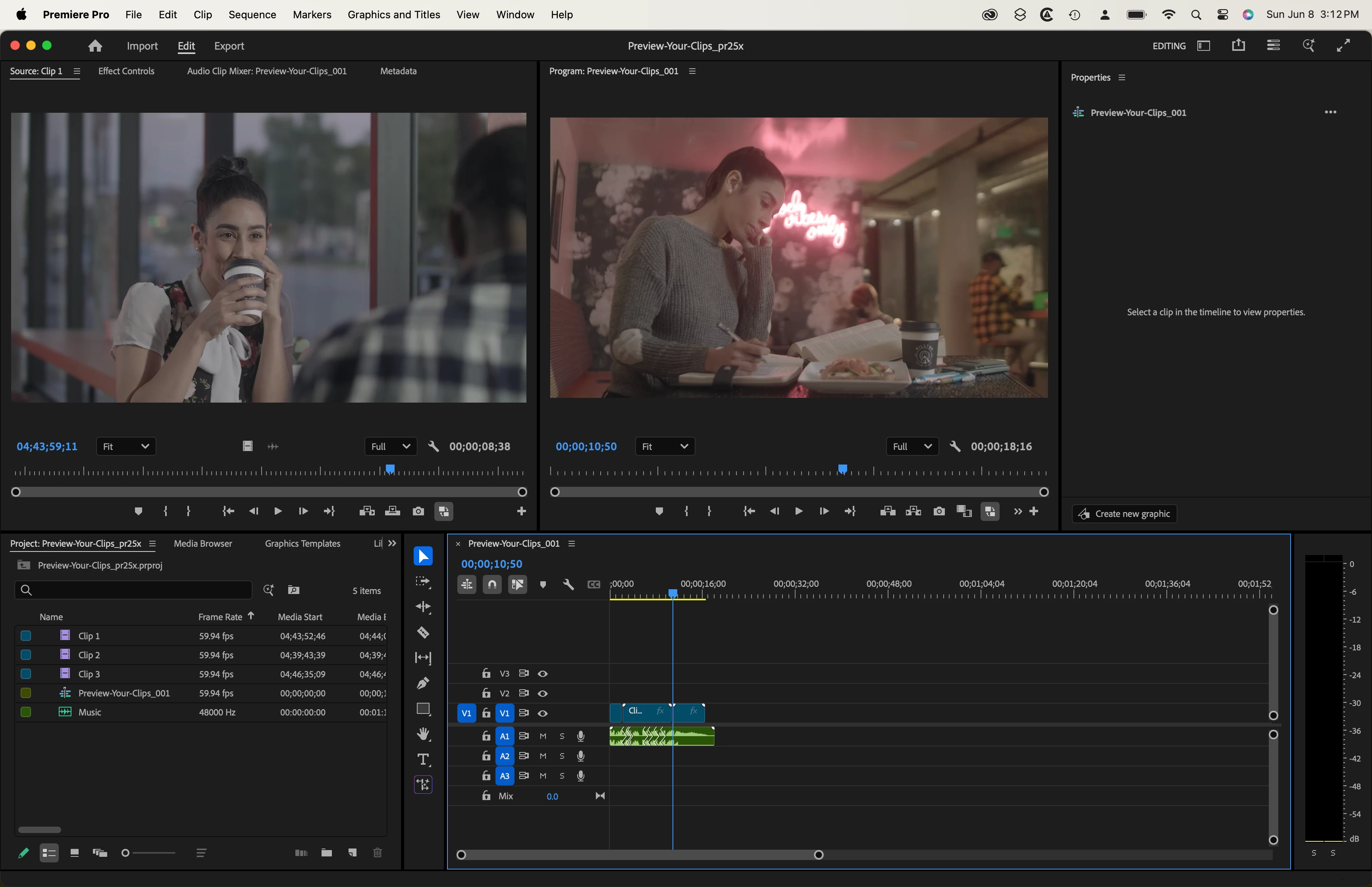
Here are some screen shots of a tutorial project open on the same 16--inch MacBook Pro M1 Max.
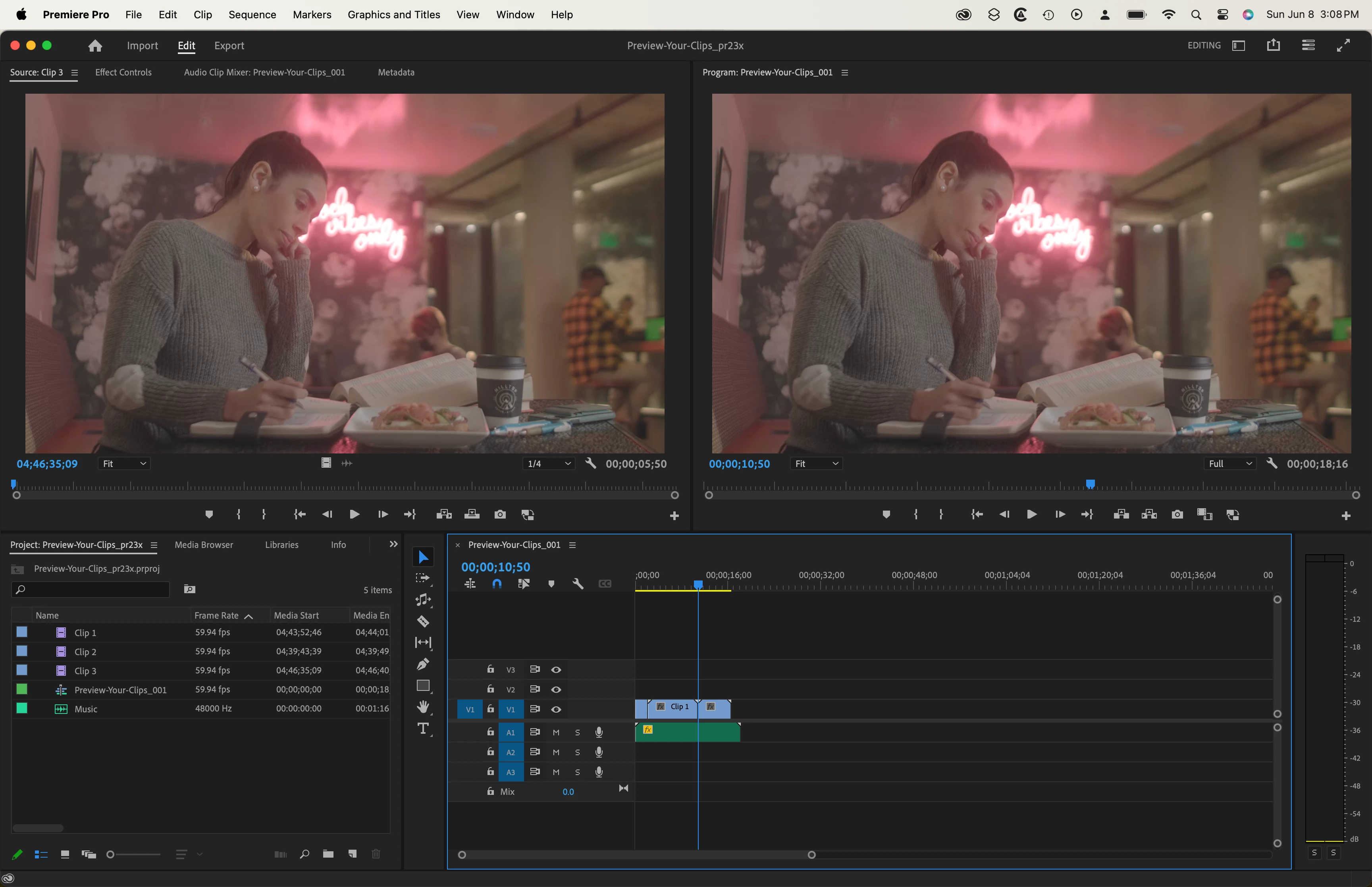


It may be worth mentioning that if you're running Photoshop 2025 (version 26.7) under macOS Ventura 13, you'll get a message recommending that you upgrade to macOS Sonoma 14 to take full advantage of new features.

1 reply

Warren Heaton
Community Expert
Community Expert
June 7, 2025

Yes.

Participating Frequently
June 7, 2025

Thanks.  But just to clarity -- and I should add that I'm working on an M1 Mac from 2020 -- 

PP 23.0 will work on my machine with no compatibility problems in both Sonoma & Sequoia?

And PP 24 will as well?

And PP 25 also?


Thanks.

Warren Heaton
Community Expert
Community Expert
June 10, 2025

I forgot one last thing.  

I'm working on a 2020 M1 Mac Mini, running OS Ventura 13.5.2

If I were to update from Premiere Pro 23 to 24 -- as well as from Ventura to Sonoma or Sequoia -- should I download the PP update first, or the OS first?  Or does it matter?


That should not matter.  I usually stay back at least one major OS release on my work computers.  My laptop that's running Sequoia right now is my personal one and came with it pre-installed.  If you're running Monterey (12) or Ventura (13), it's possible to update to Sonoma (14), but it needs to be done by using a link from the Apple Support web site rather than the System Settings which is going to update to Sequoia (15) and later this summer Tahoe (17, but renumbered to 26).  The links to get an older version of macOS to show up in the Mac App Store are on this Apple Support page.


Run Time Machine before upgrading your macOS.   After upgrading macOS, leave your Time Machine drive disconnected for a few days while you make sure everything is working as expected.  If anything that prevents you from working as expected happens, do a clean install of the prior macOS and then restore from Time Machine.  If your Time Machine drives is fast SSD storage, the down time to do a restore is minimal.  If it looks like your apps are running as expected after the update to macOS, plug the Time Machine drive back in, allow it backup as usual, and continue working.

When when installing 24, be sure to disable "remove old versions".  This will leave 23 and install 24 along side it.  When you open your version 23, Premiere Pro will prompt you to save it as a version 24 project with "_1" appended to the project file name.  I usually  change the "_1" to "_pr24".  Whatever you don't, don't save over the 23 project file with a 24 project file of the same file name.

If you take the approach of installing the new versions of Premiere Pro along side the prior versions, you'll eventually have versions 21, 22, 23, 24, 25, and so forth installed.  Be sure to uninstall the older versions as you go (the uninstaller is located in the same folder as the application).  When uninstalling, you'll be promted to leave settings or remove them.  I'd leave the settings in case you ever need to reinstall the prior version.  It can make it easier to do the reinstall in the first place and gets you as close as possible to where you were when you ran the prior version without adjusting any additional settings or preferences.