
Participating Frequently
August 18, 2017
Answered

CUTS, CUTS EVERYWHERE!

  • August 18, 2017
  • 5 replies
  • 583 views

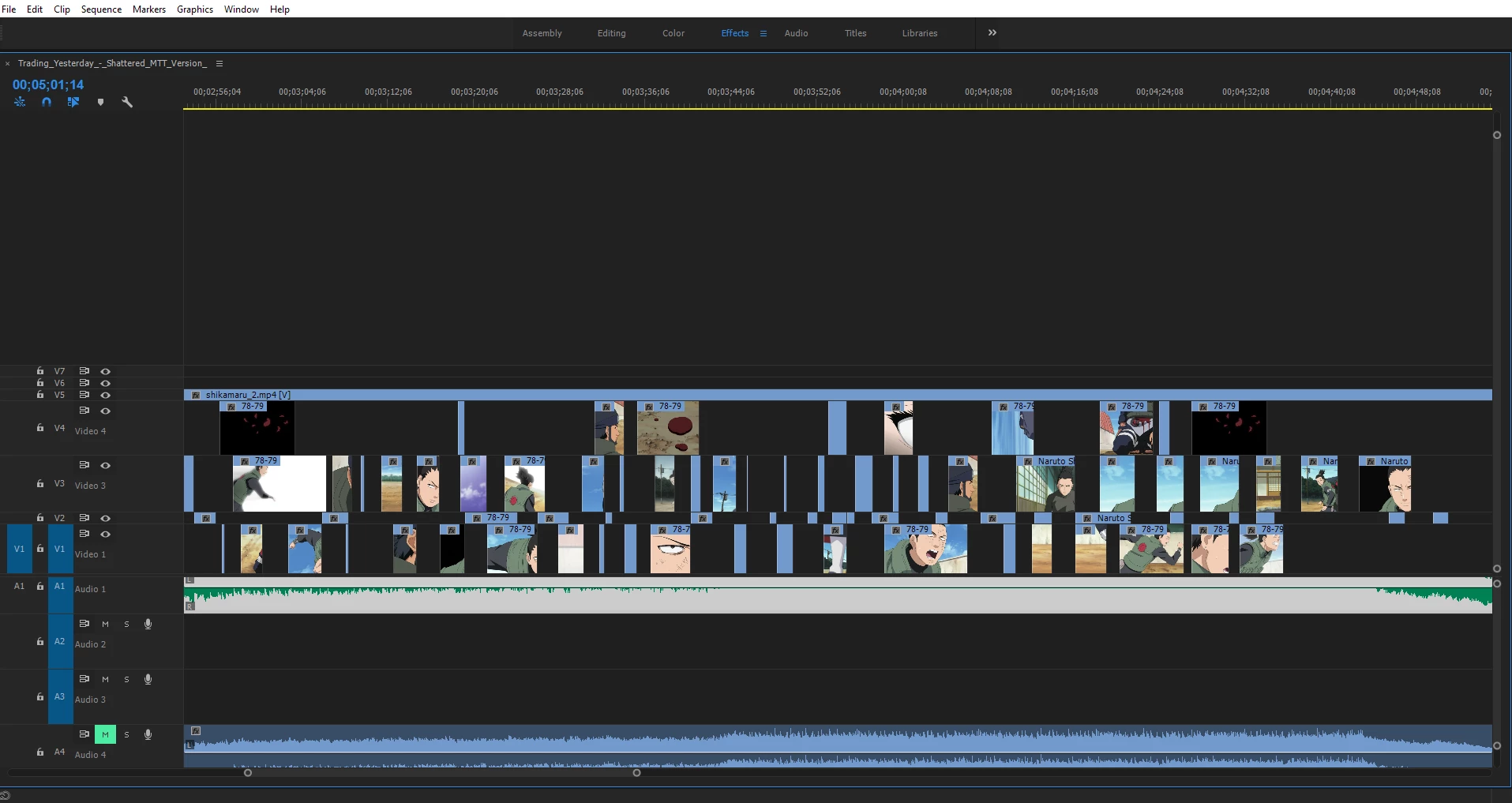
Hi, so as you can see, I had to make cuts from a video to get different part of a clips to make a video. But now, it's just all so messy and I can't find myself anymore. I tried to move the cutted clipped I made into bins but it just duplicate the video I used to make the clip.

Is there a way to save my cutted clipped and be able to organize them somewhere of my editing table?

Sorry for bad english.

I
    This topic has been closed for replies.
    Correct answer R Neil Haugen

    I agree with MtD.

    However, there is one thing that could be of use to you ... that's bringing up clips into the Source monitor, setting an in & out point, then right-clicking the image and selecting "make subclip". You can then name that section of  the clip, perhaps from the action or what a person is saying. Those are saved in the Project panel and can be stored in bins of course.

    Neil

    5 replies

    Participating Frequently
    August 18, 2017

    Thank you, this is what I was looking for. by making a subclip out of it instead of draging it to my timeline. Now I can take the sub clip and put it as a clip in a bin!

    Thanks

    chrisw44157881
    Inspiring
    August 18, 2017

    I think he's looking for <make subsequence> under sequence. shift+U

    Creating Subsequences in Adobe Premiere Pro - YouTube

    Community Expert
    August 18, 2017

    One of mine

    R Neil Haugen
    Legend
    August 18, 2017

    Richard,

    I work my small one-man shop and nothing I've done required this ... density ... of tracks. I occasionally have 2/3 video tracks with a graphic layer ... maybe add in a couple adjustment layers primarily to stack Lumetri ... 3-4 audio tracks ... maybe 7-8 layers total. That's what, 29? And not even showing the audio!

    Makes my head spin just looking at it!

    But that means of course I'd love to look over your shoulder while you work, and learn more ... me being me. Learning & puzzling stuff out is always the funnest part ...

    Neil

    Everyone's mileage always varies ...
    Community Expert
    August 18, 2017

    Basically it is just a large music video multicam, the bottom solid tracks are the complete complete camera angles all in sync. I then just cut out the sections I need and move them to the top of the sequence keeping them on separate tracks to make colour correcting easier. To make thinks simple there is only one 5.1 audio track

    R Neil Haugen
    R Neil HaugenCorrect answer
    Legend
    August 18, 2017

    I agree with MtD.

    However, there is one thing that could be of use to you ... that's bringing up clips into the Source monitor, setting an in & out point, then right-clicking the image and selecting "make subclip". You can then name that section of  the clip, perhaps from the action or what a person is saying. Those are saved in the Project panel and can be stored in bins of course.

    Neil

    Everyone's mileage always varies ...
    Inspiring
    August 18, 2017

    Sorry, it is not apparent to me what your problem is.

    The timeline that you show looks like a normal work in progress timeline to me.

    Could you explain what the problem with the timeline is, and/or what it is you wish to accomplish?

    If the timeline is looking to complex for you to work efficiently, try zooming in to a portion of the time line, so you are only seeing a smaller section of it,  and see if that helps.

    MtD