
Participating Frequently
December 9, 2011
Answered

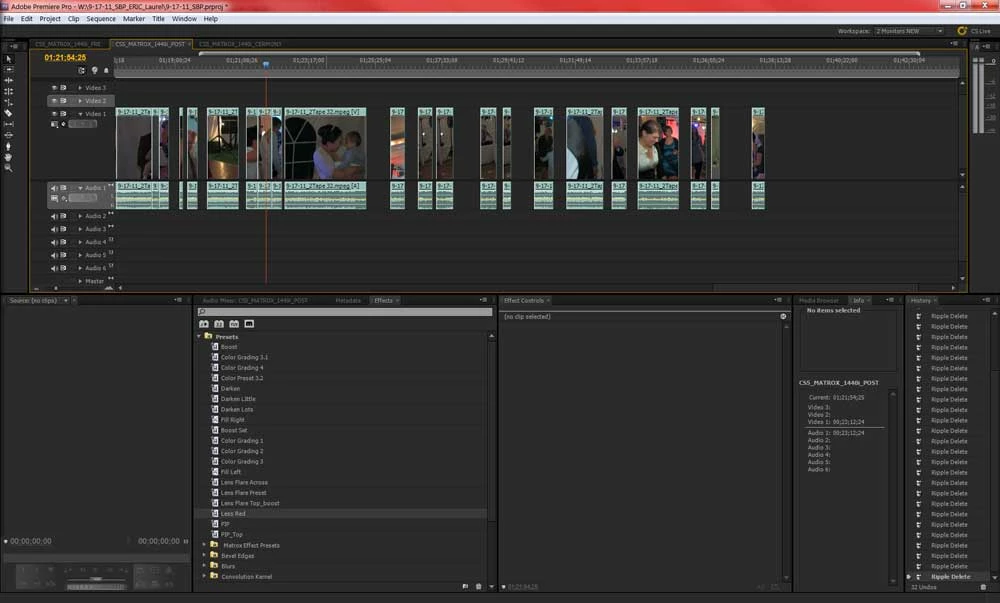
Delete the space between multiple clips, at once, on the timeline?

  • December 9, 2011
  • 8 replies
  • 99327 views

Is there a way to delete the space between multiple clips on the timeline with one click?

I trim clips on the timeline, so I can have a couple hundred clips with space between on the timeline.  Is there a way to delete all the spaces between the clips at once? 

Right now I have to ripple delete the space between each clip, big hassle and a lot of key strokes. Is there a better faster way to trim clips in general?  Or delete the spaces on the timeline?
This topic has been closed for replies.
Correct answer Ann Bens

Thanks Ann, whats this feature called and what menu is it located in?  Can't seem to find it.


Close Gap under Sequence.

8 replies

osullivanstudios
Participating Frequently
October 26, 2021

digabyte
Inspiring
December 29, 2020

Unfortunately, "close gap" often doesn't work properly.  I use this method on a daily basis, and much of the time, if I try and use a "default transition" on clips that are next to one another after the "close gap" method, the default transition is applied to the end of the first and the beginning of the second, not across the transition, because the clips aren't actually touching (usually separated by a single frame of nothing).

bussels
New Participant
December 14, 2018

The Right way to accomplish this if you have chosen to cutup in the timeline is to have your timeline selected and the go to sequence in menu bar and then chose close gap.

New Participant
December 17, 2017

Here is 100% working answer for the problem.

1. Do this what is written below

2. Do the Ann's trick in the merged clip sequence

3. Return all gap-closed clip parts from the newly formed merged clip sequence to your original sequence

MERGING VIDEO CLIPS

To combine video clips there is something called Nested Sequence.

A very powerful technique. When adding clips to a timeline you are working in what is called a sequence (normally named Sequence 01), drop your two clips into your timeline and rename your sequence 01 to something like 'My day trip to the market'.

Select a different video clip and drag and drop it onto the 'new item' button. Bottom right of the Project window. That would create ANOTHER sequence which you can rename as your 'master sequence' from what would probably be called 'sequence 02'.

Now you can drag and drop your original sequence like a clip INTO your master sequence. And tada.

The wonderful thing about nested sequences is you can go back and re-edit it and it would update in all your other sequences where you use it.

MERGING AUDIO AND VIDEO (original answer regarding merging audio and video)

Import your clips into the project. Select your video and audio clips (so they are both selected) Right click and 'Merge Clips...' It will ask to sync on in (start of audio and video) or out (end of audio and video). Click ok and you would now have a merge file of both your video and audio clips that you can manipulate as a single clip.

Hope that helps.

December 9, 2011

Yes, you want to use ripple delete and you will not have ths problem. Before I learned ths I had to trim like you are doing and then right click and select ripple delete. Take or setup a text sequence and play around with ripple delete and the other tools. Each one as it uses and can help speed up editing.

John Gerard

able123
Inspiring
December 9, 2011

wow, ann tutorial very cool... did test and worked great.

the_wine_snob
Inspiring
December 9, 2011

Have you seen Ann Bens' Gap Removal TUTORIAL?

Good luck,

Hunt

Participating Frequently
December 9, 2011

Hi Hunt,

Thanks for sharing, Ann has an amazingly clever little trick that would solve our friend's issue easily!

Jeff

the_wine_snob
Inspiring
December 9, 2011

I agree. When she first posted that, I was amazed how simple it was to use, so bookmarked it for use by others.

Now, PrE has a built-in function for Deleting All Gaps, but it's limited to only Video, where there is no overlaying Video, or underlying full Audio. Those two situations will keep PrE's function from doing anything with the gaps.

To Silverfox, welcome to the forum, and hope that Ann's method cleans up those gaps for you.

Good luck,

Hunt

Participating Frequently
December 9, 2011

No automated way of removing gaps. I use "In, Out, Extract", but maybe you could avoid creating the gaps in the first place?
When trimming clip ends on timeline, hold the CTRL key and this will ripple things so no gap is created.

Jeff Pulera

Safe Harbor Computers

able123
Inspiring
December 9, 2011

only way i know is what youre doing...ripple delete each one

shooternz
Brainiac
December 9, 2011

The fast way to edit and avoid your issue is to edit the clips in the source monitor and insert or overlay them to the timeline from there.

(There are a number of ways to insert or overlayclips ).

Using the Razor in the timeline for trimming and editing  is slow.  Tidying up the mess adds more time.

The Razor Tool  is for splitting clips.

If you are actually trimming clips by dragging the ends of them.  Use Ctrl Drag to ripple the edit as you go.

Participating Frequently
December 9, 2011

I have not used the source monitor much. Can I use the sourse monitor to make a lot of cuts "clips" out of one big clip?  Say I want to take the highlights out of a long wedding ceremony?  Or do I need to do this one the timeline.  Edit clips on the timeline is very intuitive to me and I can do it fast, except for all the spaces betweent the clips.

shooternz
Brainiac
December 9, 2011

I have not used the source monitor much. Can I use the sourse monitor to make a lot of cuts "clips" out of one big clip?  Say I want to take the highlights out of a long wedding ceremony?  Or do I need to do this one the timeline.  Edit clips on the timeline is very intuitive to me and I can do it fast, except for all the spaces betweent the clips.

Absolutely ( and I wouldnt do it any other way because it is designed for ease and speed)

Try it:

1.Target a Video and Audio track in the timeline

2. Place the long source file in the Source monitor.

3. Locate the  first highlight and Set In and Out Points  ( KBD Shortcut "I' and "O")

4.Then Insert it to the timeline ( KBD "," )  

Note: there are a number of ways of sending the selection to the timeline (eg.Insert / Overlay buttons, drag it to the Program Monitor, drag direct to the timeline). You can also take video only, audio only, both. Darg options have modifier keys for insert / overlay ripple-ing

Back to the source monitor (step 2)  and mark next highlight selection....repeat steps...etc.....

Ensure your CTI (playhead) is always at the end of the last clip in the timeline.  KBD short cut "End" and you will have no gaps to deal with.