Participating Frequently
February 4, 2021
Answered

Dip to black uses transparant layer

  • February 4, 2021
  • 5 replies
  • 5505 views

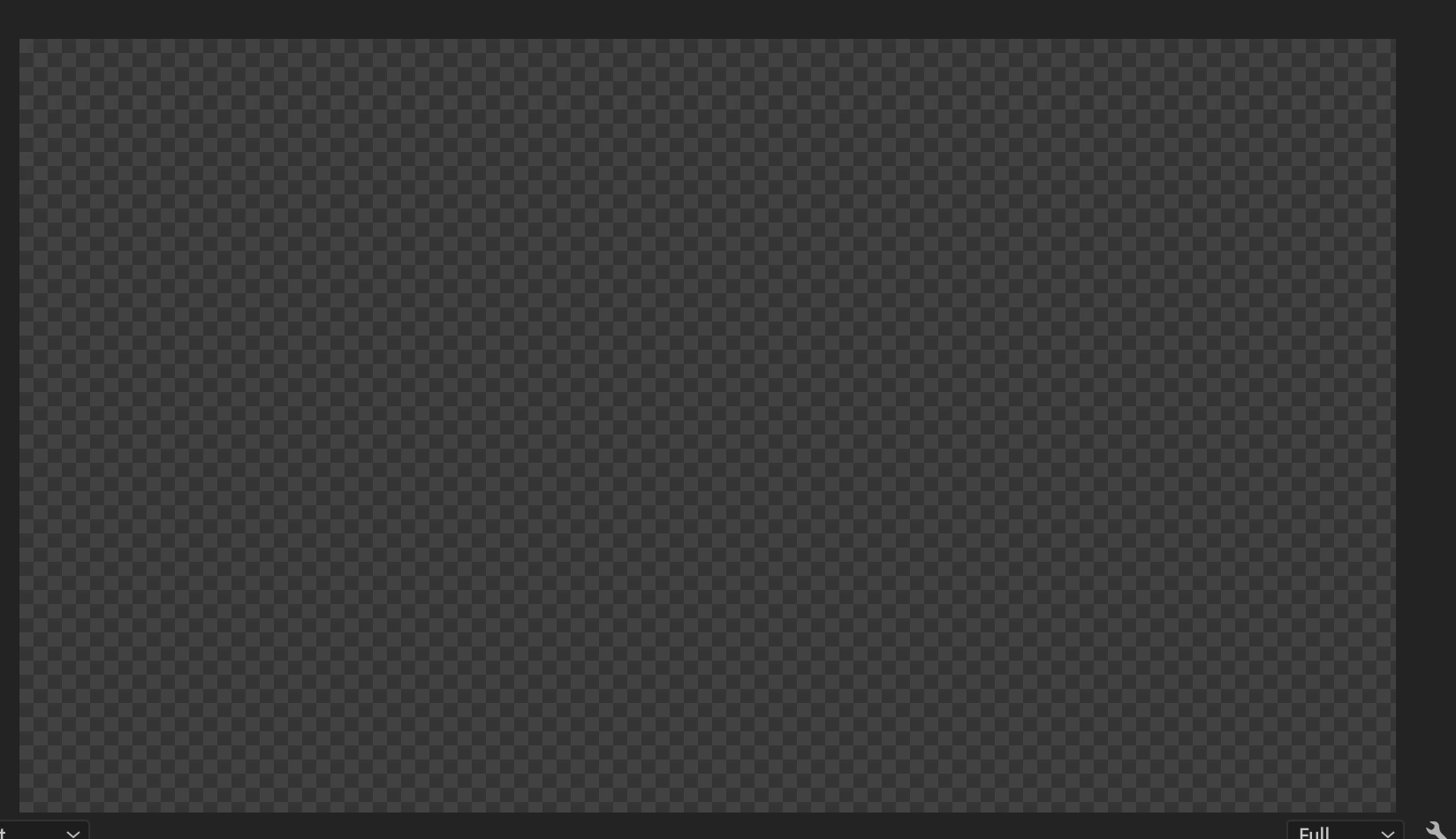
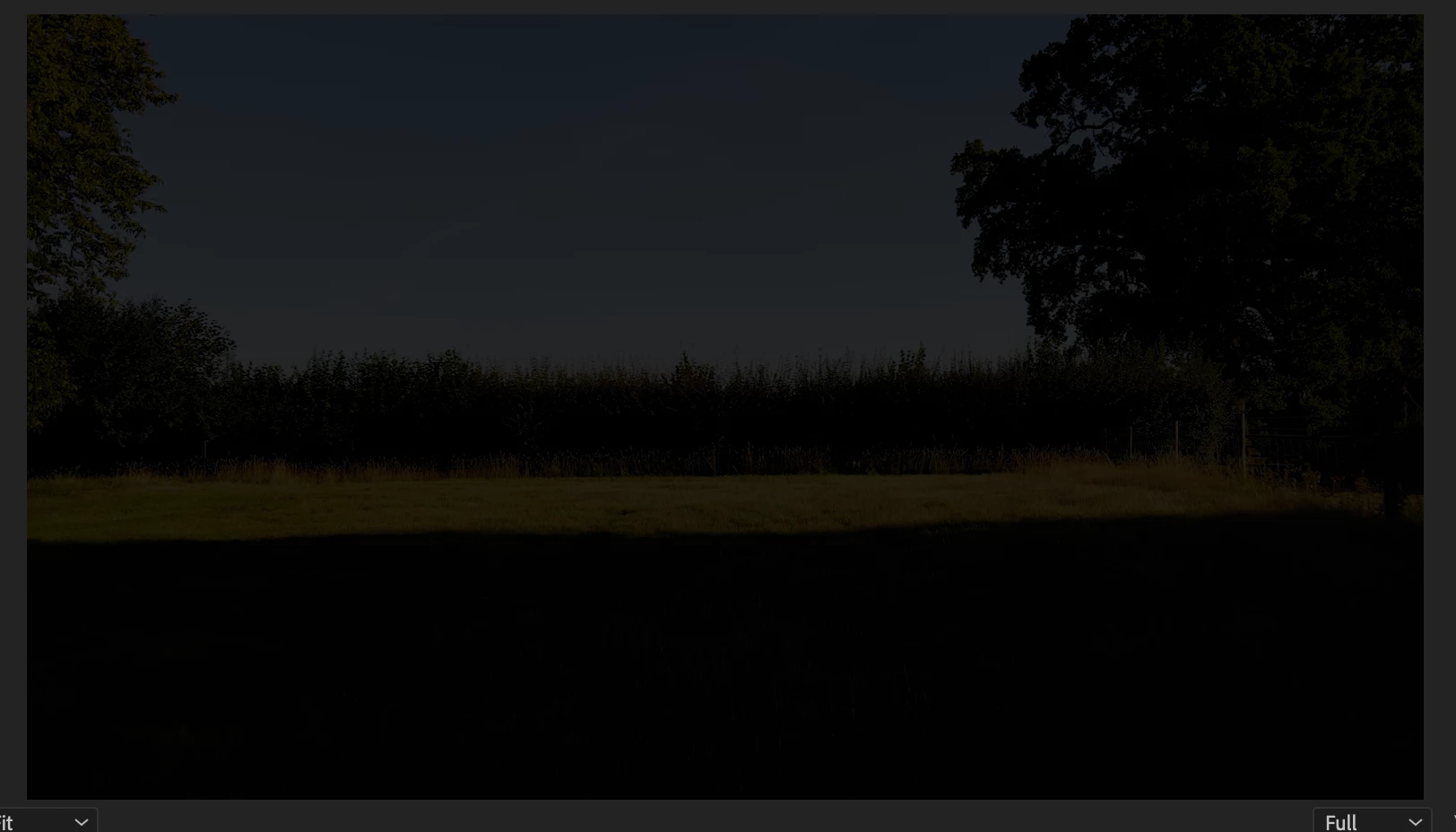
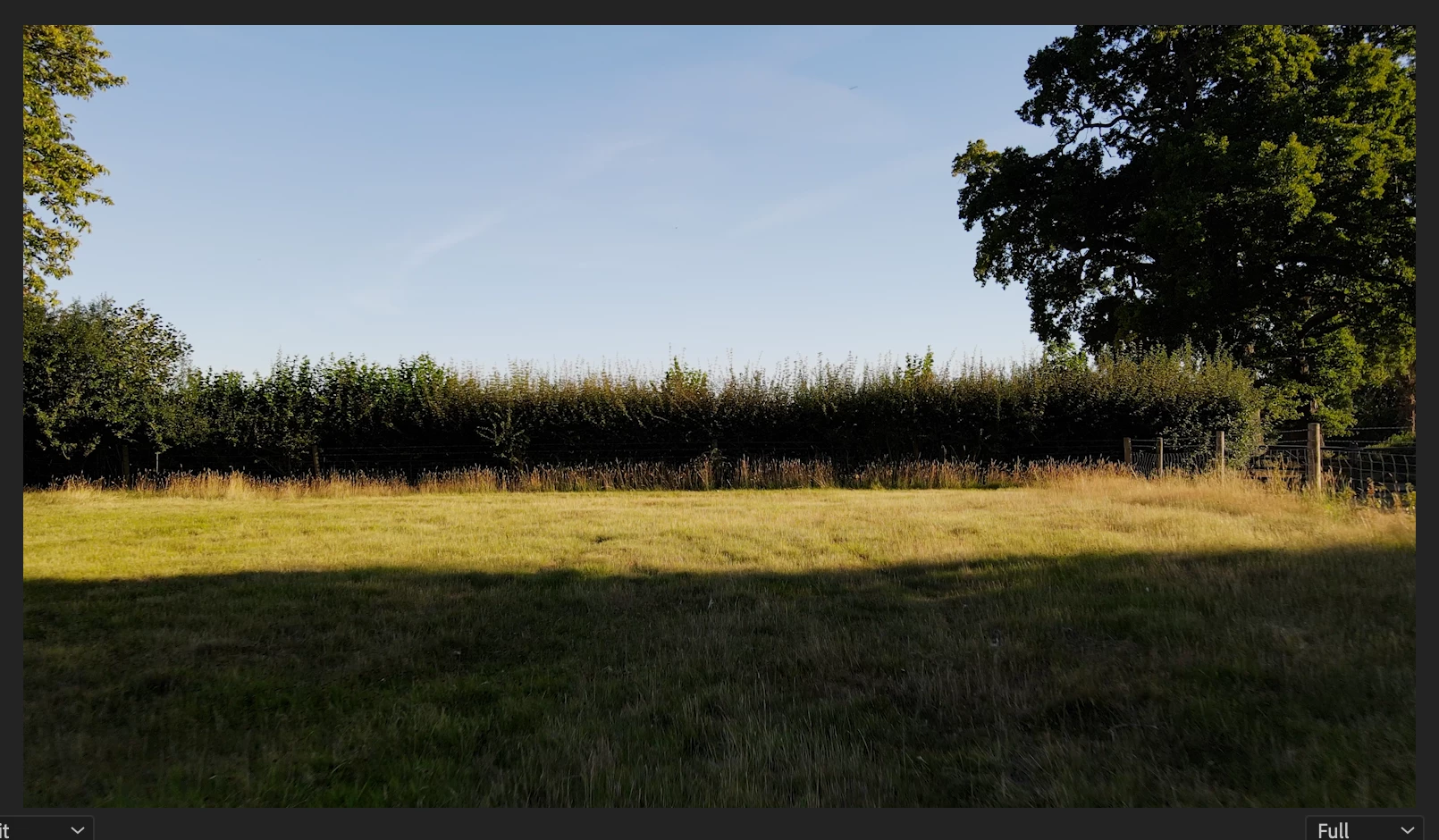
For some reason when im using Dip to Black, like i have done many times before, at the end of a clip or the start (not as a transition between clips) it goes from black ( the time line with no video playing) to transparent before fading into the video as the screen shots below demonstrate.

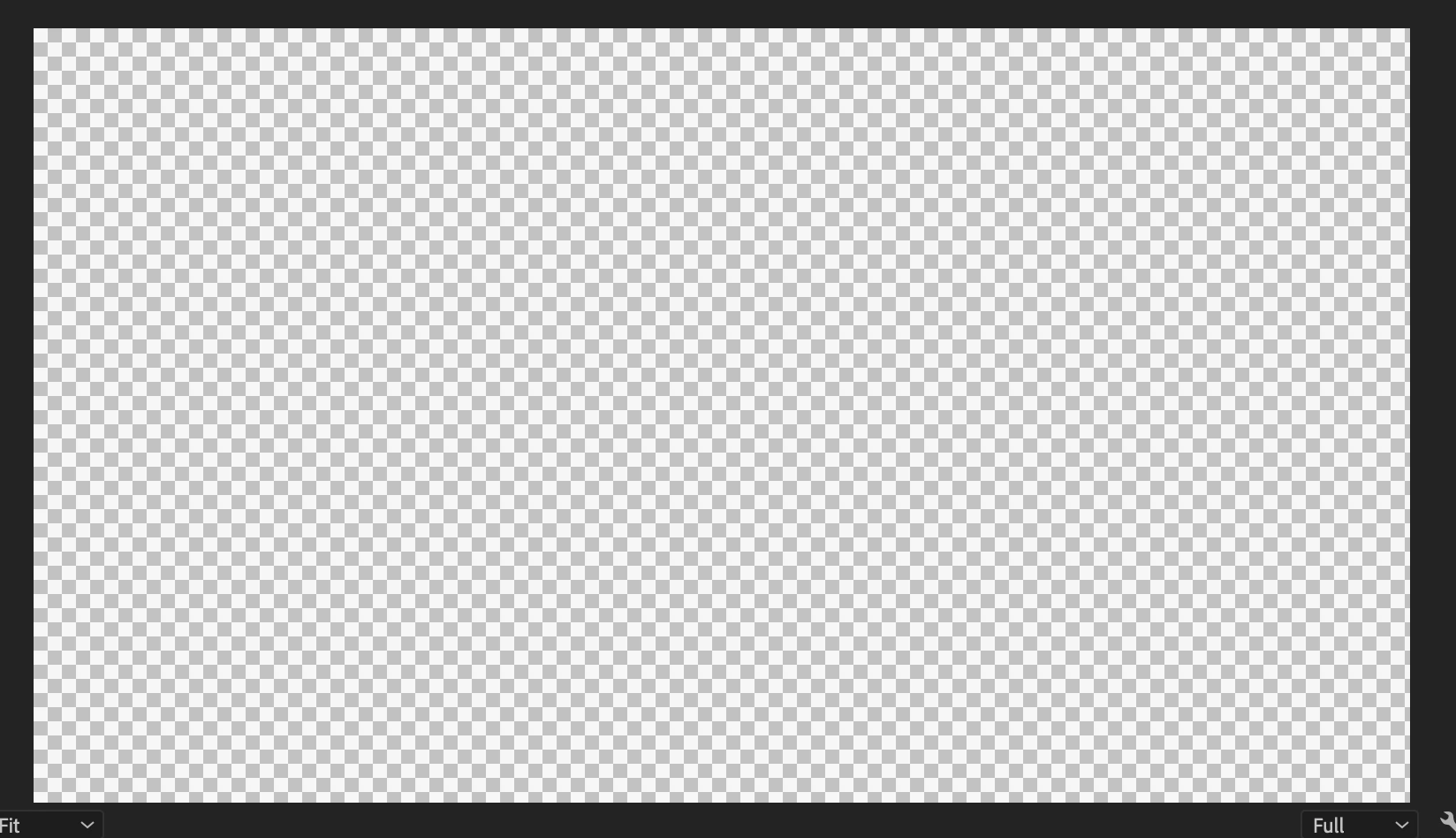
This has never happened before and I don't believe ive changed any preferences either. It would be greatly appreciated if anyone could trouble shoot this. As a temporary fix ive used a black colour matt with a cross fade between clips but id much rather the dip to black effect to work normally.

Many Thanks,

Harvey      

Correct answer Battlelore1988

Hi,

I also had this problem today, never experienced it before. I deleted all Cache Files, unchecked Composite in linear color in the sequence settings ... nothing seemed to help. Was a bit frustrated. Then, I looked through the "Program" window setting (preview of timeline) and found "Transparency Grid" checked. I unchecked it and - well, no more transparency 🙂


So, if you just have this turned on and are wondering why transitions fade into a transparency - that's the reason. Hope I can help.

5 replies

Kevin-Monahan
Community Manager
Community Manager
September 8, 2023

Hi @harvey5CB7,

Thanks for the note. You are wondering why the Dip to Black transition dips to transparency. Right? Strange. I see black not transparency. Normally, fades from black or to black should be done with the standard Dissolve transition or with Opacity keyframes in my experience. Can you try a straight Dissolve? Let me know if that works for you. Sorry for the frustration.


Thanks,
Kevin

Kevin Monahan - Sr. Community and Engagement Strategist – Adobe Pro Video and Audio
Battlelore1988Correct answer
Participant
October 5, 2023

Hi,

I also had this problem today, never experienced it before. I deleted all Cache Files, unchecked Composite in linear color in the sequence settings ... nothing seemed to help. Was a bit frustrated. Then, I looked through the "Program" window setting (preview of timeline) and found "Transparency Grid" checked. I unchecked it and - well, no more transparency 🙂


So, if you just have this turned on and are wondering why transitions fade into a transparency - that's the reason. Hope I can help.

Participant
March 13, 2024

Thanks a lot. It works.

Ann Bens
Community Expert
Community Expert
February 5, 2021

Dip to black is designed to be used as a double sided transition not as a single sided transition.

If there is no underlaying video/image or whatever just use a cross dissolve.

Peru Bob
Community Expert
Community Expert
February 5, 2021

Adobe says this:

 However, you can also apply a transition to just the beginning or end of a clip, creating a single‑sided transition, such as a fade to black.

here:

https://helpx.adobe.com/premiere-elements/using/transition-basics.html

Ann Bens
Community Expert
Community Expert
February 5, 2021

Its basicly wrong but if you want to use it as a single sided transition that is fine by me.

You just have to look at the way its designed.

It does not change transparancy until halfway the transition.

Inspiring
February 4, 2021

a long time ago there were issues like this and a solution was to generate black video ( faster than your current fix ) and just drag that BELOW your clip and shrink it to fit the same time period... it won't matter how exact it is cause everything above it will be visible instead of the lower level of black video.. the only problem is you have to move your main timeline to v2 and put black video on v1... 


this was a fix for several issues but related to yours.


Peru Bob
Community Expert
Community Expert
February 4, 2021

Also, if that's not it:


Please use the free MediaInfo and post a screenshot the properties of your media in tree view:
https://mediaarea.net/en/MediaInfo

Many users are having issues with VFR. If the file is variable frame rate, use Hand brake to convert to constant frame rate:
https://handbrake.fr/downloads.php
Here is a tutorial:
https://www.youtube.com/watch?time_continue=34&v=xlvxgVREX-Y

Peru Bob
Community Expert
Community Expert
February 4, 2021

Try unchecking Composite in linear color in the sequence settings.


If that doesn't work, delete the Media Cache and Media Cache files:
https://community.adobe.com/t5/premiere-pro/faq-how-to-clear-your-media-cache-in-30-seconds-in-premiere-pro-2020/m-p/11017257/thread-id/260446?page=1

If that doesn't work,try resetting the preferences:
https://community.adobe.com/t5/premiere-pro/faq-how-to-reset-trash-preferences-in-premiere-pro/td-p/8236158?page=1

If that doesn't work, try resetting the Workspaces:
Reset a workspace
Reset the current workspace to return to its original, saved layout of panels.
1. Do one of the following:
• Click the Workspace menu icon and select Reset to Saved Layout.
• Choose Window > Workspace > Reset to Saved Layout.
from here:
https://helpx.adobe.com/premiere-pro/using/workspaces.html

If that doesn't work, try Preferences > Audio Hardware and set Input to None.

If that doesn’t work, try updating or rolling back your graphics driver directly from the video card manufacturer’s site. If NVIDIA, do a clean install of the latest Studio Driver (NOT the Game Driver).

If that doesn't work, try creating a new project and import the old one into it.

Also, please help us help you:
https://community.adobe.com/t5/premiere-pro/faq-what-information-should-i-provide-when-asking-a-question-on-this-forum/td-p/3929027?page=1

Participating Frequently
February 5, 2021

amazingly detailed and helpful answer, resetting preferences seemed to do the job