
Participant
May 18, 2024
Question

Distorted and out of proportion clips and videos

  • May 18, 2024
  • 2 replies
  • 693 views

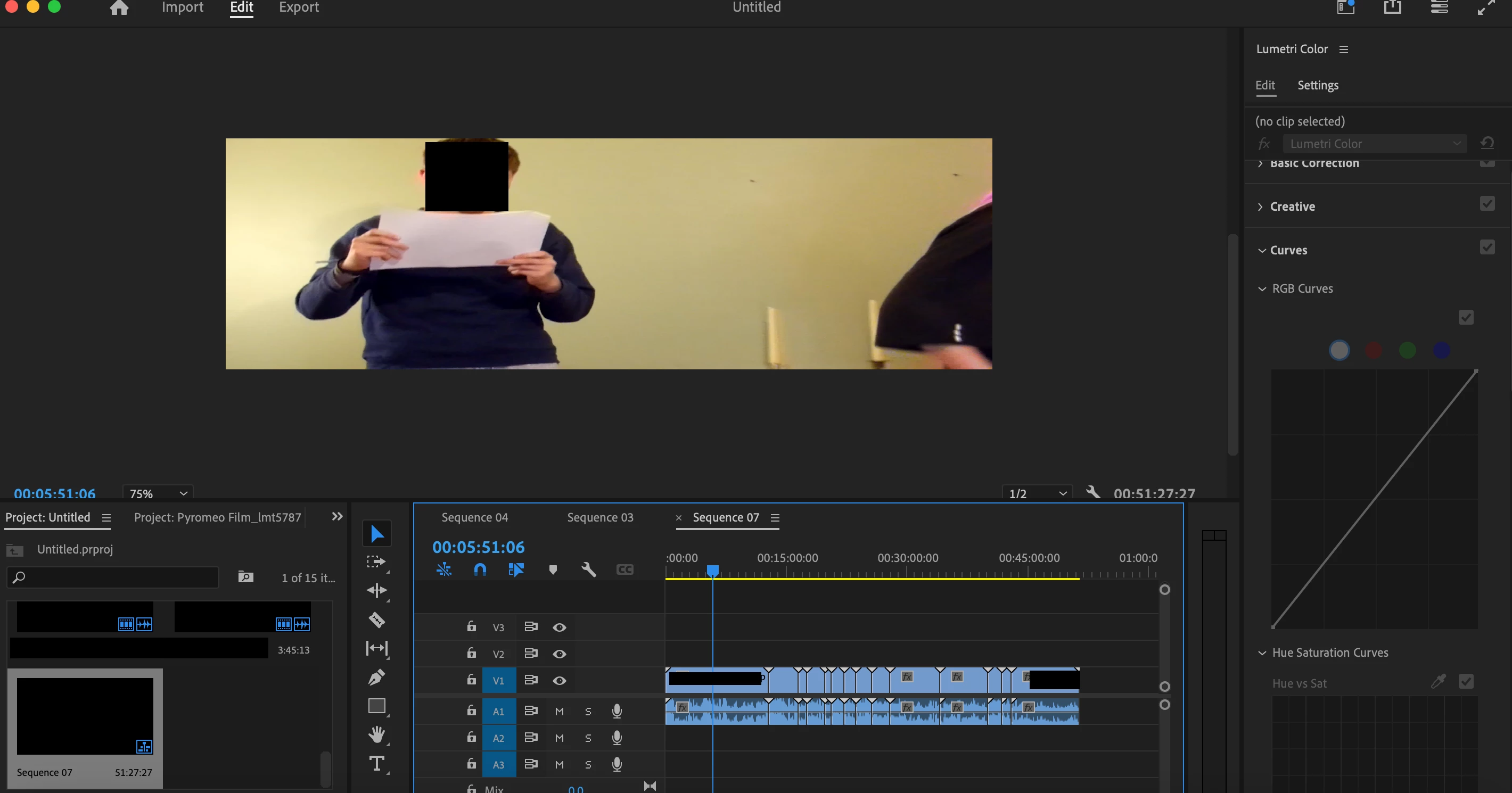
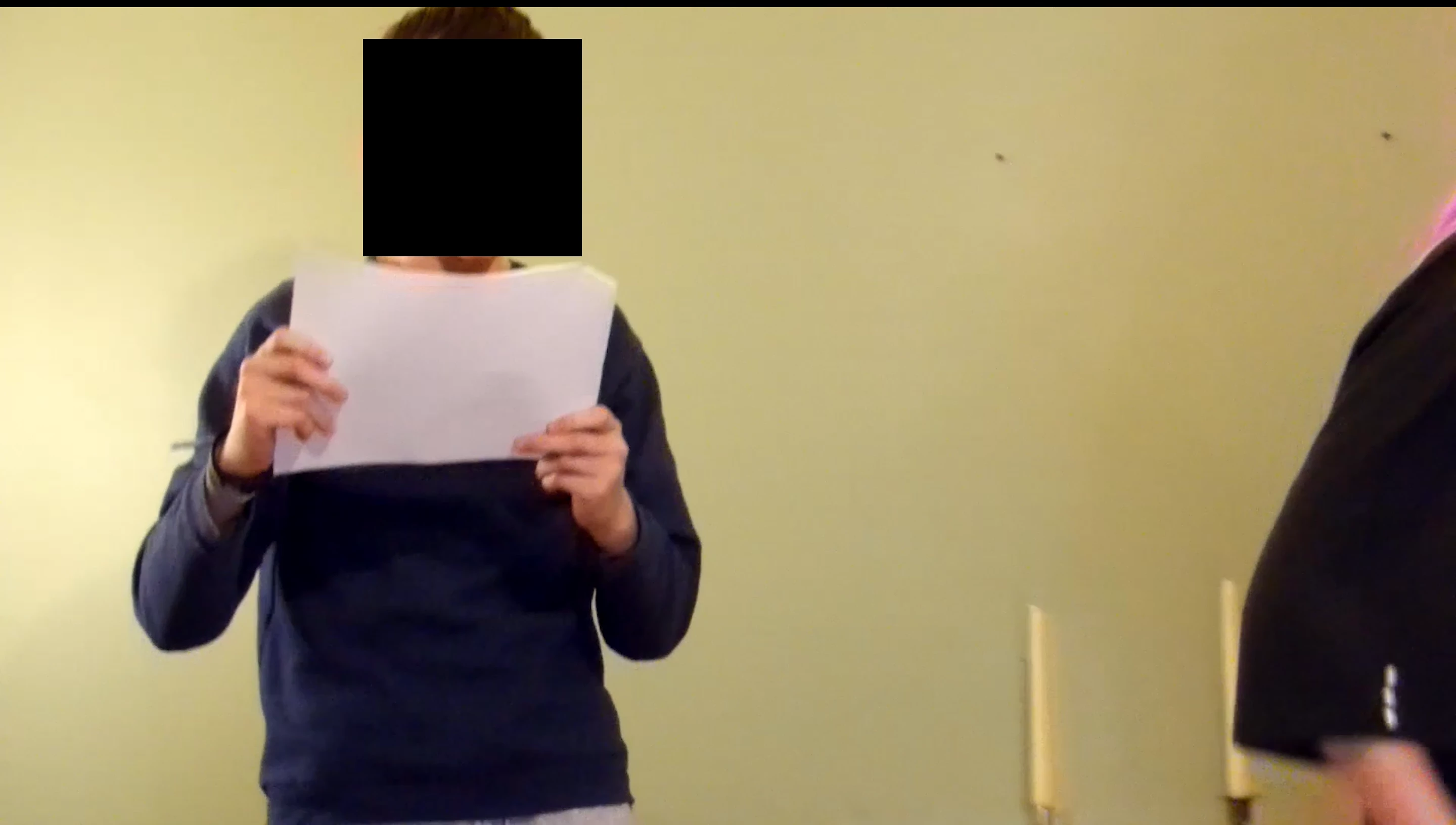
Any time I insert a video or photo into Premiere Pro, it squishes down the clip, giving it distorted, rectangular look. I have aligned the ratios and pixels accurate to the original clips, however, I still have this issue. When in view mode, it goes back to the original size, but I'm wondeirng how to have align it while actively editing.
 

This topic has been closed for replies.

2 replies

Community Expert
June 5, 2024

Hello, 


Here’s a guide without using quotation marks.

Guide: Creating a Sequence from a Clip

Open Adobe Premiere Pro and create a new project or open an existing project.

Import Your Clip:

  • Go to File > Import or press Ctrl+I (Windows) / Cmd+I (Mac) and select the video or photo you want to use.
  • Alternatively, you can drag and drop your clip directly into the Project panel.

Create Sequence from Clip:

  • In the Project panel, locate your imported clip.
  • Right-click on the clip and select New Sequence from Clip.
  • This action creates a new sequence that matches the frame size, frame rate, and aspect ratio of your clip.

Guide: Creating a Sequence with the Right Aspect Ratio Manually

Open Adobe Premiere Pro and create a new project or open an existing project.

Import Your Clip:

  • Go to File > Import or press Ctrl+I (Windows) / Cmd+I (Mac) and select the video or photo you want to use.
  • Alternatively, you can drag and drop your clip directly into the Project panel.

Create a New Sequence Manually:

  • Go to File > New > Sequence or press Ctrl+N (Windows) / Cmd+N (Mac).

Choose the Right Sequence Preset:

  • In the New Sequence dialog box, go to the Settings tab.
  • Set the Editing Mode to Custom.
  • Match the Frame Size (horizontal and vertical) to your clip's resolution. For example, if your clip is 1920x1080, set the Frame Size to 1920 horizontal and 1080 vertical.
  • Ensure the Pixel Aspect Ratio is set to Square Pixels (1.0) unless your clip uses a different pixel aspect ratio.

Set Frame Rate:

  • Set the Timebase to match your clip's frame rate (e.g., 24, 25, 30 fps, etc.).

Save the Sequence:

  • Name your sequence and click OK.

Insert Your Clip:

  • Drag your clip from the Project panel to the Timeline. The clip should now fit perfectly within the sequence without distortion.

By following these steps, you can ensure that your clips are displayed correctly in Adobe Premiere Pro, without any distortion or aspect ratio issues.

T-Sal
R Neil Haugen
Legend
May 18, 2024

You didn't give some rather important information ... the media framesize, how you created the sequence, and the sequence framesize. Normally if you "create sequence from  clip" it matches the framesize/rate of the clip.

Everyone's mileage always varies ...