
Participant
July 14, 2017
Answered

Edited MP4 file size increases dramatically after being shortened

  • July 14, 2017
  • 3 replies
  • 22706 views

Warning: I know my way around CC's audio, photo, publishing, and website applications, but I am pretty much hopeless when it comes to Premiere. So I hope that somebody will be able to give me a clue in plain English what's going on here and how to fix it.

I've been asked to edit a WebEx presentation to remove periods when nothing is happening. WebEx has an editor, but it can't edit WebEx ARF files. The WebEx player can export its ARF files as MP4 files and I started with a file that's 169MB (the presentation is about 1 hour 45 minutes in length). After trimming about 30 minutes from the file in Premiere Pro, I exported it and the resulting file is 975MB (nearly 6 times the size of the original).

There are no effects, just cuts. The resulting video is 1 hour 10 minutes.

Source: 1024x768, 8fps, with 8000Hz stereo soundtrack.

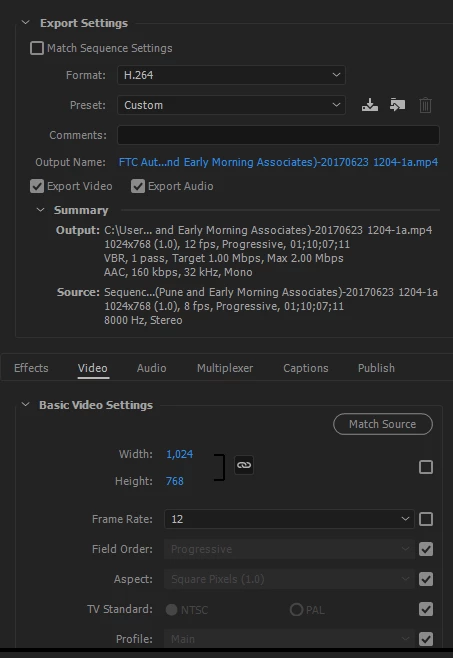
Output: H.264, 1024x768, 10fps (it's a drop down, so I can't enter 8), bitrate VBR (1 pass), target/max bitrates 10/12 (based on what I've read on the forum, I suspect that this is what I need to change), audio AAC 32KHz mono (medium quality).

I tried changing the target/max bitrate to 4 and 6. The "estimated file size" is 2086MB and the actual rendered file is 869MB.

I tried changing the target/max bitrate to 1 and 2. The "estimated file size" is 581MB and the actual rendered file is 717MB (better, but still 4 times the size of my original file).

My objective is to create an MP4 file that can be stored on a corporate server for use by those who need the training and to keep the file size close to the original. Experimenting with essentially randomly selected values is a problem because the computer I use was never intended to be used for video editing and each pass takes 15 to 20 minutes.

So I hope somebody recognizes what clueless newbie error I'm making.

Thanks!
    Correct answer RobShultz

    I recommend downloading Media Encoder from Creative Cloud Account.

    Media Encoder has a pre-set with this frame size for h.264.

    When you have Media Encoder installed you can click Queue from Premiere's Output window (the one that you just showed a picture of.

    In Media Encoder the lower left will show the pre-set area the one that you want is under Devices/Apple.

    When queued your footage to media encoder it sent it to the Queue panel in the upper right side of Media Encoder.

    Youi can drag the preset from the preset panel on the the blue lettering/path in the Queue panel. That will apply that pre-set.

    You can also change the path under output file in the Queue panel.

    These optimized pre-sets work very well and will probably accomplish what you what you need. Plus they're easy to use.

    3 replies

    Participant
    March 23, 2023

    Old thread same issue.   A 1 hour, 300mb video pulled into PPro, no editing, bitrate changed to 10 and file size increases to 8GB upon export, even using Media Encoder.  If the bitrate is set at 4, the file size is 4GB .... still GREATLY increased.  Is there SOMETHING inherent in PPro that automatically exponentially increases the size, even with no editing?  My computer has no problem processing the files, that not  the issue.  I just takes a whole night to upload to youtube.   Why the increase with no editing?

    rich clement
    Participating Frequently
    March 23, 2023

    I routinely edit webinar recordings of 60-90 minutes and set the bitrate to .5 since it's just slides. That still gives a usually too large file, so I upload it to Youtube and then download it, and magically it comes back to the almost original file size with no less of resolution.

    R Neil Haugen
    Legend
    March 24, 2023

    The quick way to really check image Q changes is to put the new file on V2, above the old one, matching to the frame.


    Now set the Blend mode on V2 to difference  ...aand any changes at all will be shown on the screen, the pixels that are the same will be black.


    I think that's the process.


    Been a bit since I di this, and I'm not at the computer to check.


    Neil

    Everyone's mileage always varies ...
    Legend
    July 15, 2017

    File Size = Bitrate x Duration.

    if you want a smaller file, you need a lower bitrate, a shorter program, or both.

    jonash4074380
    Participant
    April 13, 2021

    Is there already a solution to this issue? To me this seems to be a massive bug.

    R Neil Haugen
    Legend
    April 13, 2021

    PrPro uses certain practices within the formats/codecs and you have control over much of it. Like any other app, PrPro uses the encoding parameters the engineers are comfortable with for the quality/perfomance issues as they see them.


    So as noted by Jim Simon, for the most part, filesize = bitrate x duration.You can lower the bitrate or with some codecs raise the compression somewhat.


    Yes, other applications that specialize in encoding can and do run with smaller file-sizes in H.264 encodes. As I've heard the engineers tell people at NAB, there are some apps that are even freeware, and you are welcome to take a file from PrPro and re-encode in those to drop the eventual filesize.


    From the way they comment, I don't think the engineers are planning on internally adopting the practices that get those small file sizes though. Technically, it's not at all a bug ... it is something resulting from a conscious choice by the development team for the performance parameters they value. The engineers don't tend to like the super-compressed format/codec combinations because quality control at very high compression gets to be problematical at some point. They'd rather err on a bit larger file size than other parameters.


    Some users disagree ... which is normal. Humans disagree on basically everything anyway. I certainly disagree with the engineers on some things. I disagree on a lot of things with the all-important M&E (marketing & experience) track people within Adobe who actually run the 'show' based on their metrics. The product teams work under the M&E people of course.


    And your mileage will always vary.


    Neil

    Everyone's mileage always varies ...
    RobShultzCommunity ExpertCorrect answer
    Community Expert
    July 14, 2017

    I recommend downloading Media Encoder from Creative Cloud Account.

    Media Encoder has a pre-set with this frame size for h.264.

    When you have Media Encoder installed you can click Queue from Premiere's Output window (the one that you just showed a picture of.

    In Media Encoder the lower left will show the pre-set area the one that you want is under Devices/Apple.

    When queued your footage to media encoder it sent it to the Queue panel in the upper right side of Media Encoder.

    Youi can drag the preset from the preset panel on the the blue lettering/path in the Queue panel. That will apply that pre-set.

    You can also change the path under output file in the Queue panel.

    These optimized pre-sets work very well and will probably accomplish what you what you need. Plus they're easy to use.

    Participant
    July 17, 2017

    Thanks, Rob, that's very helpful. I still have a file that seems like it's a lot larger than it should be, but it's less than half the size of my previous attempt. Clearly I still have a lot to learn about the family of video applications, but I now know more than I did last week.

    Lokesh378
    Participant
    February 2, 2018

    You are not alone. I have used Premier pro fora long time, but I have never yet been able to match file size of the original clip. Just like you, today I added a 3 second intro to add company logo to a screen capture video which was about ~13MB. After tinkering around for hours, and going thorugh endless online opinions, and advice, the closest I got was ~144MB with bitrate at 3. At bit rate of 1, it was still at 38MB. I was using the latest (v12.0 today). Premier does something to the files and there just needs to be a simple conversion for quick exports which gives you 1 to 1 output as the original. Unfortunately since we have Adobe CC, we are married to it.

    I must say that the previous versions, and I have used it since 2009, I have never quite experienced this big of a jump.