Inspiring
August 14, 2024
Answered

Emulating large screen TV pixelation

  • August 14, 2024
  • 1 reply
  • 2035 views

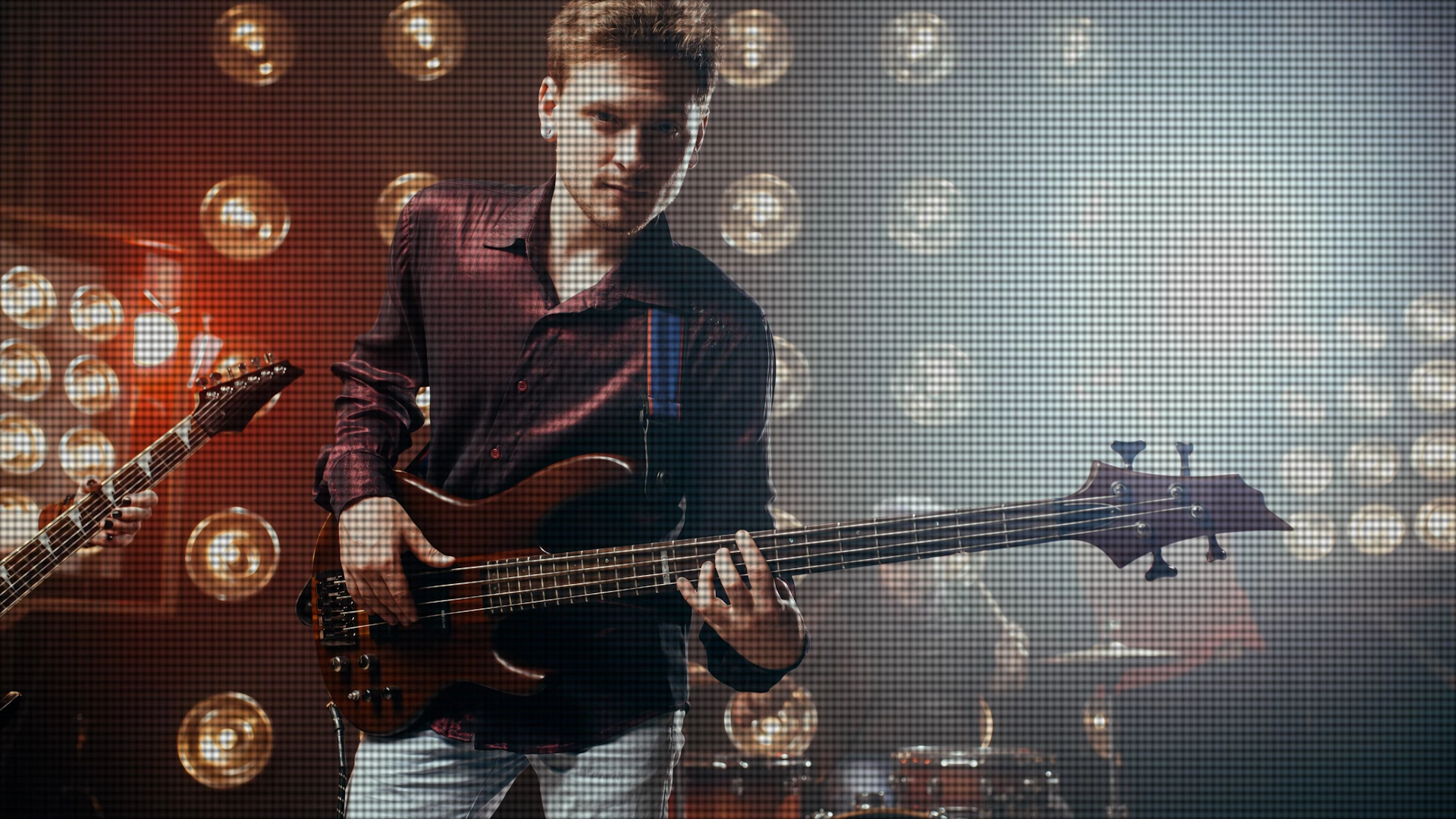
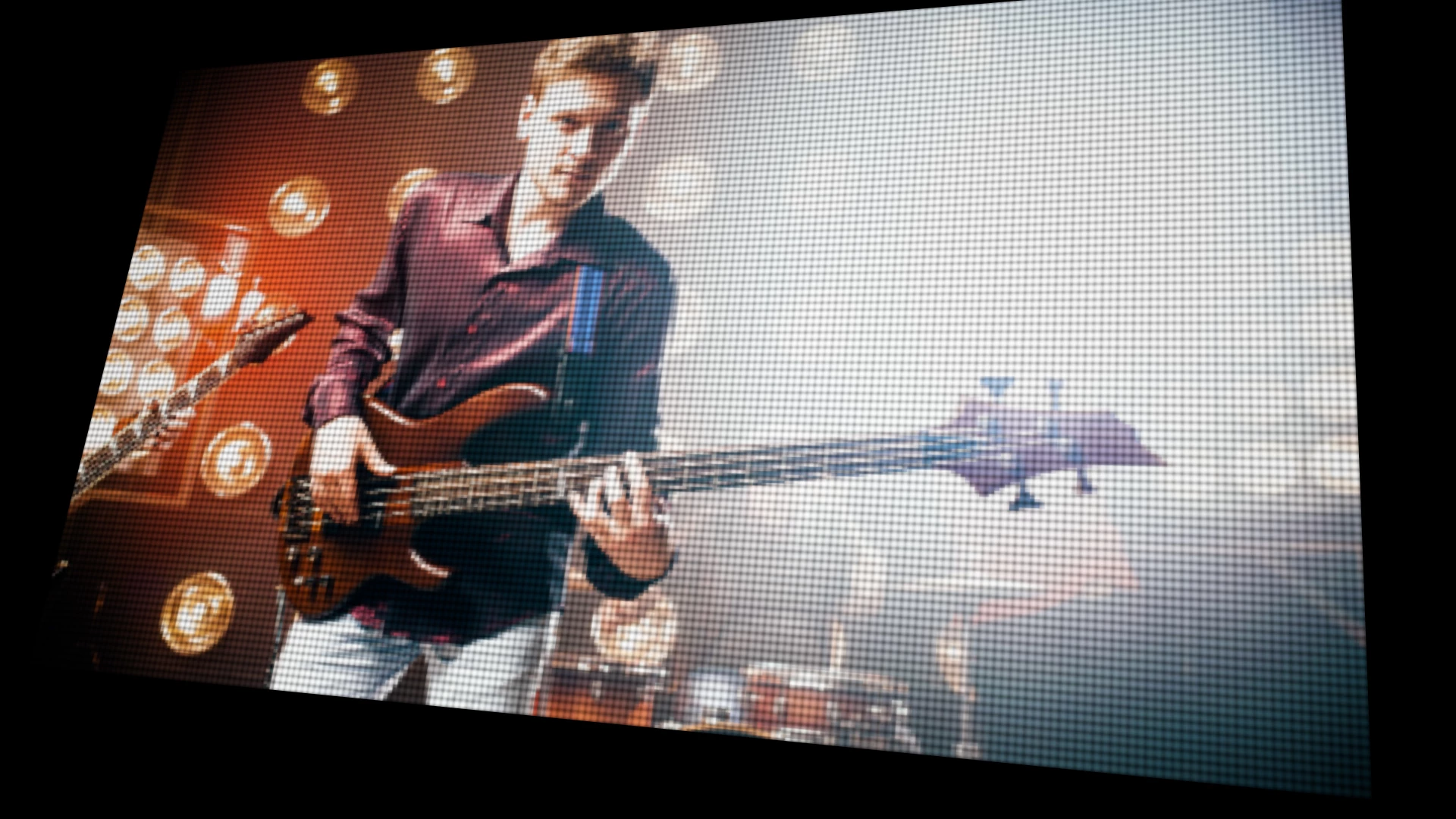
I'm working on a project, where I need to take a video animation I created, and make it look like it is playing on a giant 16' x 9' screen behind a band playing live music at a concert. The camera angle in my scene will be about 15' from the video wall, and for realism the screen would ideally display the sort of subtle pixelation you see when video is displayed on a large screen.  Are there any tricks I can do to make the footage have realistic video screen pixelation? I want it to be subtle. Any ideas are appreciated.


Just for clarity, I've already filmed the band playing against a green screen, and I will be compositing the video animation behind them.
This topic has been closed for replies.
Correct answer PaulMurphy

Here’s how I would emulate a large screen TV pixelation effect in Premiere Pro:

Add LED Dots:

  1. Create a new sequence.
  2. Go to Graphics and Titles > New Layer > Rectangle.
  3. Set its color to black and resize it to fill the screen.
  4. Go to Graphics and Titles > New Layer > Ellipse.
  5. Set its color to white, and set its Height (H) to match the Width (W).
  6. Add the Mirror effect to the Essential Graphics panel.
  7. In the Effect Controls, find the effect and set its Reflection Center to half the sequence width (e.g., if your sequence is 1920 wide, set it to 960).
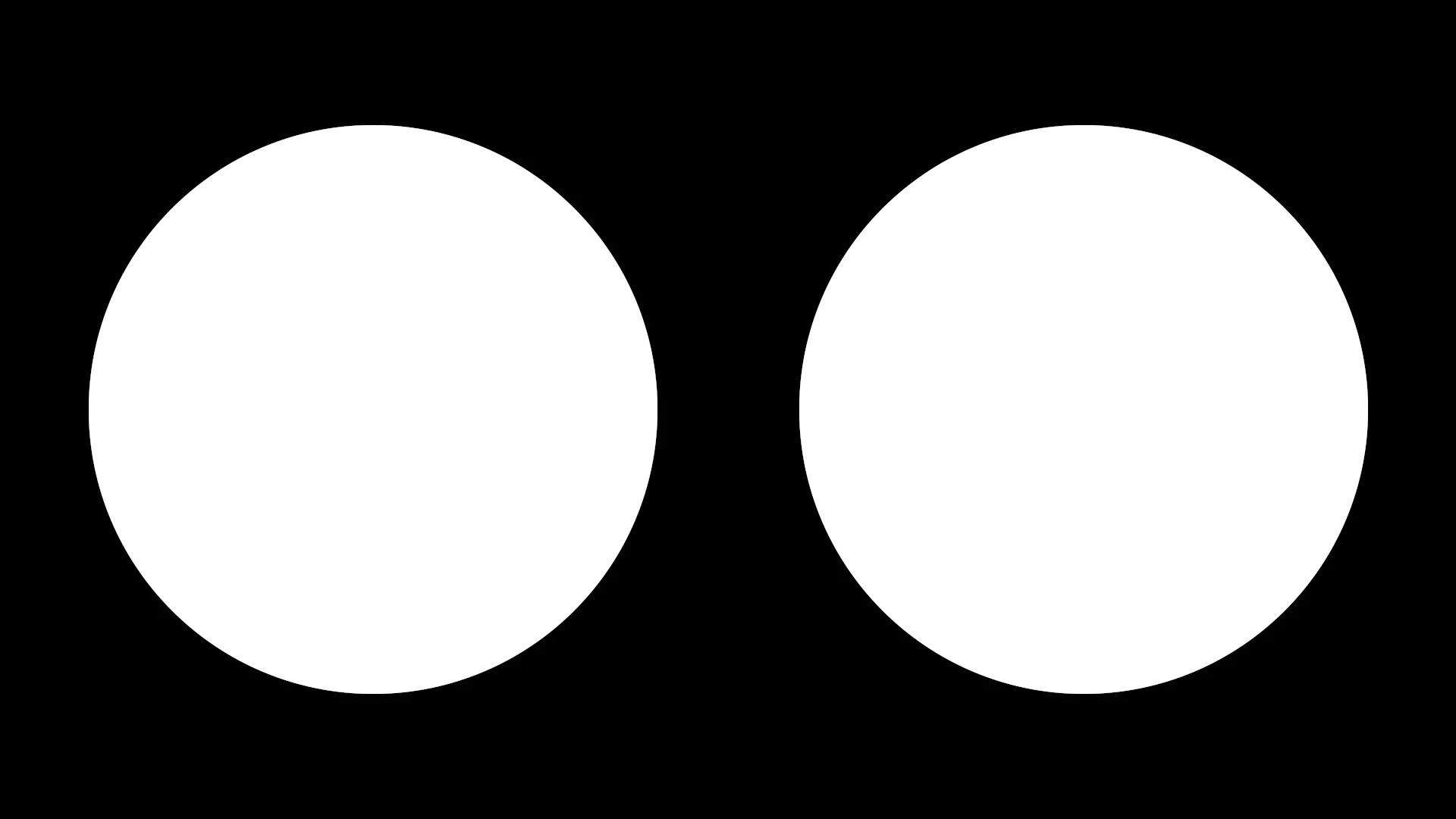
  8. Drag the ellipse to the left and scale it up. You want two circles that are the same distance apart and fill the screen.
  9. Add the Replicate effect above this, and increase its count to 16 (the maximum).
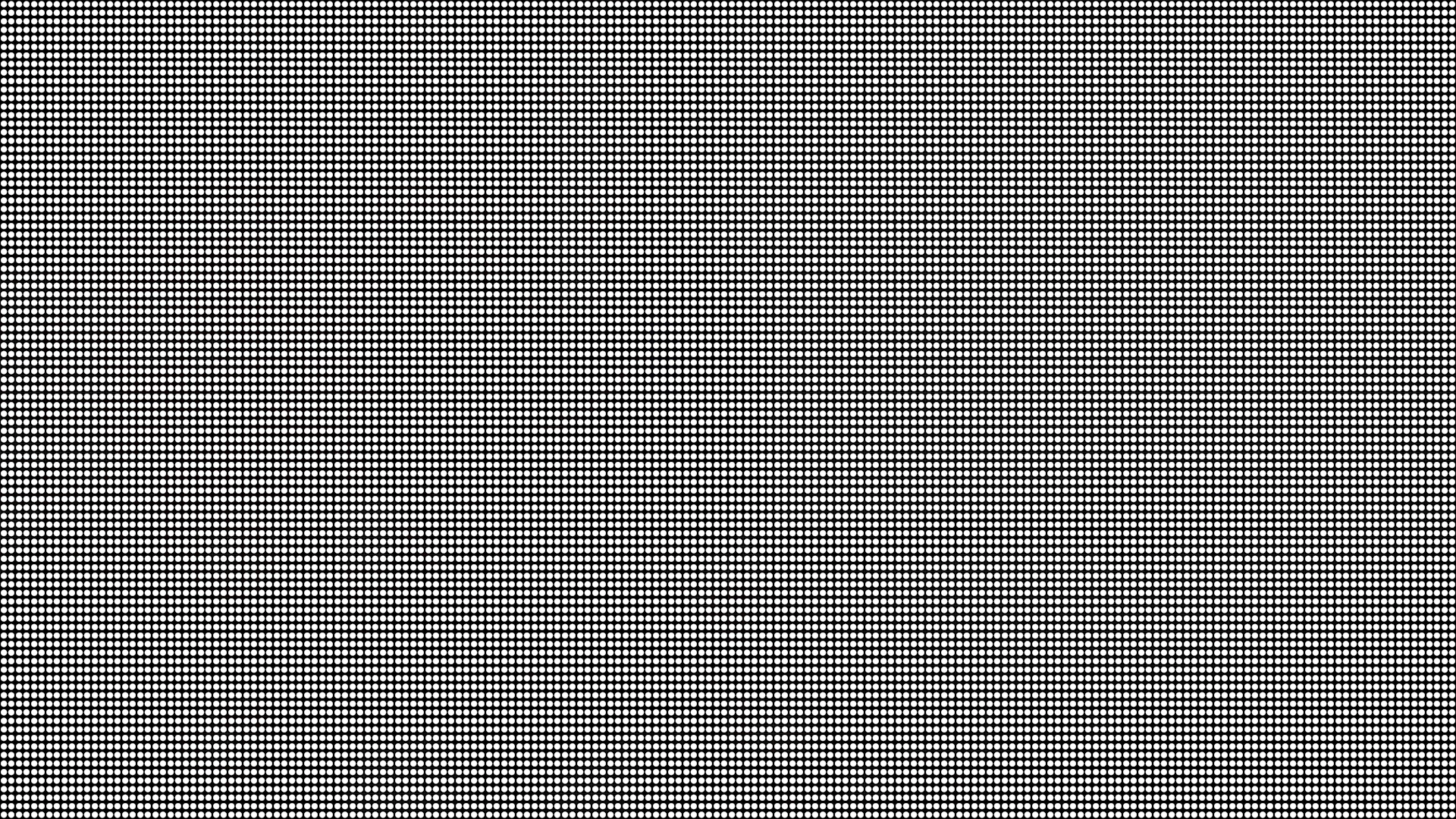
  10. Add another Replicate effect, and increase the count until you’re happy with the number of dots.
  11. Add a Gaussian Blur effect to make the dots less sharp.
  12. Add your animation footage to the track below this graphic
  13. Select the graphic clip, go to the Effect Controls, expand the Opacity settings and set the Blend Mode to Multiply. You may want to experiment with other blend modes like Color Burn, Overlay and Soft Light. 


     Stylize the Footage:


  1. Select the animation clip.
  2. Add the Mosaic effect to your clip.
  3. Set the Horizontal and Vertical Blocks to about 250 to make it pixelated.
  4. In the Lumetri panel, add a vignette and increase the exposure and contrast.
  5. Add an Adjustment Layer above the animation and the graphic.
  6. Add a Gaussian Blur with a Blurriness around 5.
  7. Set the Opacity Blend Mode to Screen (this will make the dots seems like they're glowing)


Make the Screen 3D:

  1. Nest these clips together.
  2. Add the Basic 3D effect.
  3. Adjust the Swivel, Tilt, and Distance to Image to achieve the desired look.


1 reply

PaulMurphyCommunity ExpertCorrect answer
Community Expert
August 15, 2024

Here’s how I would emulate a large screen TV pixelation effect in Premiere Pro:

Add LED Dots:

  1. Create a new sequence.
  2. Go to Graphics and Titles > New Layer > Rectangle.
  3. Set its color to black and resize it to fill the screen.
  4. Go to Graphics and Titles > New Layer > Ellipse.
  5. Set its color to white, and set its Height (H) to match the Width (W).
  6. Add the Mirror effect to the Essential Graphics panel.
  7. In the Effect Controls, find the effect and set its Reflection Center to half the sequence width (e.g., if your sequence is 1920 wide, set it to 960).
  8. Drag the ellipse to the left and scale it up. You want two circles that are the same distance apart and fill the screen.
  9. Add the Replicate effect above this, and increase its count to 16 (the maximum).
  10. Add another Replicate effect, and increase the count until you’re happy with the number of dots.
  11. Add a Gaussian Blur effect to make the dots less sharp.
  12. Add your animation footage to the track below this graphic
  13. Select the graphic clip, go to the Effect Controls, expand the Opacity settings and set the Blend Mode to Multiply. You may want to experiment with other blend modes like Color Burn, Overlay and Soft Light. 


     Stylize the Footage:


  1. Select the animation clip.
  2. Add the Mosaic effect to your clip.
  3. Set the Horizontal and Vertical Blocks to about 250 to make it pixelated.
  4. In the Lumetri panel, add a vignette and increase the exposure and contrast.
  5. Add an Adjustment Layer above the animation and the graphic.
  6. Add a Gaussian Blur with a Blurriness around 5.
  7. Set the Opacity Blend Mode to Screen (this will make the dots seems like they're glowing)


Make the Screen 3D:

  1. Nest these clips together.
  2. Add the Basic 3D effect.
  3. Adjust the Swivel, Tilt, and Distance to Image to achieve the desired look.


Known Participant
December 6, 2024

Why did you get rid of the grid effect? I only used it a couple of months ago. Was the easiest way to do this same effect. Now Adobe's made it way too complicated and inconvenient. I'm so pissed.

Known Participant
December 13, 2024

And this solution didn't work for me.