

[EPILEPSY WARNING] frames look crazy after render
[EPILEPSY WARNING: FLASHING COLORS BELOW]
I'm so confused by this I don't even know where to start troubleshooting it so I'm hoping some of y'all on here might be able to help me out.
I'm doing some hand-written titles for this video project. I want the lines to be wiggly so for each title I've written the title out 3 different times and exported them as 3 separate png's. I'm adding them to my timeline and cutting each png to be 4 frames, and putting them back to back for the duration of how long I want the title to be on screen. Before I render, they look exactly as I want them to, as seen below.

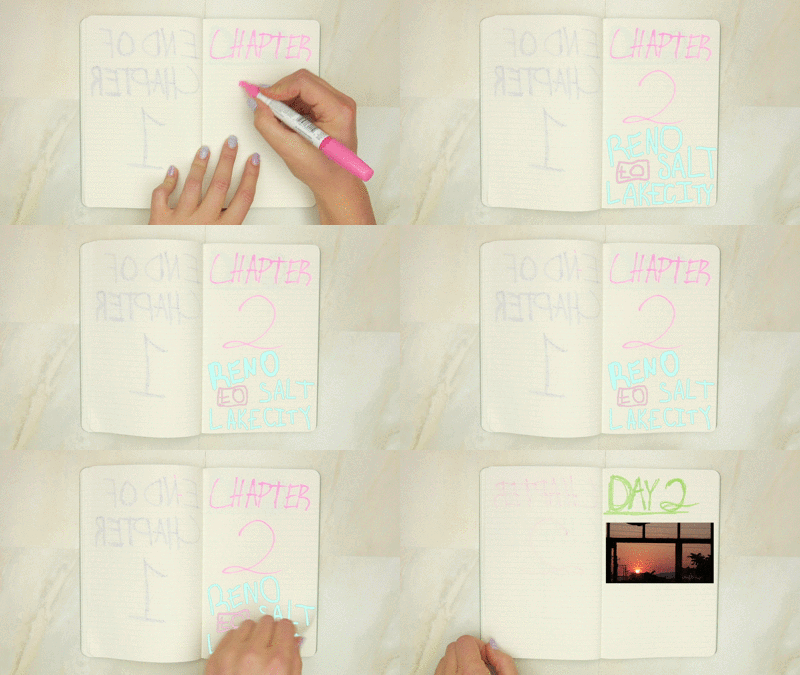
but after rendering...... it looks like some kind of horror film nightmare music video lol

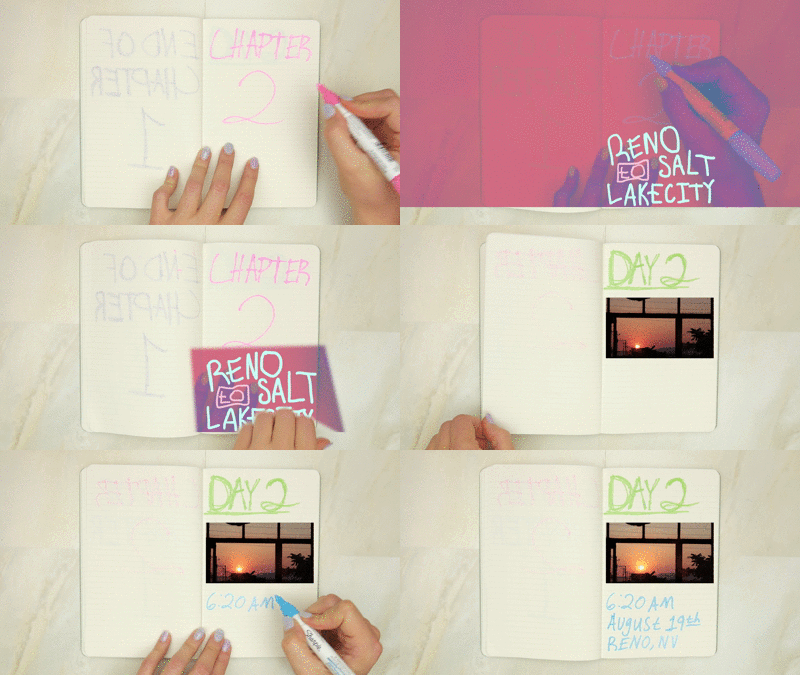
I don't even know how to begin diagnosing what the hell is going on here so if anyone could help me out I'd DEFINITELY appreciate it. I've tried deleting all my render files and re-rendering everything- that didn't work.
as a workaround I could just export the timeline without rendering these parts, as they do look fine when not rendered, but I would still like to know what's going on here so as to avoid issues in the future.
system info:
macbook pro mid-2015, retina
macos 10.13.14
processor: 2.8 GHz Intel Core i7
graphics: AMD Radeon R9 M370X 2048 MB, Intel Iris Pro 1536 MB
thanks in advance for any help y'all can offer!
 AdChoices