
DenisH90
Participant
January 13, 2019
Question

Error when applying LUT (AEVideoFilter:13)

  • January 13, 2019
  • 4 replies
  • 6961 views

Hi,

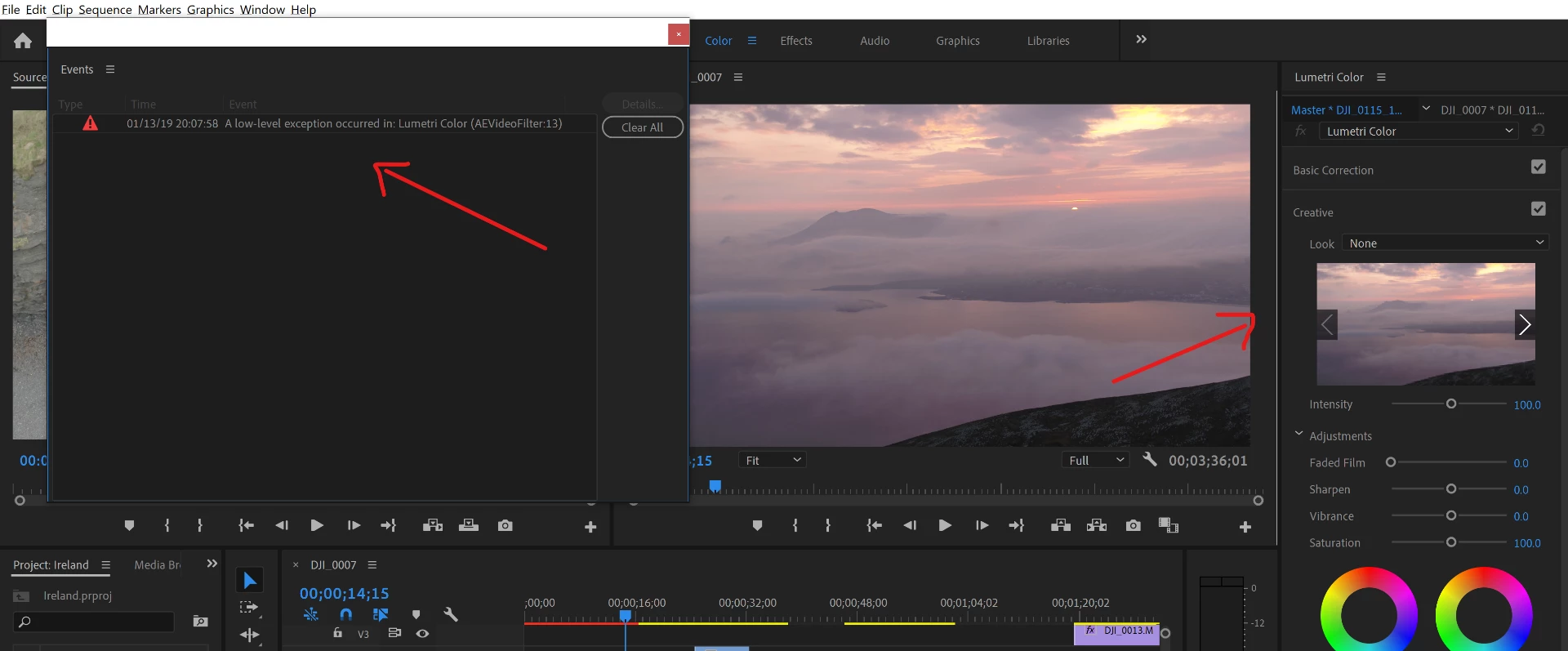
When on the Color tab and applying a LUT it crashes and gives the error shown in the picture. It might work the first time or so but then its guaranteed to crash after a few minutes.

Details:

Premiere Pro CC 2019 - Version 13.0.2 (Build 38)

i9-8950HK @ 2.90GHz

GTX 1050 Ti MaxQ

32GB DDR4-2666MHz

Thanks for the help.
    This topic has been closed for replies.

    4 replies

    Participant
    October 21, 2019

    Hi. Use software only as renderer Engine software only instead of GPU acceleration (CUDA or open CL)

    michielsd4211367
    Participating Frequently
    March 13, 2019

    Okay, so my issue was never solved. The last and 6th 'technical senior agent' tried to fix this issue and it didn't work. He says it's an NVIDIA related problem and that my GPU may not be compatible (NVIDIA GTX 1070).

    I told him that I don't want to pay for a new GPU now and asked to cancel my Adobe subscription.

    I've been using Davinci Resolve 15 and I've been extremely satisfied. I feel like I don't even need LUTs anymore (Although they work fine there) as the color grading is tons of tun.

    kelvinp22878888
    Participating Frequently
    March 13, 2019

    I was getting those same technical errors when applying the LUT as the "input LUT" in the basic correction panel in Lumetri. But I just tried it after you sent that - I tried applying my LUT in the Creative/Look panel instead and didn't get that error. rendering now...

    WOW! In some ways, the resulting grade might be even more interesting - it really 'pops' now. I sharpened it in that same creative panel, and did a few tweaks back in the basic panel, and it's really really a nice render. And no error message. Crazy sharp, maybe too much for TV, but pretty nice for monitors.

    michielsd4211367
    Participating Frequently
    February 8, 2019

    Did you ever fix this problem?

    I have the same issue.

    R Neil Haugen
    Legend
    February 8, 2019

    What LUTs do you have, where are they parked on your machine,  and how are you trying to apply them?

    Neil

    Everyone's mileage always varies ...
    michielsd4211367
    Participating Frequently
    February 27, 2019

    File the crash data on the bug/features report services linked at the top of the Overview page of this forum.

    You need to know about things like using the hamburger menus around each panel. Click on each to see what the options are.

    In Lumetri, click the hamburger menu by the panel name. You have options to save presets, Look files (an Adobe LUT format) and .cube LUTs.


    Hi Neil,

    Oh, I completely forgot about checking in the hamburger menu.

    I tried exporting a few LUTs and it seemed to work fine.

    Tried to browse a little longer and apply a few and after 2 minutes it crashed once again (AEVideoFilter:14)

    I tried finding the link to upload my crash report but I think I'm blind, could you kindly try to redirect to it one more time (ps this thread is not mine)

    R Neil Haugen
    Legend
    January 13, 2019

    You don't show any LUT or Look having been applied.

    What did you apply, and where? Creative or Basic tab? An included one or one you made or acquired? If not an included one, where do you have it stored on disc?

    Neil

    Everyone's mileage always varies ...
    DenisH90
    DenisH90Author
    Participant
    January 13, 2019

    Hi Neil,

    There was one applied but I tried to go back to None to see if the error would stop but still it crashes shortly after that.

    I'm using the creative tab as opposed to the basic tab. It's one of the PolarPro packs that you can buy and I have it stored in C:\Program Files\Adobe\Adobe Premiere Pro CC 2019\Lumetri\LUTs\Creative

    Thanks,

    Denis

    R Neil Haugen
    Legend
    January 13, 2019

    I don't know about that company's LUTs, and some can be problematic.

    And those should NOT be put there, period.

    I'm on my phone so I can't post the chart. Go to the Help system for Pr, and search for LUT location. They have a chart showing the folder tree system you go through. At the end of that you add two folders, Technical and Creative. Park your LUTs for Basic tab in Technical and Creative tab in Creative.

    Relaunch Pr, and those will now appear in both appropriate dropdown lists in alphanumeric order and can be scrolled in the Creative tab preview window.

    And AfterEffects and Media Encoder will both know exactly where they are also.

    Add "1" or "A" before them in the name and yours will be first.

    Neil

    Everyone's mileage always varies ...