Exit
  • Global community
    • Language:
      • Deutsch
      • English
      • Español
      • Français
      • Português
  • 日本語コミュニティ
  • 한국 커뮤니티
0

Essential Graphics - Motion vs Vector - Align & Transform Panel Questions

Engaged ,
Oct 22, 2022 Oct 22, 2022

Hello! 


I'm working with title layers, and I want to understand where it's best to make changes to motion, set anchor points, and align & transform titles in the program and the differences and uses. 


If you click on a title layer under effect controls, you have options for: 

Vector 

Motion 

•What is the difference between vector & motion? 


If you click on the title layer in the essential graphics panel, you see:

The small Edit window with Transform Tools (is this just for quick changes?)

If you click on the title layer, it expands the edit layer with more options to style, align & transform. 


I am looking for recommendations for tutorials or adobe user guides that go over this in more detail, so I understand this better! TIA 


TOPICS
How to
2.8K
Translate
Report
Community guidelines
Be kind and respectful, give credit to the original source of content, and search for duplicates before posting. Learn more
community guidelines

correct answers 1 Correct answer

Community Expert , Oct 22, 2022 Oct 22, 2022

You've got a link from Anne, but I'll at least describe generally what the different motion controls are, because they can be a little confusing at first and how they relate to one-another... 


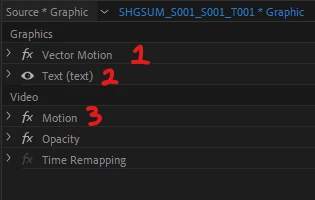
When it comes to adjusting the motion properties of Essential Graphics text or graphics, you have three options.
Graphic Motion Control.png

1. Vector Motion - Vector control over all the various graphics layers. So no matter what you have going on you can reposition them all at once. This behaves just like the regular Motion prop

...
Translate
Community Expert ,
Oct 22, 2022 Oct 22, 2022
Translate
Report
Community guidelines
Be kind and respectful, give credit to the original source of content, and search for duplicates before posting. Learn more
community guidelines
Community Expert ,
Oct 22, 2022 Oct 22, 2022

You've got a link from Anne, but I'll at least describe generally what the different motion controls are, because they can be a little confusing at first and how they relate to one-another... 


When it comes to adjusting the motion properties of Essential Graphics text or graphics, you have three options.

Graphic Motion Control.png

1. Vector Motion - Vector control over all the various graphics layers. So no matter what you have going on you can reposition them all at once. This behaves just like the regular Motion properties of the clip, but it's vector, so it's lossless and without borders.

2. Individual Graphics/Text Properties - This is what it sounds like. If you twirl this option down you have most of the same controls that you have inside of the Essential Graphics Edit pane, including a section for Transform, where you can adjust vector properties for that individual text/graphics element. If you are adjusting the properties inside of the Essential Graphics Edit pane, you'll notice that they are tied to these properties - they are connected.

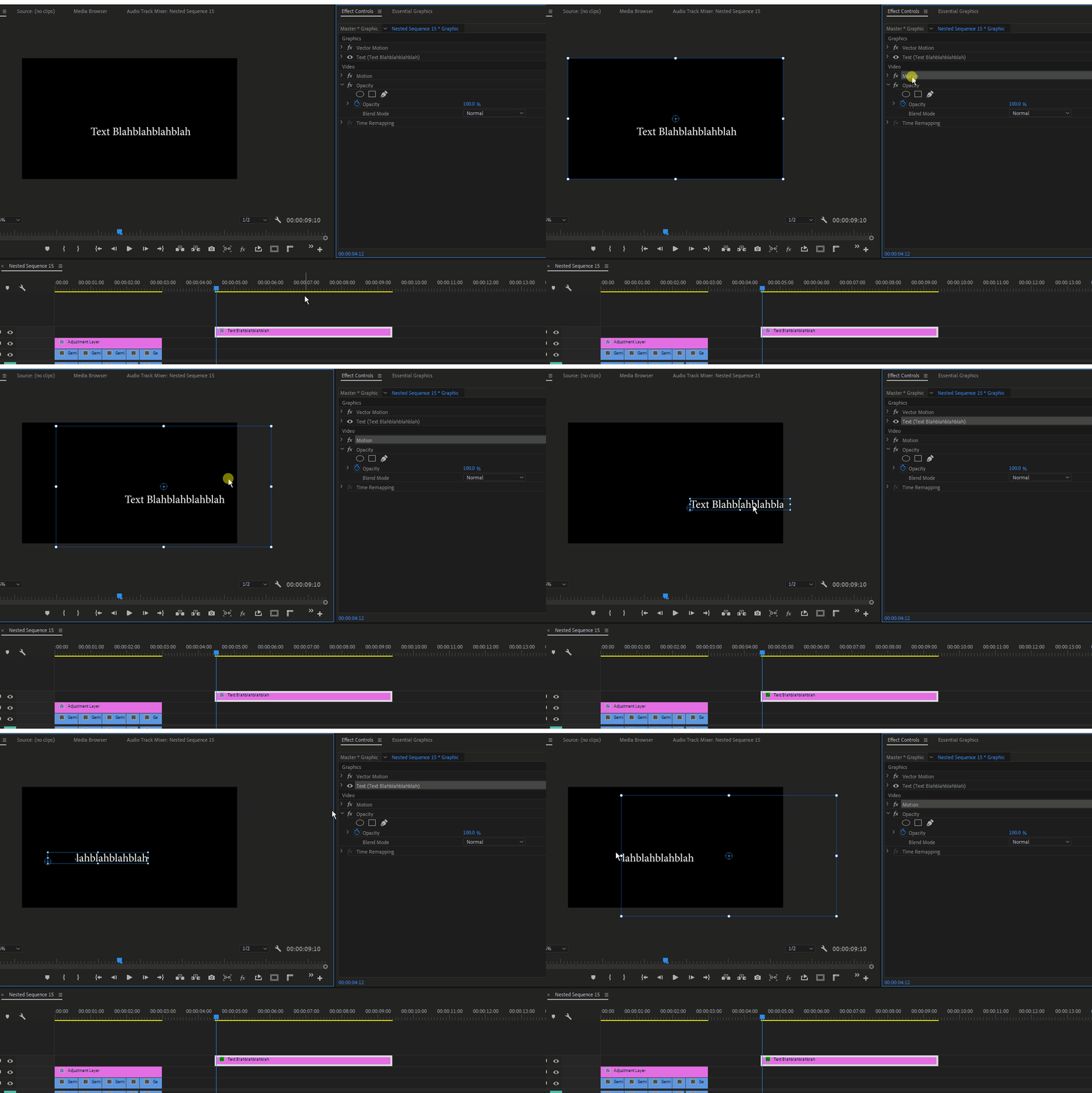
3. Clip Motion - This is the same clip motion control you have on all your regular video media. As a general rule you do not want to use these to adjust your Text/Graphics elements. It's not vector so you'd notice lossy behavior when scaling (up, in particular), and since you are moving the clip around that all the graphics are "riding around on," you can accidentally move your text/graphics elements off the borders of the clip, as shown in this gif:
Text Cut Off.gif

So, generally speaking you want to avoid the Clip Motion (3) properties and instead use the Vector Motion (1), which will do the same thing but with vector and borderless behavior. Obviously once you know what each property is doing you can break this rule and use the regular Motion. There are situations where maybe you'd need to do that.


Hopefully this helps to clear up some of it!

Translate
Report
Community guidelines
Be kind and respectful, give credit to the original source of content, and search for duplicates before posting. Learn more
community guidelines
Engaged ,
Oct 22, 2022 Oct 22, 2022

Wooohooo, thank you! Saving this info for the future when I forget again! 🙂 

Translate
Report
Community guidelines
Be kind and respectful, give credit to the original source of content, and search for duplicates before posting. Learn more
community guidelines
New Here ,
Jun 18, 2024 Jun 18, 2024
LATEST

Oh man, that is so helpful and clear. I wish I had understood this before pulling out 10% of my hair each hour over the last six hours 🙂 Very useful summary. 

Translate
Report
Community guidelines
Be kind and respectful, give credit to the original source of content, and search for duplicates before posting. Learn more
community guidelines