


- Home
- Premiere Pro
- Discussions
- Re: Exported file doesn't match my timeline
- Re: Exported file doesn't match my timeline

Copy link to clipboard
Copied
Hey,
Tried looking everywhere for this and tried some things on other ones that i found to no avail.
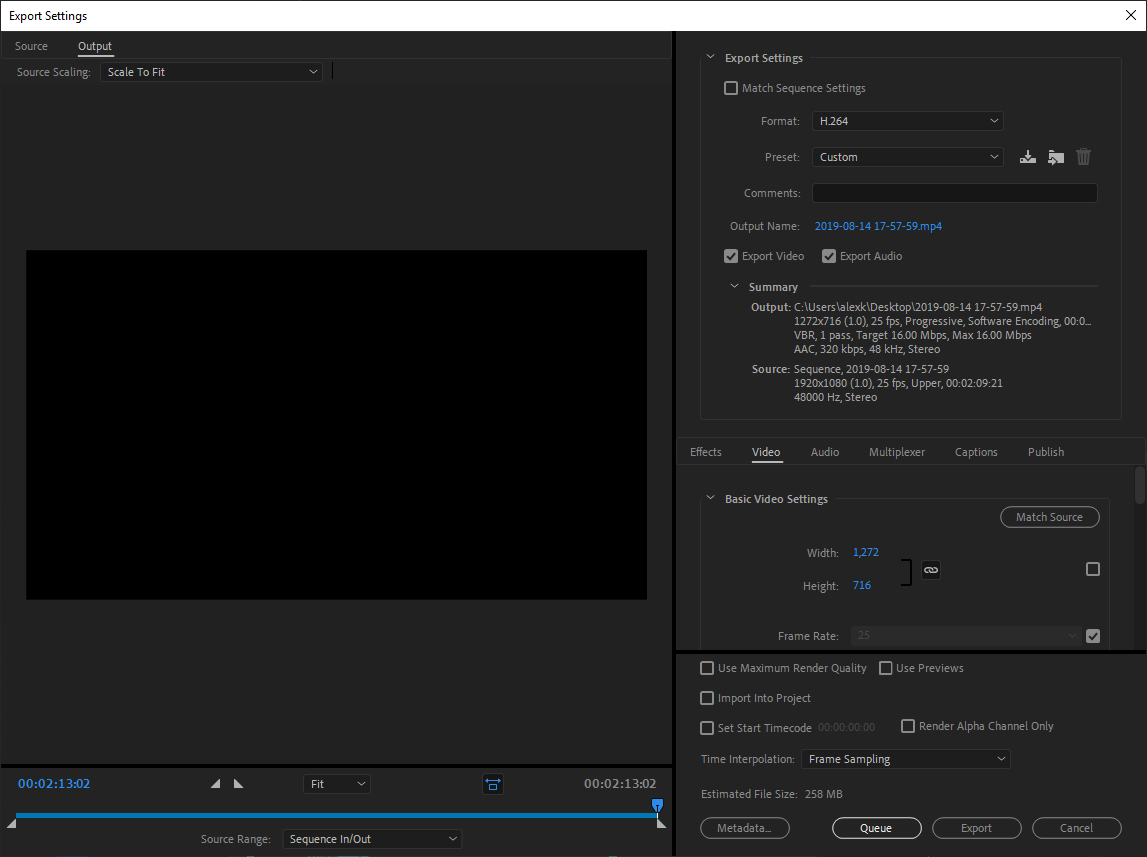
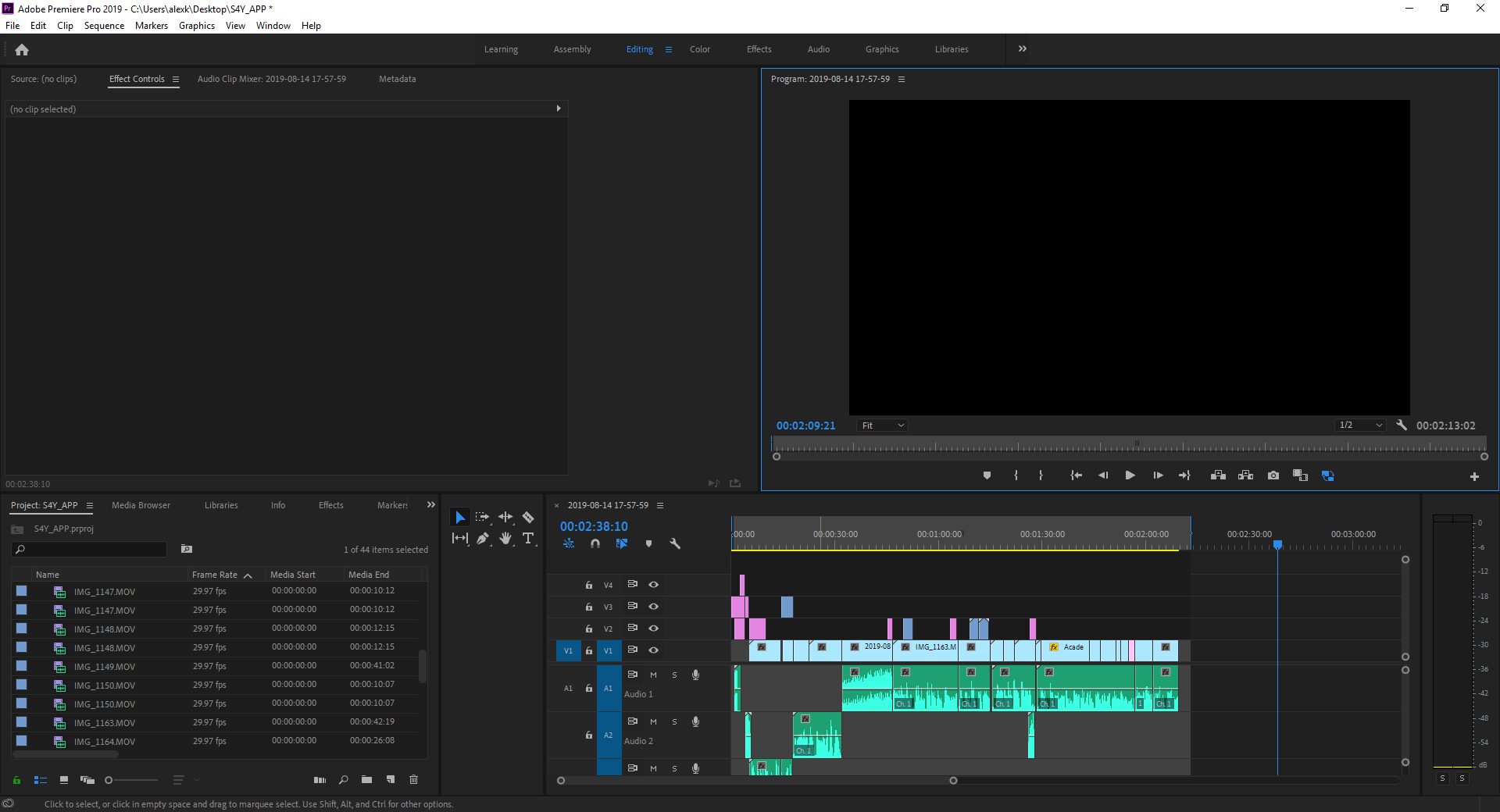
My timeline audio / video is working fine while editing for a 2 minute video i've been working on. When i export it then about halfway through one of the video clips is different from what it is supposed to be (its the beginning of an edited clip that i deleted) and then the audio sync gets all messed up.
any ideas ?
been using premiere for a while and never had an issue like this before


 1 Correct answer


iPhone records at Variable Frame rate. Use handbrake to convert iPhone files to Constant Frame Rate (In your case 25 fps)

 18
Replies
18
18
Replies
18

Copy link to clipboard
Copied
MANUALLY clear cache and Preview files.
Clear Cache:
1- in PP: Preference --> Media Cache. This will show you where the cache folders are located.
2- Close PP, navigate to those folders and delete everything inside.
3- re-open PP, give it time to re-create cache files.
4- report back
Preview files are usually located where the project is saved.
Copy link to clipboard
Copied
Hey Christian,
I appreciate your response,
I gave it a shot and did exactly what you had written,
after that still having the same issue
Copy link to clipboard
Copied
You Project is located on your Desktop.
It is better to have your Project, Media files and Export files on a drive different than the main drive.
Also, can you please include a screenshot showing the play bar at where you are having a problem as well as a screenshot of the exported file at the same spot?
Copy link to clipboard
Copied
Okay i'll try moving it to my external drive.
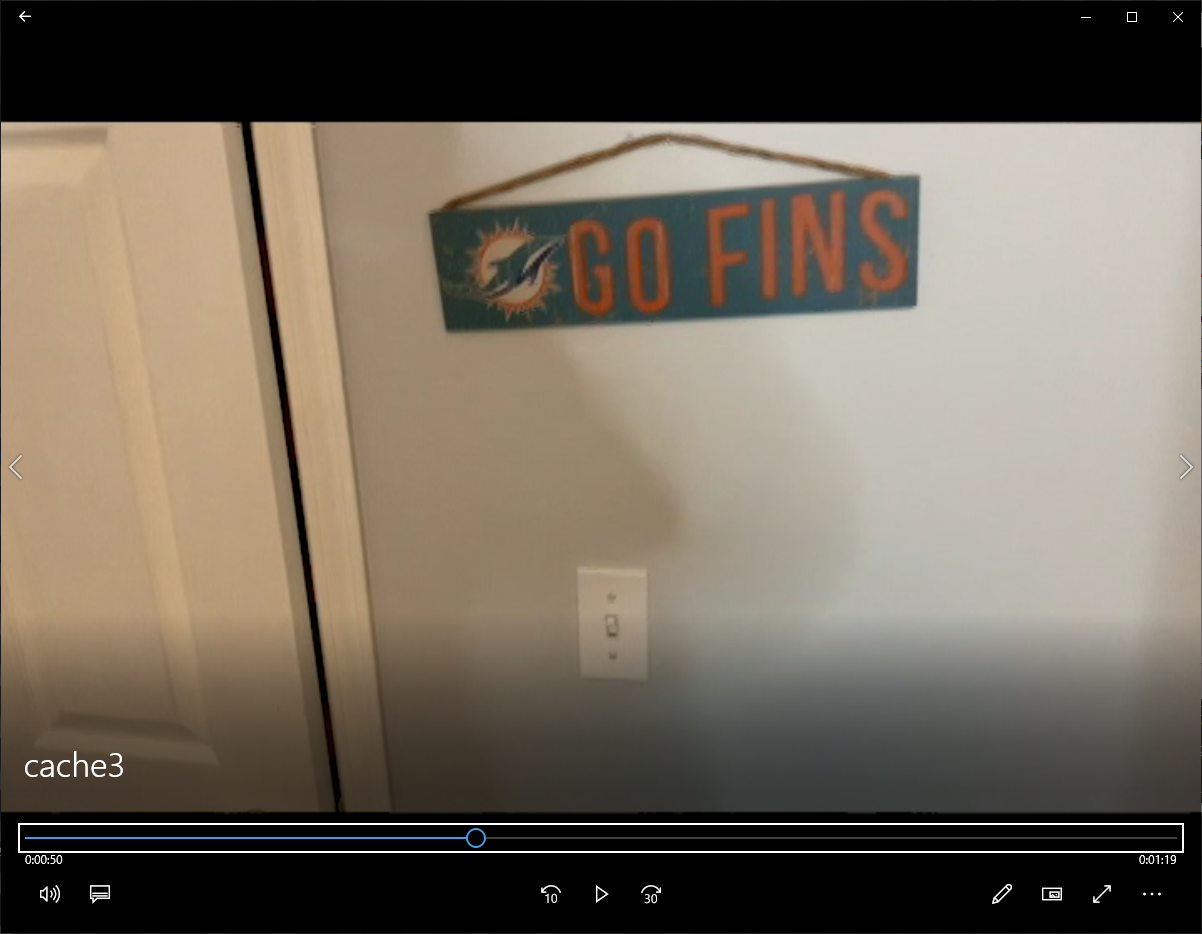
This is the part on the time line that works
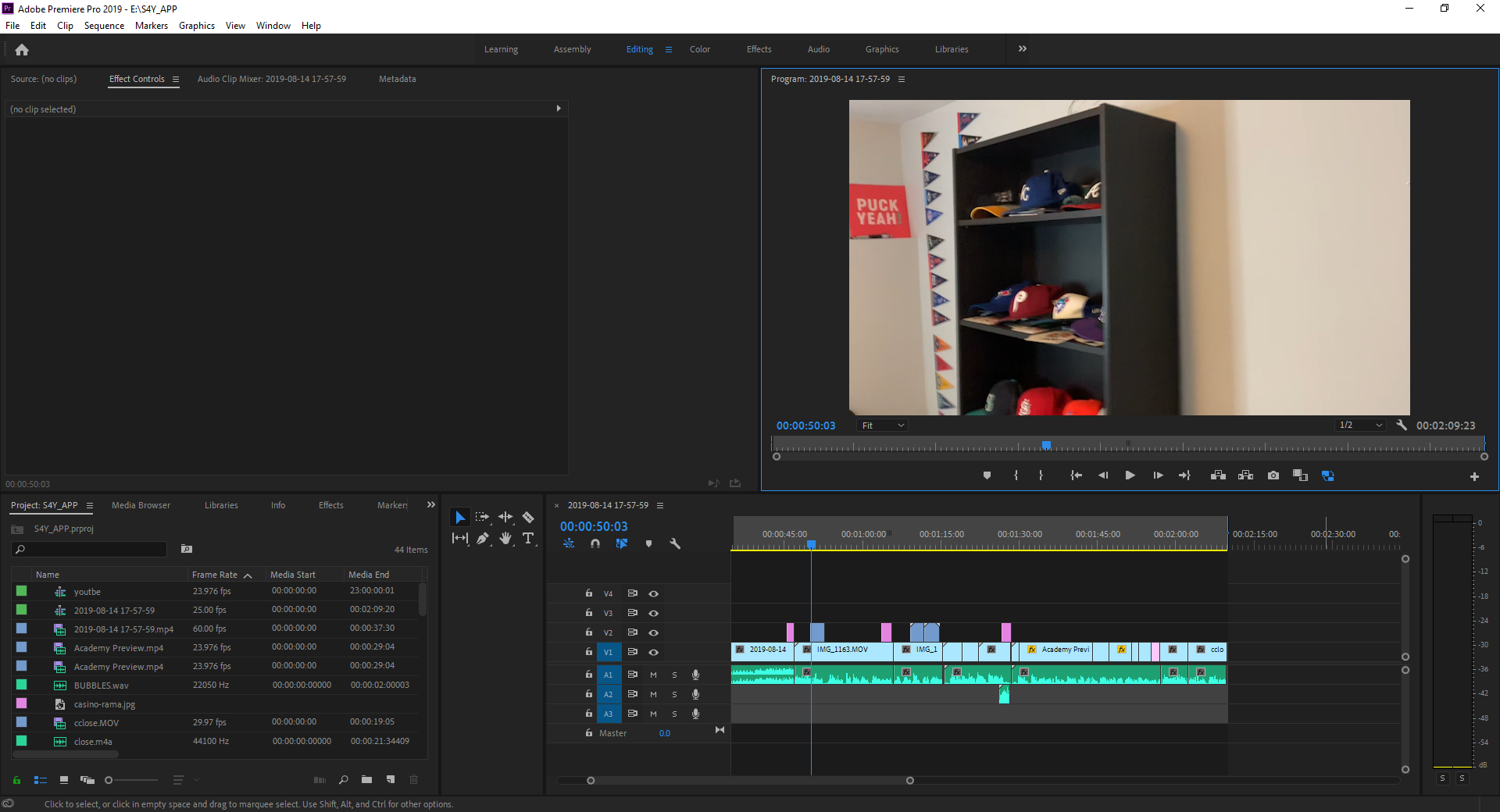
This is the part that shows up in my exported video.... (this is originally part of the same clip as above but i had deleted it and its not in my timeline.
Copy link to clipboard
Copied
99% of the time this is a Cache and/or preview files issue.
Moving the files to another drive might help, but please make sure that you followed the steps correctly.
Another thing that might help, Change the Renderer from GPU accelerated to Software only (Project Settings --> General --> Renderer)

Copy link to clipboard
Copied
What camera did you shoot this on? An iPhone with Variable Frame Rate?
Copy link to clipboard
Copied
i did use an iphone for the filming of the particular problem yes
Copy link to clipboard
Copied
Your issue is that the footage has a Variable Frame Rate, and thus Premiere cannot reference frames correctly.
Read this before you do anything else: https://www.reddit.com/r/VideoEditing/wiki/faq/vfr
Copy link to clipboard
Copied
iPhone records at Variable Frame rate. Use handbrake to convert iPhone files to Constant Frame Rate (In your case 25 fps)
Copy link to clipboard
Copied
does this mean that i need to re-edit it all essentially?
Copy link to clipboard
Copied
No, you need to re-encode all of the video you took, and then re-link the media. Use Handbrake, do the re-encode overnight, and then replace footage.
Copy link to clipboard
Copied
There MIGHT be some shifting with iPhone footage.
As jpooley mentioned, replace footage after you re-encode using Handbrake, but do double check that your cuts and edits are correct especially with the files that you re-encoded. From what I understood is that you are using multiple sources where one of them is an iPhone. re-encode the footage that came from the iPhone and are causing the problem. From what it looks you don't need an overnight, probably a couple of minutes to re-encode this file.
Copy link to clipboard
Copied
Thank you to everyone that took the time out of their busy lives to try and help me.
Once i used handbrake and redid the IPHONE settings it works fine now as Christian said it didn't take to long and i really appreciate all the help thjat i rec'd
Cheers,
Babaloos Poker
Copy link to clipboard
Copied
Could you try exporting the sequence using the "Match Source - High Bitrate" preset? I see that you're using a nonstandard export resolution, I'd like to rule out that factor.
Copy link to clipboard
Copied
not sure that is the problem as soon as i hit export the issue presents itself in the preview


Copy link to clipboard
Copied
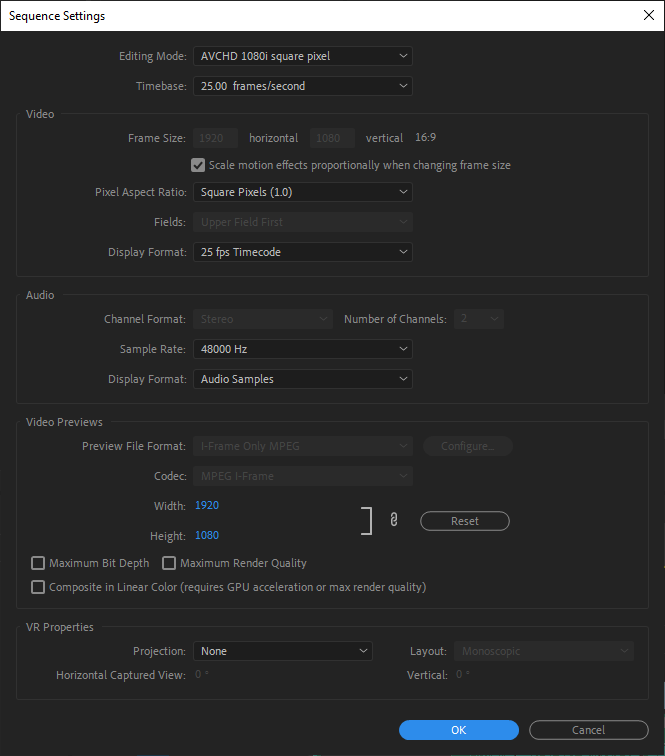
That is a strange one. My recommendation would be to create a new Sequence and move your project onto that. Just go "File -> New -> Sequence" and setup your Sequence Settings as you want/need. Then highlight your entire timeline on the old sequence, Ctrl-C to copy it all, go to the new Sequence, Ctrl-V to paste it all in. Then try exporting from the new sequence.
Creating a new sequence is one of those "who knows why it works, but it does" things in Premiere like clearing the cache. Sometimes anyway.

Copy link to clipboard
Copied
All this is prob not neccesssary - If you render a full quality preview - then export "using previews" - max render quality - your export will match your timeline - what you saw playback on your timeline.
This workflow is what more complex projects should use anyways to save the crazy long render at the end of your edit for final export. Basically you render along the way as you finish up section of your edit, then when you do your final edit it saves hours and hours of render time - because your already spent that time incrementally - with the added bonus of avoiding the variable fram rate issue... Hope this works for your situation or helps others.
Thanks!

Copy link to clipboard
Copied
I recently just had a similar issue. My preview exported timeline did not match my finished project I wanted to export. What I ended up doing after reading countless posts is in PP2024 in the right hand corner above our my view project window there is a quick export button. It literally exported exactly what was in my timeline unlike the original export button. I hope this helps anyone else having issues!


Get ready! An upgraded Adobe Community experience is coming in January.
Learn more
 AdChoices