
Inspiring
July 27, 2023
Answered

Exported Video getting cropped despite 1920x1080 in Sequence Settings and Export Settings?

  • July 27, 2023
  • 3 replies
  • 8557 views

Please see the attached screenshots for my project settings/specs. I started a project at 1920 x 1080 with 1.0 Aspect ratio, created a sequence which is 1920x1080, 1.0 AR and am trying to export with "match source" showing 1920x1080, 1.0 AR. Despite everything seemingly lining up, I'm getting a significant crop in my resulting video file. It looks 'correct' in only one spot - the 100% view of the video player inside the project file.


I've been burning myself out going in circles trying to find some settings mismatch in my file to fix this. Tried using answers from similar questions on here, but things look fine. Still haven't figured out what's making my particular issue tick so here I am. Thanks in advance for any assistance.


Incase it helps, I'm working on a Windows computer using Adobe Premiere Pro 2023 and tried exporting via File>Export>Media and File>Export>Send to Adobe Media Encoder. I'm happy to provide additional information if needed.


Best,


Thomas
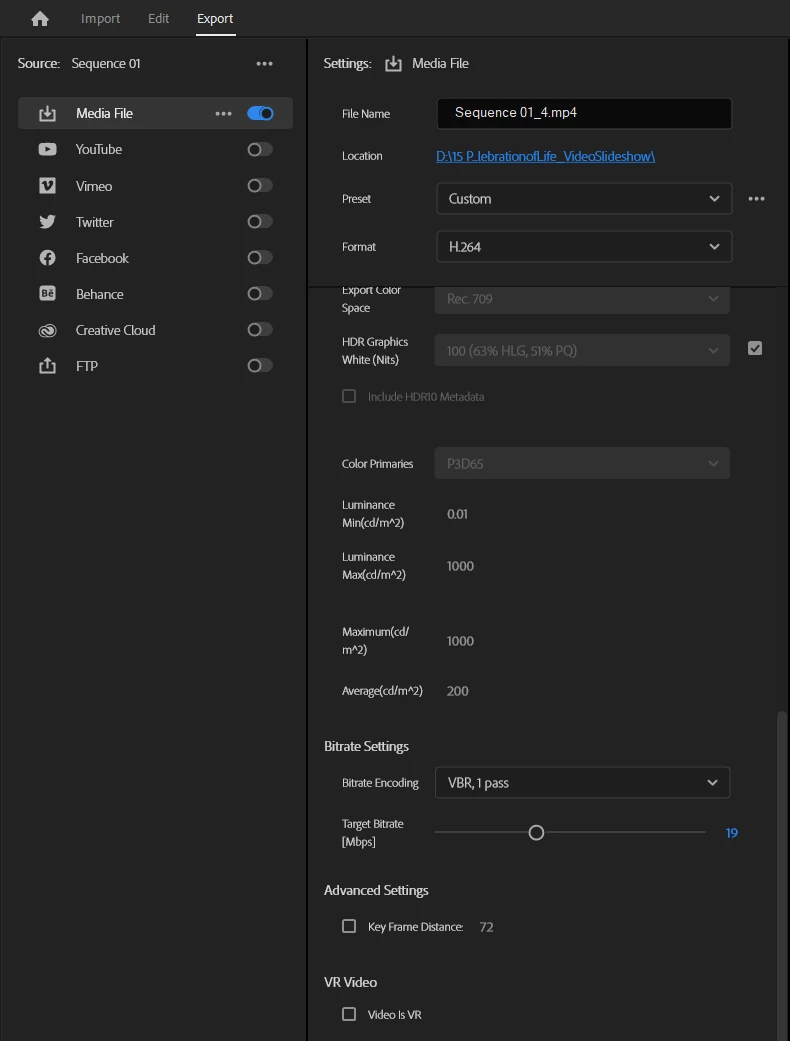
Correct answer everstarrealty

After continued tinkering, I have solved my own problem! Posting my solution and a screenshot here for anyone else who may have gotten stuck with the same issue. Thank you for the suggested answers.


Solution: For some reason, the "VR" setting is defaulted to ON in Premiere Pro 2023 and causes this cropping issue. Turn it off and export again. See screenshot for location of setting or read on: Navigate to the Export tab in Premiere and expand the "Video" tab. Scroll to the very bottom to find a setting titled "Video is VR". Uncheck this box and try your export again.


TLDR: Make sure "Video is VR" is turned off.


3 replies

everstarrealtyAuthorCorrect answer
Inspiring
July 31, 2023

After continued tinkering, I have solved my own problem! Posting my solution and a screenshot here for anyone else who may have gotten stuck with the same issue. Thank you for the suggested answers.


Solution: For some reason, the "VR" setting is defaulted to ON in Premiere Pro 2023 and causes this cropping issue. Turn it off and export again. See screenshot for location of setting or read on: Navigate to the Export tab in Premiere and expand the "Video" tab. Scroll to the very bottom to find a setting titled "Video is VR". Uncheck this box and try your export again.


TLDR: Make sure "Video is VR" is turned off.


Participant
May 24, 2024

THANK YOU !!!! I was becoming nuts with that cropped export !

Ann Bens
Community Expert
Community Expert
July 28, 2023

Your Preview in the Program monitor is set to 100% it should say FIT.

Most likely you have been editing in 100% instead of FIT.


Inspiring
July 28, 2023

I originally was working with "FIT" view, and had a similar level of cropping happening upon export. I then changed to 100% and sized content to that. I'll revert to using FIT as the view to design with in-project, so thanks for that insight, but that still gave me similar cropping issues upon export.

Inspiring
July 31, 2023

Update here - I decided to redo trying designing for FIT to see if the issue persisted like before and the problem remains. See the attached, the content is now full width but still has signficiant cropping on the top/bottom.


For what I did to get this: I set my view to FIT as well as deleting the existing assets and re-importing them. In the in-project view the content looks fine and fills the frame properly. Then the cropping occurs upon export.

Legend
July 28, 2023

What is the resolution of the video clips that you were working with? That must also exactly match the resolution setting of your sequence. The sequence cannot automatically scale down the resolution of your original video clips. You must select "set to frame size" manually when you add that clip into your timeline.

Inspiring
July 28, 2023

Afraid that isn't my case. I'm working with only one video clip in the intro, which is 1920x1080 AR 1.0. And otherwise I'm using images which all have their heights defined as 1080. I have tried "Set to Frame Size".

Inspiring
July 31, 2023

Replying again just to attach this screenshot to show the video asset's specs.