
Superlevure
Participating Frequently
May 16, 2023
Answered

Exported videos do not play

  • May 16, 2023
  • 2 replies
  • 3561 views

Hi everyone

I hope someone here can help. 

I have been using PP for more than a year now and suddenly my exported videos do not play. 

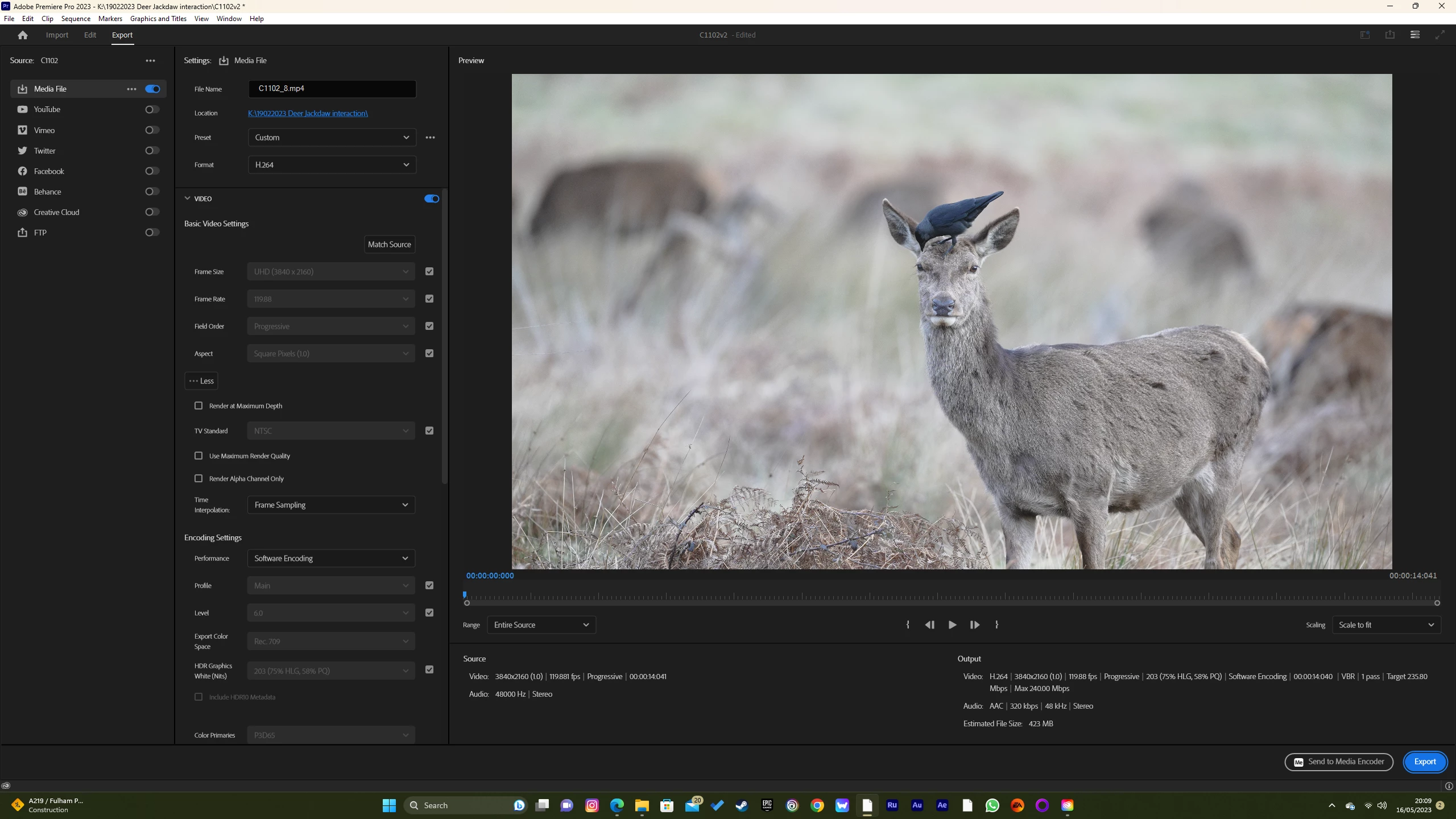
I don't do anything other than 'match source setting' and changing the resolution or aspect ratio. 

I have no idea what is going on. I have tried different settings and I have reintalled PP. Nothing seems to help. 

Here is one of my attempts: https://1drv.ms/v/s!ArHPynK2HR4Sm9s-1nmR21iuNksg0w?e=TaZAnq 
This topic has been closed for replies.
Correct answer Peru Bob

Delete the Media Cache and Media Cache files:
https://community.adobe.com/t5/premiere-pro/faq-how-to-clear-your-media-cache-in-30-seconds-in-premiere-pro-2020/m-p/11017257/thread-id/260446?page=1

If that doesn't work, try resetting the preferences:
https://community.adobe.com/t5/premiere-pro/faq-how-to-reset-trash-preferences-in-premiere-pro/td-p/8236158?page=1

If that doesn't work, try resetting the Workspaces:
Reset a workspace
Reset the current workspace to return to its original, saved layout of panels.
1. Do one of the following:
• Click the Workspace menu icon and select Reset to Saved Layout.
• Choose Window > Workspace > Reset to Saved Layout.
from here:
https://helpx.adobe.com/premiere-pro/using/workspaces.html

If that doesn't work, try Preferences > Audio Hardware and set Input to None.

If that doesn’t work, try updating or rolling back your graphics driver directly from the video card manufacturer’s site. If NVIDIA, do a clean installation of the latest Studio Driver (NOT the Game Driver)

If that doesn't work, try creating a new project and import the old one into it.

2 replies

Peru Bob
Community Expert
Peru BobCommunity ExpertCorrect answer
Community Expert
May 16, 2023

Delete the Media Cache and Media Cache files:
https://community.adobe.com/t5/premiere-pro/faq-how-to-clear-your-media-cache-in-30-seconds-in-premiere-pro-2020/m-p/11017257/thread-id/260446?page=1

If that doesn't work, try resetting the preferences:
https://community.adobe.com/t5/premiere-pro/faq-how-to-reset-trash-preferences-in-premiere-pro/td-p/8236158?page=1

If that doesn't work, try resetting the Workspaces:
Reset a workspace
Reset the current workspace to return to its original, saved layout of panels.
1. Do one of the following:
• Click the Workspace menu icon and select Reset to Saved Layout.
• Choose Window > Workspace > Reset to Saved Layout.
from here:
https://helpx.adobe.com/premiere-pro/using/workspaces.html

If that doesn't work, try Preferences > Audio Hardware and set Input to None.

If that doesn’t work, try updating or rolling back your graphics driver directly from the video card manufacturer’s site. If NVIDIA, do a clean installation of the latest Studio Driver (NOT the Game Driver)

If that doesn't work, try creating a new project and import the old one into it.

Superlevure
Participating Frequently
May 17, 2023

Amazing - my problem is solved! 

I did not even have to go beyond the first step; I did a "Delete all media cache files from the system" and it solved it. 

I'm surprised to see how the cache can affect new projects. 

Thank you very much @Peru Bob and @gerikp for your help. 


gerikp
Community Expert
Community Expert
May 16, 2023

My first question is why are you exporting a video with a frame rate of 119.880?


What is your source video?

Superlevure
Participating Frequently
May 16, 2023
The source is from a Sony camera. I have tried to export at 30 and 60 fps, with no changes.

Sent from Outlook for Android<>