
Participant
May 23, 2024
Answered

Exporting frames as a png issue (more frames than wanted)

  • May 23, 2024
  • 1 reply
  • 397 views

Hi there im new to premier pro,

I am currently attempting to make a mixed media animation so have attempted to export the clip as frames to download by exporting the clip as a png. I have two seconds of clip so changed the fps to 12 so that I will only have 24 pngs downloaded. However when I click export it downloads around 100 pngs instead of 24.

Any solutions would be amazing thanks!

This topic has been closed for replies.
Correct answer Averdahl
quote

Hi thanks for responding,

Im on Mac os , how would I set the timeline to be 12fps before placing the clip?


By @Owen37598443qfgo


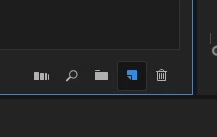
One way is to drag the clip to the New Item icon, the blue one in the image below. If you already have a timeline you can go to Sequence > Sequences Settings and change the Timebase to 12.


1 reply

Averdahl
Community Expert
Community Expert
May 23, 2024
quote

Hi there im new to premier pro,

I am currently attempting to make a mixed media animation so have attempted to export the clip as frames to download by exporting the clip as a png. I have two seconds of clip so changed the fps to 12 so that I will only have 24 pngs downloaded. However when I click export it downloads around 100 pngs instead of 24.

Any solutions would be amazing thanks!

By @Owen37598443qfgo


If you change the fps to 12 and place it on a timeline that is set to 12 fps and export it, does the same thing happen?


Which version of Premiere Pro are you using and what OS do you use?

Participant
May 23, 2024

Hi thanks for responding,

Im on Mac os , how would I set the timeline to be 12fps before placing the clip?

Averdahl
Community Expert
AverdahlCommunity ExpertCorrect answer
Community Expert
May 23, 2024
quote

Hi thanks for responding,

Im on Mac os , how would I set the timeline to be 12fps before placing the clip?


By @Owen37598443qfgo


One way is to drag the clip to the New Item icon, the blue one in the image below. If you already have a timeline you can go to Sequence > Sequences Settings and change the Timebase to 12.