devantek92520886
Participant
June 23, 2017
Answered

Exporting Video With Closed Captioning embedded not working (Premiere Pro 14.9, and earlier)

  • June 23, 2017
  • 3 replies
  • 17895 views

Premiere Pro CC i am trying to export a video that i added a closed caption file to, but even though i chose the option for the CC to be embedded when i uploaded the video to youtube to check it did not have the CC as an option to turn on nor were the closed captions visible. The file formats i am using for the Closed caption file is .scc and the video file is a .mov when i export i export the video as a quick-time file. What am i missing? I can toggle the captions on and off when i am in premiere, but can't find the captions after the export when i upload the video. I've also tried this using a .mcc closed caption file and .avi video exporting as a .mov and still no luck.

This topic has been closed for replies.
Correct answer Jax24135

I have been exporting as a QuickTime format initially. I have rendered the part i want to export, the caption settings match when i export, my closed caption file that i am using is formatted .scc(I've also tried .mcc), my original video source is in the format of .avi (I've also tried .mov files as the original source file), when i go to export i make sure it's in quicktime, I choose the option to burn, i have the same settings for the captions as i did in my display monitor, but yet when i get the exported video the text remains on the screen with no option to toggle CC on and off. Does the original sequence setting matters? that's one thing i haven't tried changing. I've attached some screen grabs to see if I'm missing something Premiere Pro CC
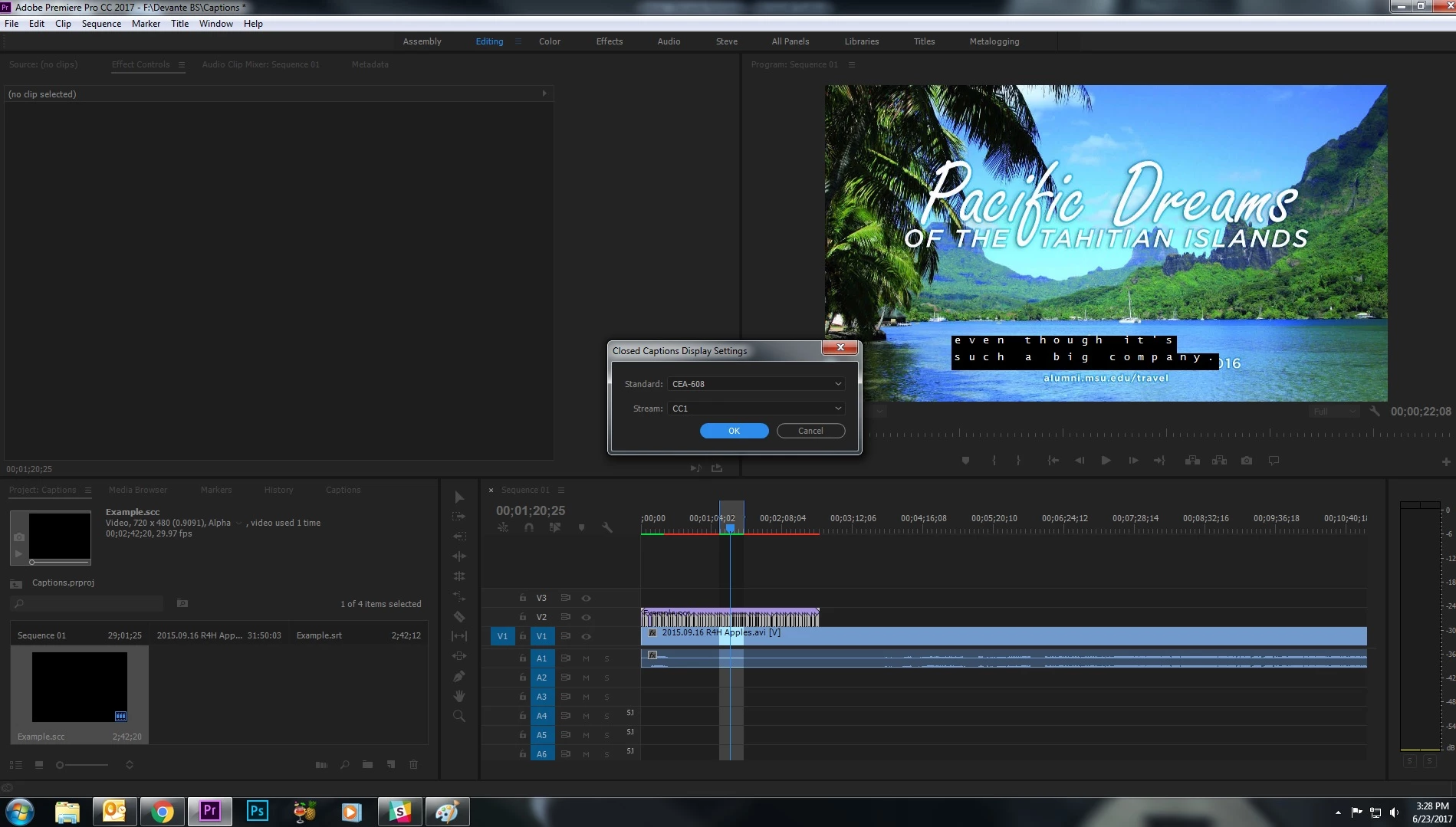
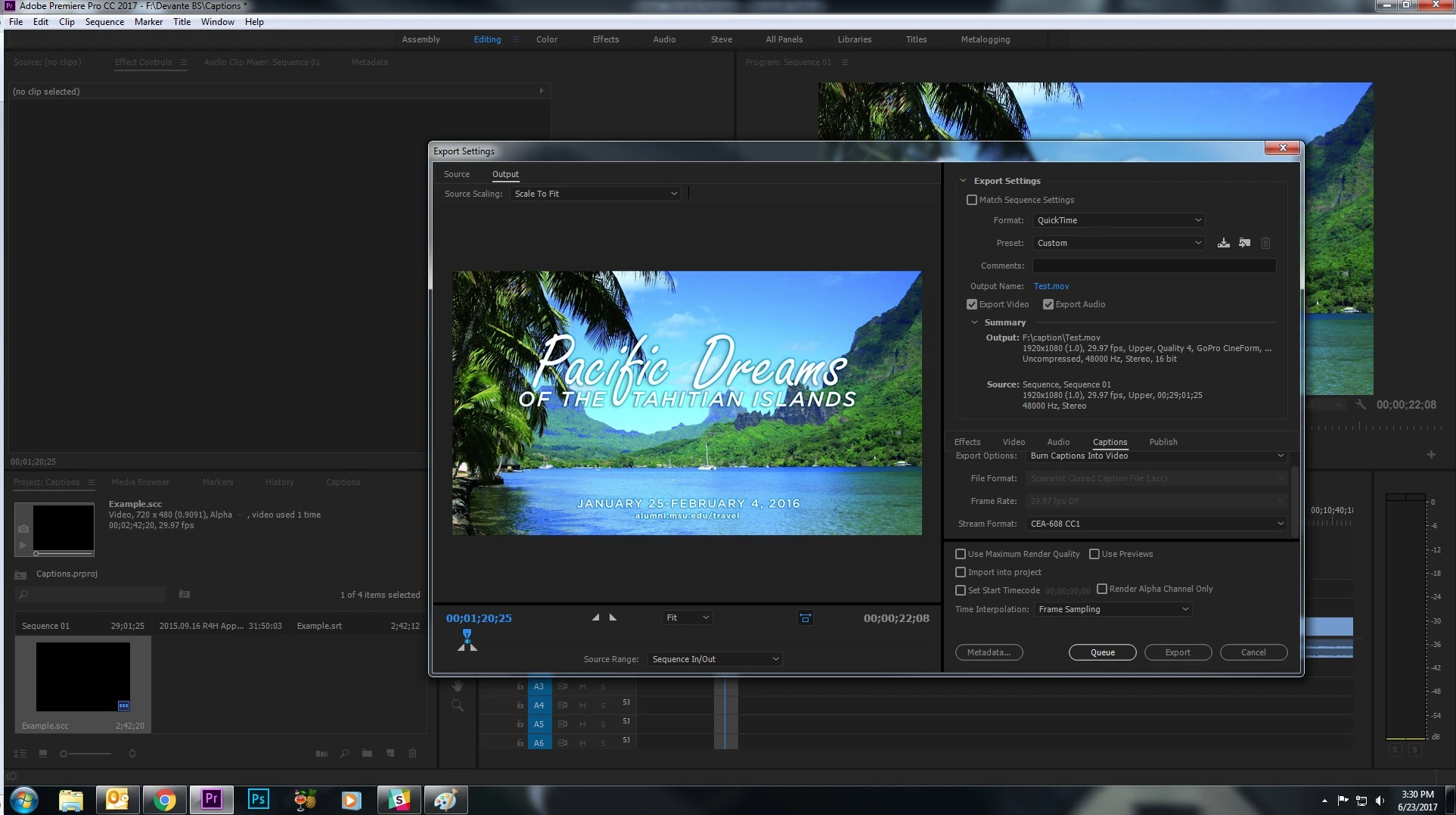

You're embedding the captions into the video (on Line 21 if you're curious) like it was going for broadcast. Since you would just hand off that 1 video file to a station server, you couldn't hand off a sidecar file (which is what YouTube will need).

Under File > Export > Captions (choose .srt) and upload that to YouTube under the Subtitles/Captions tab.

If your captions are 608s, you may have to Right+Click on your Captions in the Project Bin and Modify > Captions > 708.

FYI, if you use MediaInfo on your export, you'll probably see your caption stream, but since it's embedded into your video stream - computer media players won't 'see' it. That's why TVs have caption decoders built into them.

EDT: That last example you posted is your open captions burned in. It's bad info to tell you either embed or burn into video is the same thing.

3 replies

Participant
September 4, 2023

No one from Adobe looks at these comments. On my support ticket the tech wrote that my question about cc was beyond his expertise. Adobe hired some techs to design a system that looks like it could cc, it does voice to text, but it does not create usable cc for the tv stations. Proof? Files it creates are 4X normal size and no one from Adobe even knows why it does that. Their new slogan, "At Adobe we take your money and run!"

Stan Jones
Community Expert
Community Expert
September 5, 2023

Sorry you haven't gotten the help you need. Give us more specifics and we'll try to help.


Most of us are volunteer helpers. But there are Adobe employees who answer questions regularly.


Stan


dzgnr89
Inspiring
March 4, 2019

I downloaded an mp4 file which has subtitles embedded inside it. I can toggle them on or off in VLC media player. Is there anyway I can export from Adobe Premiere pro cc 2019? File>export>captions option is greyed out. I even created a new sequence from the clip, selected it on editing timeline,  then tried the same option to export the subtitles but it still it's greyed out.

What should I do?

Stan Jones
Community Expert
Community Expert
March 4, 2019

Also see my response here:

Re: Exporting open captions as .srt file

Note that the wiki link at post 9 above makes the points that not all streams can be embedded with the same effect, and that the player of the material may effect how an embedded stream works. PR will export in a variety of types, depending on the stream you are working with, including timed text for some.

Community Expert
June 23, 2017

When you export make sure that you go to "Captions" then check burn captions in to video.

devantek92520886
Participant
June 23, 2017

Premiere Pro CC i am trying not to burn the captions into the video file i want the ability to toggle them on and off

stib
Inspiring
November 8, 2017

Burning them in to the video allows you the ability to toggle them on and off. You may be thinking of open captions which constantly displays them on the screen. Both options require you to burn the captions in to the video.


Burning captions in is the opposite of what you describe. Burning them in makes them part of the raster, so you can't turn them off. When you include a subtitle stream in the output that's NOT burning them in.
