
Participating Frequently
September 21, 2017
Answered

FAQ: How do I do a Find of all clips with a specific effect applied?

  • September 21, 2017
  • 1 reply
  • 4974 views

There are multiple important reasons/needs for being able to easily find and log ALL instances of a specific effect that has been added to timeline clips –– be those effects audio or video.


In the past, I know that such an option wasn't available in Premiere, other than laboriously checking the entire timeline clip-by-clip –– but I'm hoping this has changed.  Any ideas?


[Some sample reasons for needing this feature: I have recently found that some obsolete audio effects now cause timing changes/errors to those clips, and I need to remove all instances of their use. I also know that for finishing in Resolve, specific effects will not translate directly and will need to be added once in that program.]
Correct answer Meg The Dog

To find clips on the timeline with a certain effect applied:

With the timeline selected, and the playhead at the head of the timeline,  go to the menu Edit > Find and the Find In the Timeline Pane will appear.

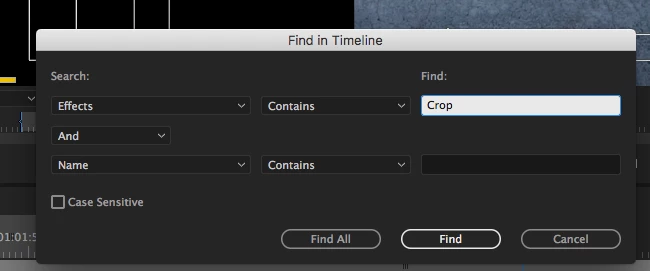
Set to find the effect you are looking for:

and click the Find Button. The playhead will move to the first clip with the effect applied.

To find the next clip, go to the menu Edit > Find Next.

If you want to remove a certain effect from all the clips it is used on the timeline, select all the clips in the timeline, and once they are all selected right click (control click) and any one of the selected clips and from the drop down menu choose Remove Attributes. The Remove Attributes pane will open and you can select the effect you want to remove from all the selected clips.

MtD

1 reply

Meg The DogCorrect answer
Inspiring
September 21, 2017

To find clips on the timeline with a certain effect applied:

With the timeline selected, and the playhead at the head of the timeline,  go to the menu Edit > Find and the Find In the Timeline Pane will appear.

Set to find the effect you are looking for:

and click the Find Button. The playhead will move to the first clip with the effect applied.

To find the next clip, go to the menu Edit > Find Next.

If you want to remove a certain effect from all the clips it is used on the timeline, select all the clips in the timeline, and once they are all selected right click (control click) and any one of the selected clips and from the drop down menu choose Remove Attributes. The Remove Attributes pane will open and you can select the effect you want to remove from all the selected clips.

MtD

Participant
January 6, 2025

Thank you very much! I didn't even know that. That's a great time saver!

Kevin-Monahan
Community Manager
Community Manager
January 6, 2025

Hi @DomiFlue,

I am so glad that you found Meg's tip valuable. I created a FAQ from this discussion. Thanks for letting us know it helped you.


Cheers,
Kevin


Kevin Monahan - Sr. Community and Engagement Strategist – Adobe Pro Video and Audio