Inspiring
April 19, 2019
Question

Fast colour corrector not working after April update.

  • April 19, 2019
  • 8 replies
  • 2102 views

I tried to add color corrector to a clip and got this.
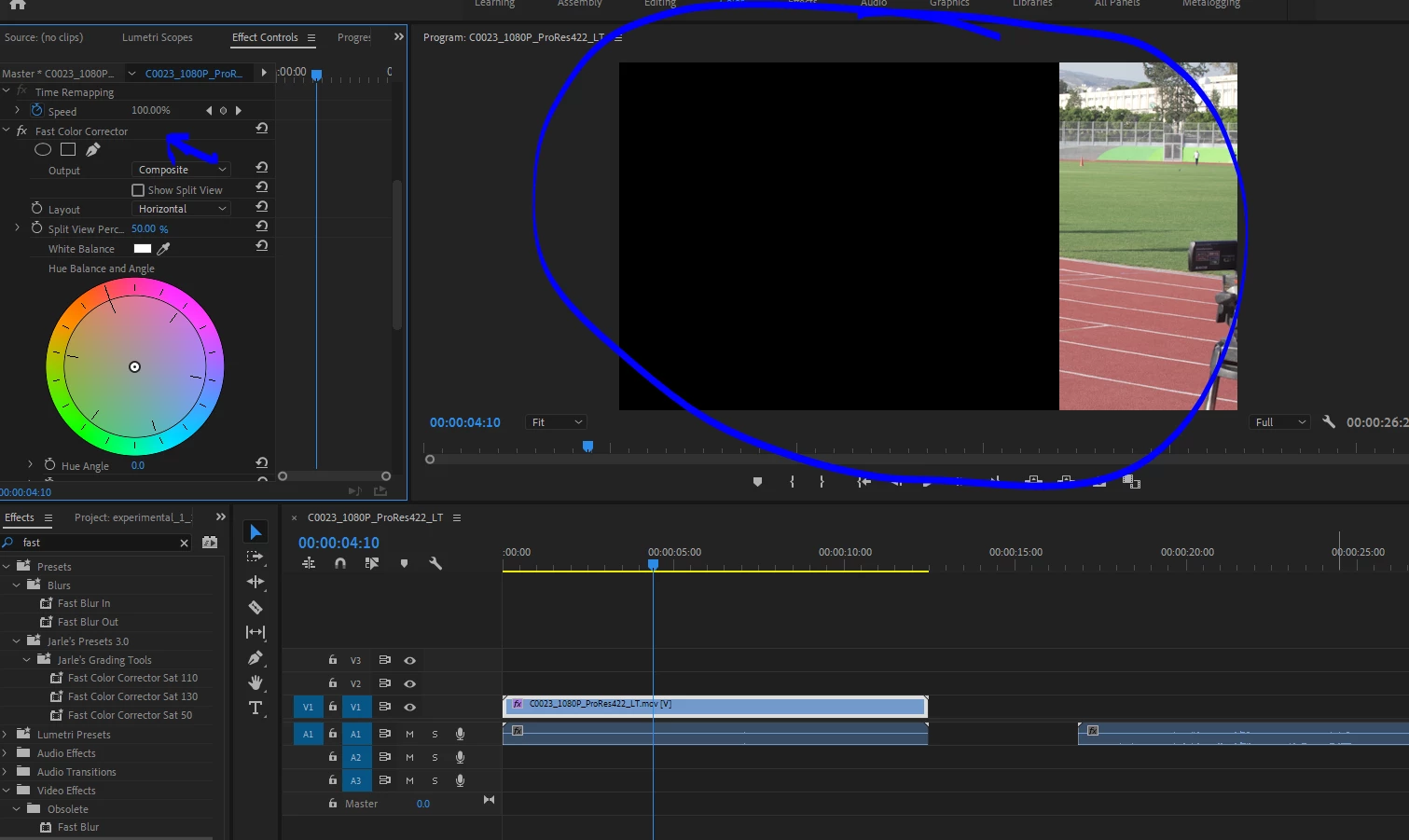
Closed and reopened, tried different clips and different formats. Very odd. I also Reset layout.

Any ideas?

/J

    This topic has been closed for replies.

    8 replies

    Inspiring
    April 24, 2019

    make sense, thanks for the info. its indeed a very confusing subject!

    R Neil Haugen
    Legend
    April 24, 2019

    Oh, there's so much in video post that's sooooo confusing. Sheesh ...

    Neil

    Everyone's mileage always varies ...
    Inspiring
    April 24, 2019

    From my understanding some footage shoot with sony cinegammas profiles use 107% IRE and appear clipped in premiere when they are not. So setting to 16-235 bring the details back.

    Are you saying that anything over (100)235 in yc/no chroma mode is clipped footage? i though 255 was clip threshold

    Confused now.

    R Neil Haugen
    Legend
    April 24, 2019

    0-255 is generally called "full" or "data range" ... and most 8-bit video is actually in the 16-235 "limited" or "video" range. Realistically, only a few DPX and other image sequence formats and some 4444 are by standard, 0-255.

    The vast majority of Rec.709 media is recorded as 16-235.

    Pr confuses the heck out of people because when the scopes are set to display in 8 bit formatting for the scale on the right side of the scope, the scale shows 0-255. So ... many folks assume that means that Lumetri is "in" 8-bit mathematically and using 'full' range ... both "wrong" for proper color.

    Well ... Lumetri is always and only in 32-bit float mathematically. And ... to see scales in 16-235, you can set the Waveform type to YC or YC/no chroma. Then the right-side scale shows 16 across from 0 nits, and 235 across from 235 nits, "as it should" from say a colorist's perspective.

    Now ... yes, some of the cinegamma and other camera profiles using forms of Log have intentional over-brights. Which can be a problem, especially using Log-corrective LUTs, as that over-bright area is "clipped" by the LUT. Which is why one always should use the corrective LUT as the second step in the process ... you need to apply the LUT in the processing chain, but then go to tonal/chroma controls processed before the LUT ... and 'trim' the clip into the best scope and display view of it, essentially "through" the LUT.

    For example, in Lumetri, that would mean applying the log-corrective LUT say in the Creative tab's LUT slot ... then using the Basic tab Whites slider to pull the over-brights down within the 0-100 nits area so the LUT doesn't simply clip them.

    This is the process followed most everywhere else. I've been after the engineers about the bad placement of the tech LUT slot in the Basic tab ... it should be processed LAST in that tab. I think they're finally understanding why, so at some point that might change. But ... not yet, clearly.

    Neil

    Everyone's mileage always varies ...
    Inspiring
    May 14, 2019

    P.s. What you said about adding the corrective lut in Creative tabs blew my mind :-)

    It makes a HUGE difference! , infact if i add it in basic tab it clips the footage and no correction will bring it back. But in creative i can go back up and adjust to taste.

    I can't believe never seen that anywhere else and in all the colour grading tutorial i have seen.

    Community Expert
    April 20, 2019

    What if you nest that clip and apply fast color corrector? does the same issue occur?

    or if you can test and export that clip to something other than ProRes, like Quick Time GoPro Cineform,

    then import that export and apply fast color corrector, what happens?

    Inspiring
    April 20, 2019

    Thank for the ideas,

    Nesting had same issue, and exporting with effect would crop output image too.

    I tried other format/files, i have mp4s.

    I am left with resetting  preferences but i want to avoid that. i like my settings :-)

    All other 'obsolete' video effects work fine. 

    I'll backup the preferences and then reset an see.

    Inspiring
    April 20, 2019

    Ok seems GPU related, when i enable software only it doesn't happen. :-(

    Inspiring
    April 20, 2019

    It gets weirder check this :-)

    Ann Bens
    Community Expert
    Community Expert
    April 20, 2019

    Cannot reproduce your issue: try trashing preferences.

    Inspiring
    April 20, 2019

    Strange thing i noticed now, is that is i reset the effect , the crop changes!

    I have all drivers update to date and before the april update it was working. If no one can reproduce it then i'm its my system, i will try to figure it out and update here.

    Kevin-Monahan
    Community Manager
    Community Manager
    April 19, 2019

    Need more info about your system and media. Cannot repro.

    Kevin

    Kevin Monahan - Sr. Community and Engagement Strategist – Adobe Pro Video and Audio
    R Neil Haugen
    Legend
    April 19, 2019

    A puzzler ... I can't repro here. Something is off but ... what?

    Well .. if somehow the Motion/Position had been changed in the ECP ...

    Neil

    Everyone's mileage always varies ...
    Peru Bob
    Community Expert
    Community Expert
    April 19, 2019

    Try updating or rolling back your graphics driver directly from the video card manufacturer’s site.