
colbyc81458229
Participant
November 6, 2021
Answered

Footage is suddenly all blown out, halfway through the project

  • November 6, 2021
  • 2 replies
  • 6442 views

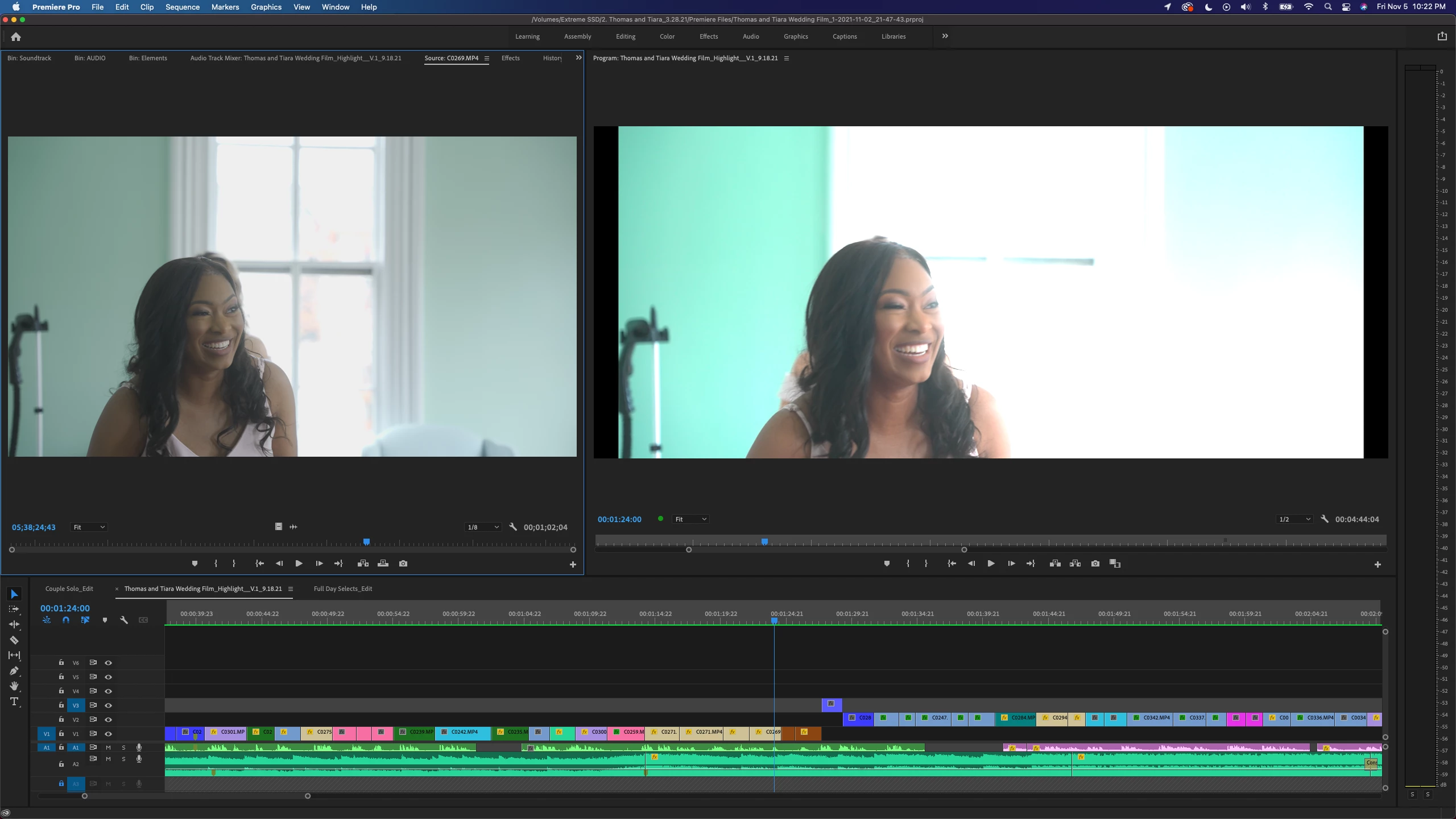
Super confused as to what's going on.... I edited my first draft of a video, and all the footage was looking great. I came back a week later for round two and suddenly EVERY clip, in EVERY sequence, is super blown out and oversaturated. It's not color effects, I haven't done anything except cut and sequence... and it's on every clip as soon as I add it to the sequence. When I open a source clip from the bin, they look fine... it only happens when I view the Program previewer. Anything I export has the same problem as the sequences.


Attached, see the same raw source clip from the bin next to the same clip with no FX in the sequence. I gotta push this out to my client soon, and I can't figure out what's happening. HELP!
 

This topic has been closed for replies.
Correct answer ah.photo

@colbyc81458229  Premiere Pro 22.0 now recognizes color spaces of H264/H265 footage. If your footage is HDR (HLG or PQ), and you've been editing in a Rec 709 sequence, now since Premiere acknowledges the source color space, the HDR footage will map luminance values beyond 709's luminance range, and as a result will look over-exposed and clip.


Best way to fix this in my opinion: add the SDR Conform effect to any of your HDR clips. You can apply directly, or add as an adjustment layer, or even as an export effect. This will remap luminance values above 100 nits, back down to to fit within the upper limits of SDR.


If this doesn't work however because you've already done previous color work in Lumetri: select all of your clips and right click > Modify > interpret footage and override the color space to Rec 709. This will force Premiere to treat your clips as Rec 709, like Premiere did previously

2 replies

R Neil Haugen
Legend
November 6, 2021

My preferred action for this would always be trying the clip color space settings first, followed by the timeline settings, then if necessary trying the conform.


Neil

Everyone's mileage always varies ...
ah.photoCorrect answer
Inspiring
November 6, 2021

@colbyc81458229  Premiere Pro 22.0 now recognizes color spaces of H264/H265 footage. If your footage is HDR (HLG or PQ), and you've been editing in a Rec 709 sequence, now since Premiere acknowledges the source color space, the HDR footage will map luminance values beyond 709's luminance range, and as a result will look over-exposed and clip.


Best way to fix this in my opinion: add the SDR Conform effect to any of your HDR clips. You can apply directly, or add as an adjustment layer, or even as an export effect. This will remap luminance values above 100 nits, back down to to fit within the upper limits of SDR.


If this doesn't work however because you've already done previous color work in Lumetri: select all of your clips and right click > Modify > interpret footage and override the color space to Rec 709. This will force Premiere to treat your clips as Rec 709, like Premiere did previously

mattmattmayer
Inspiring
October 16, 2023

Thank you for this advice. I had nested some stuff, and was struggling. After seeing your post, I considered changing the Interpret Footage setting, but the same clip was used throughout the project and was NOT a problem. Only inside the nest. What worked was changing the nest sequence's color profile. If that helps anybody in a similar situation.