LeeGero
Participating Frequently
August 24, 2020
Answered

Getting Letterboxed Effect When Exporting

  • August 24, 2020
  • 2 replies
  • 1072 views

Hi Everyone-


This is my first post ever on here, so if I am doing something wrong, please let me know. 


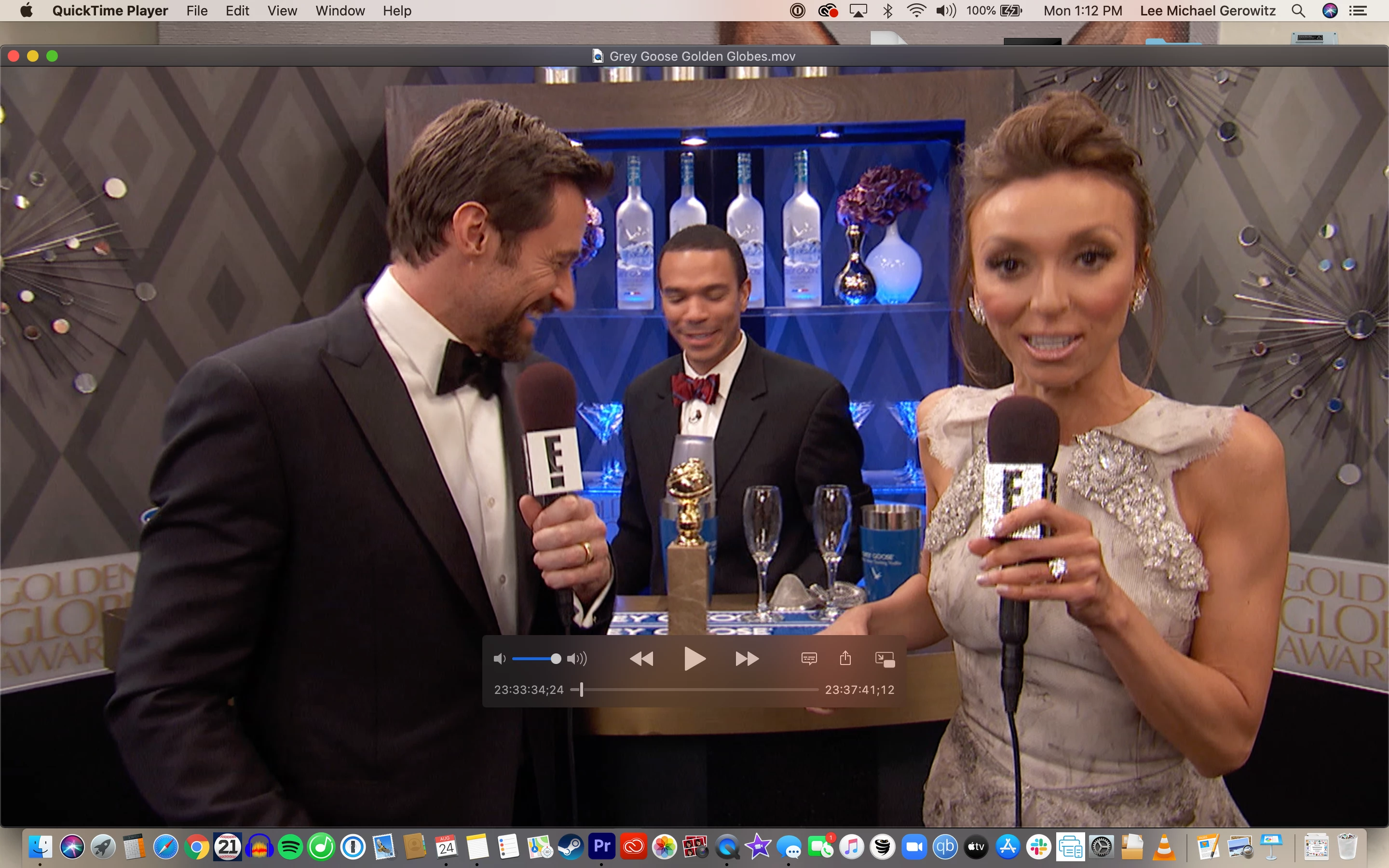
So I am new to Premiere, have done a bunch of tutorials and was recently putting together a sizzle for a friend. When I export my sequence, I cannot figure out why I am getting a letterboxed effect when my sources are not letterboxed. My video sources consist of a variety of formats, such as the following: 1920x1080, 960x540, and 640x360. I have also attached pics of the letterboxed image (top) and the source (bottom) as reference.


FWIW, I have Default Media Scaling set to None under Preferences/Media. I am not sure if this is why this is happening. Or is this an export settings issue? Anyways, I'm pretty lost, so thanks in advance for any help or advice!
This topic has been closed for replies.
Correct answer Phillip Harvey

Thanks for the info, much appreciated. Based on your last paragraph - if you look at my screen grabs above of my sequence and export settings, I feel like they match, don't they? Again, I am new to Premiere, so maybe I am wrong.


I think what it comes down to is, whenever I begin a new project next, to follow exactly what you said. But for now, I'd love your advice re: whether these settings and if they appear to match.


Thanks!


In that last photo your Sequence and your Export settings match, yes. But the media inside the sequence (variable 1) does not. The media is obviously quite small - or already scaled down. Scale it up to fit the frame size of 1920x1080.


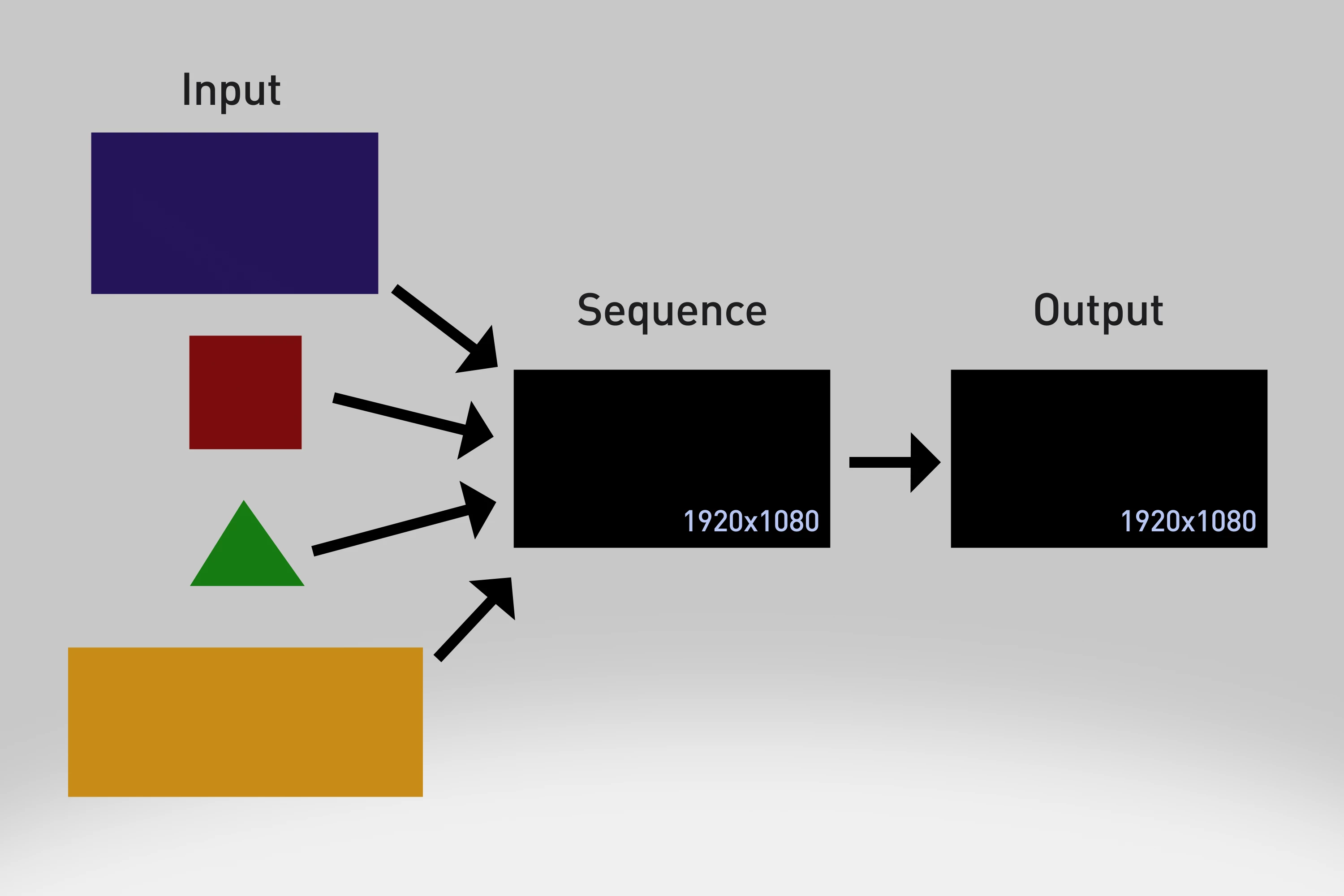
Here is a little graphic to convey the idea better when working with variable media:

You can add any sized media in the sequence. Big, small, widescreen, square, whatever... it isn't all going to fit perfectly. Some things you'll need to scale up, some things you'll need to scale down, some things you'll need to crop the left and right, or the top and bottom.


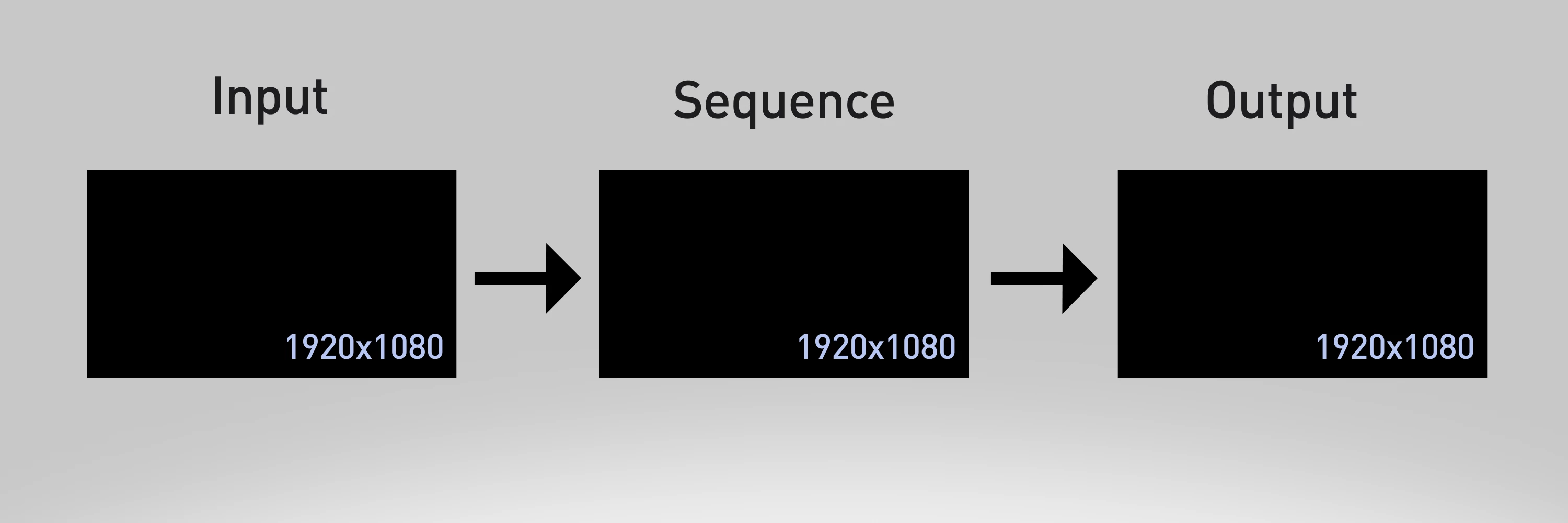
The only way to not do any of that - and generally speaking your ideal Recording>Editing>Output situation is when they all match (or if your source media is larger than the sequence/output):

2 replies

Inspiring
August 24, 2020

I am not 100% sure what you are doing. That being said if you drop  a 640 X 480  video into a 1080 sequence it will be letter boxed by defualt. You have to scale it up by 200% or more but hair might look like rabbit fur instead of hair. If you start watching the video below at 6:30 you will see what I mean.

https://youtu.be/dVLUxRkPMdA

LeeGero
LeeGeroAuthor
Participating Frequently
August 24, 2020

Thanks Andy. Totally understand what you're saying about scaling it up. I apolgize for the dumb question, but how can I see if my sequence is a 1080 sequence? Is it possible that I need to change my sequence settings?

Inspiring
August 25, 2020

Click on the seqeunce and in the menu bar find the sequence settings tab. You can change sequences or create another sequence and drop and drag the content from one to another.

R Neil Haugen
Legend
August 24, 2020

Yes, your default should be on the "set to framesize" scaling option ... then all clips would drop onto the sequence at the frame-size of the sequence, and should export accordingly.


Neil

Everyone's mileage always varies ...
LeeGero
LeeGeroAuthor
Participating Frequently
August 24, 2020

Thanks so much for the quick reply, Neil! Just so I am clear - moving forward, before I create a sequence, I should have Default Media Scaling set to "set to framesize" correct?


In my scenario, what if I already have my sequence laid out? If I change my setting like you mentioned above, will that be enough? Or do I need to also change each clip in my sequence to "set to framesize" as well? (I am aware that you can do this by right clicking on each clip.


Are there export settings I need to worry about or avoid as well? Thanks so much again!

Ann Bens
Community Expert
Community Expert
August 24, 2020

Post screenshot export settings with left tab to output with an image showing and clip properties.