
WestRoofingSystems
Participant
June 12, 2018
Answered

Green and pink flashing in project and render (Premiere Pro and Media Encoder 2018)

  • June 12, 2018
  • 3 replies
  • 11491 views

Hi all,

I'm working on a desktop with Premiere Pro CC 2018 (v12.0), and am experiencing these green and pink/purple flashes when rendering out the project via Premiere Pro and Media Encoder both. My desktop is currently utilizing an AMD Radeon Pro WX 3100 GPU with the most recent drivers, Intel Core i5-7500 @ 3.40GHz CPU, and 16gb RAM. Windows is also updated to it's current version.

I have researched this event occurring, and noticed that it has occurred with users who are utilizing Intel integrated GPU, but I wanted to throw this out there and see if there couldn't be another issue as well.
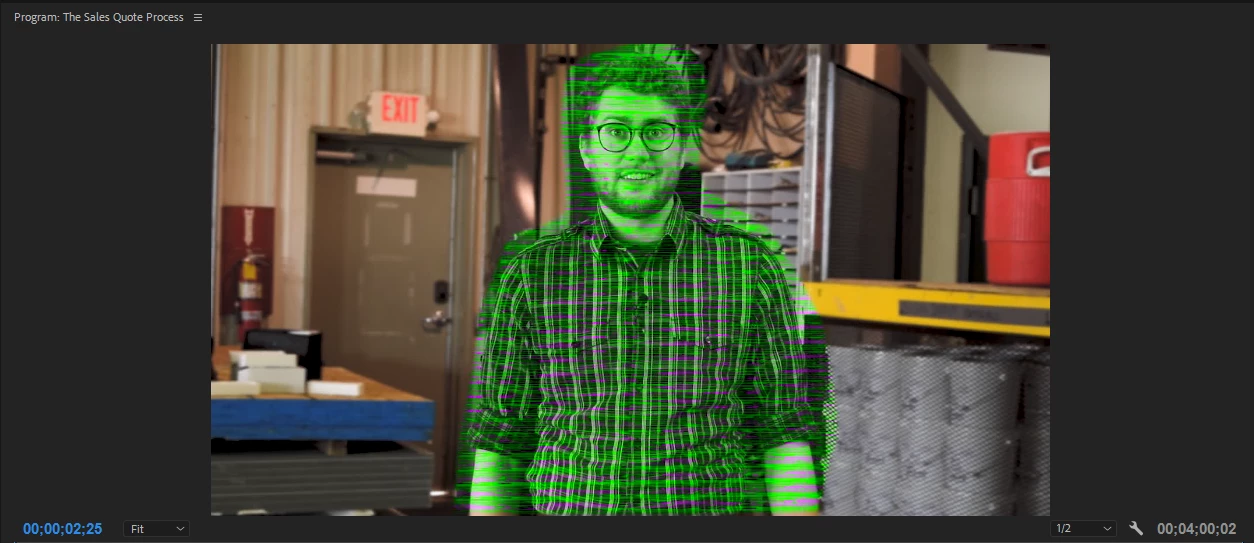
Thank you in advance!

This topic has been closed for replies.
Correct answer juanmario

I am also now having issues with the green and purple colors on my rendered videos. I did not use any color correction or (I don't believe) any adjustment layers. All I am using is a screen recording video and some basic text/image overlays. I am also only using software rendering. Tried all the above solutions and found nothing to solve it.


If you have tried the solutions mentioned here, including this:

https://helpx.adobe.com/premiere-pro/kb/green-purple-streaks-premiere-pro.html

Then I recommend you try this

Go to Edit> Preferences> Media and remove the checkbox before the item: enable Intel h.264 decoding (requires restart), o (12.1.2) Enable hardware accelerated decoding.

3 replies

Kevin-Monahan
Community Manager
Community Manager
May 15, 2019

Still having trouble? See this video.

Kevin Monahan - Sr. Community and Engagement Strategist – Adobe Pro Video and Audio
Participant
January 23, 2019

There is no option like this in After effects and after trying the preferences for video rendering, the problem persists... what can I do??

Vinay Dwivedi
Adobe Employee
Adobe Employee
June 12, 2018

Hi David,

Try to make AMD your default GPU. Make sure you shut down Premiere Pro before making any changes and restart your machine after the changes are made.

https://support.serato.com/hc/en-us/articles/202305784-Changing-graphics-card-settings-to-use-your-dedicated-GPU-on-a-Wi…

You can also switch your Mercury Playback engine to "Software only" mode in Premiere Pro from File>Project Settings>General>Renderer.

//Vinay

WestRoofingSystems
Participant
June 12, 2018

Hi Vinay,

I believe the AMD gpu is currently my default gpu. I am not able to access a "Graphics Properties" panel from the desktop. Is this only a Win7/Win8 feature? What I see is:

Is this an issue with it being the Radeon Pro series?

Thank you

WRS_Colin
Participating Frequently
June 13, 2018

I think you should try color correction on clips rather that an Adjustment layer.May be it is causing this issue.


I will try this.

One thing I am now noticing is that, when attempting to render the file, I am unable to select Hardware Acceleration under encoder settings.

I am under the impression that the AMD Radeon Pro WX 3100 GPU is on the recommended list (by Adobe). Any thoughts?