Participating Frequently
July 28, 2025
Question

HDR export too bright

  • July 28, 2025
  • 2 replies
  • 1216 views

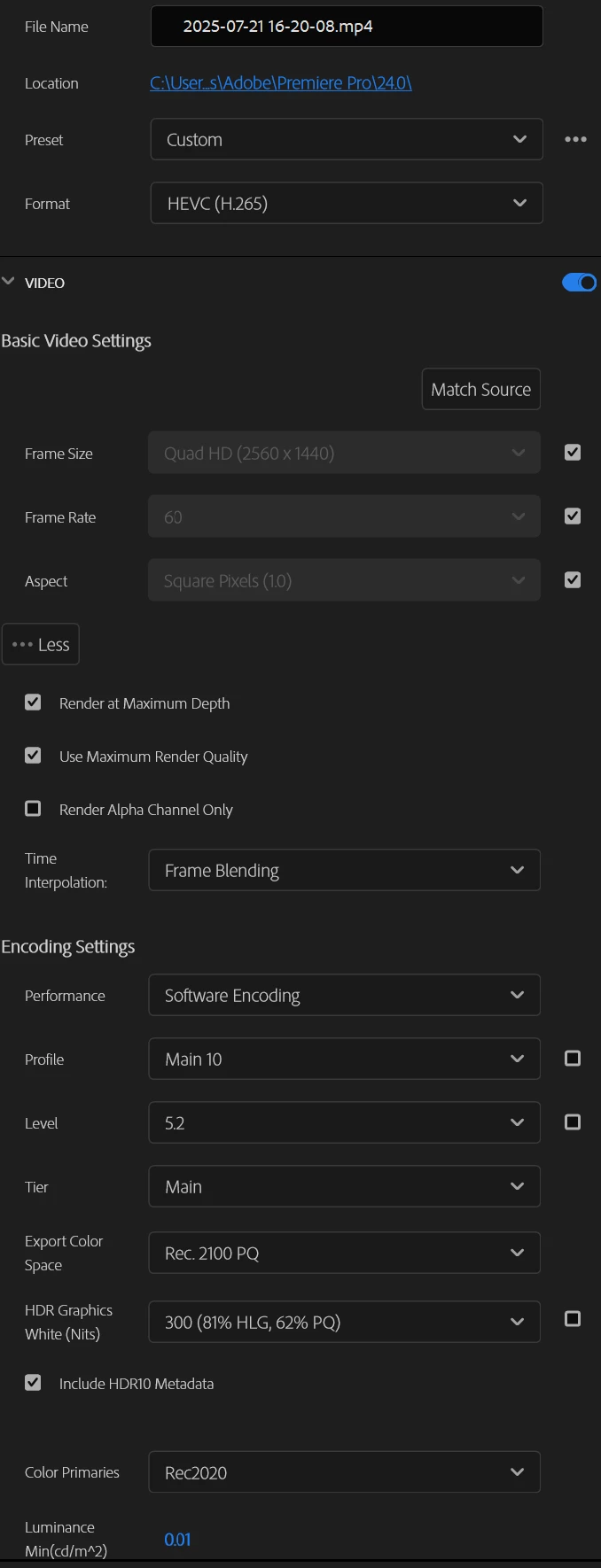
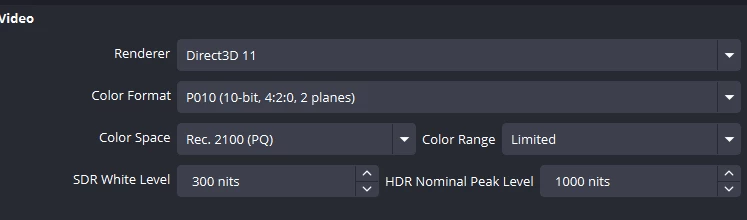
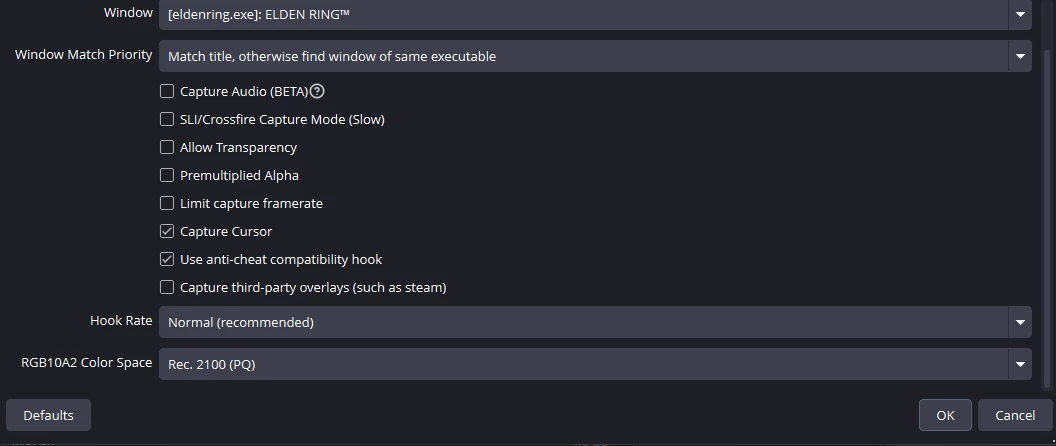
i am trying to export a gaming video on 1440p with HDR for youtube

the problem is that the video either become too BRIGHT or in SDR

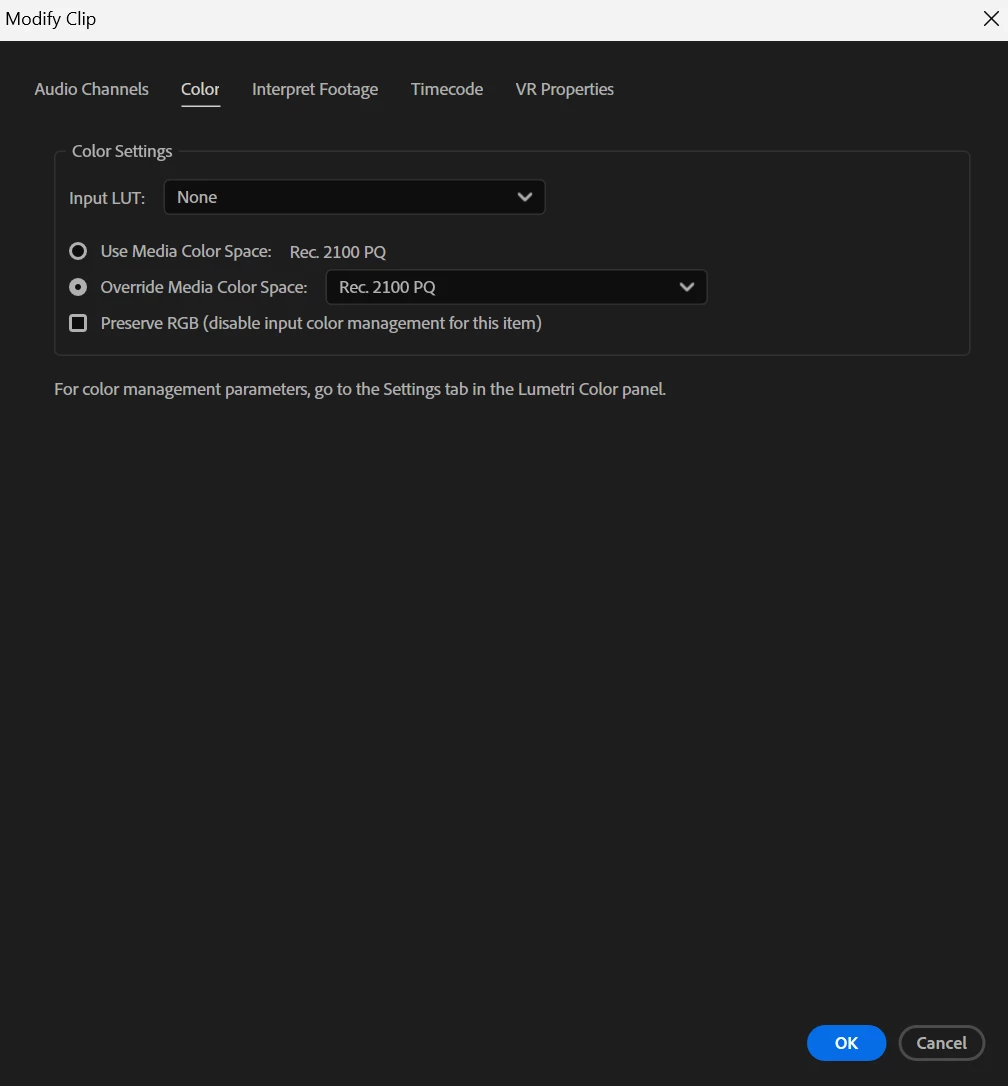
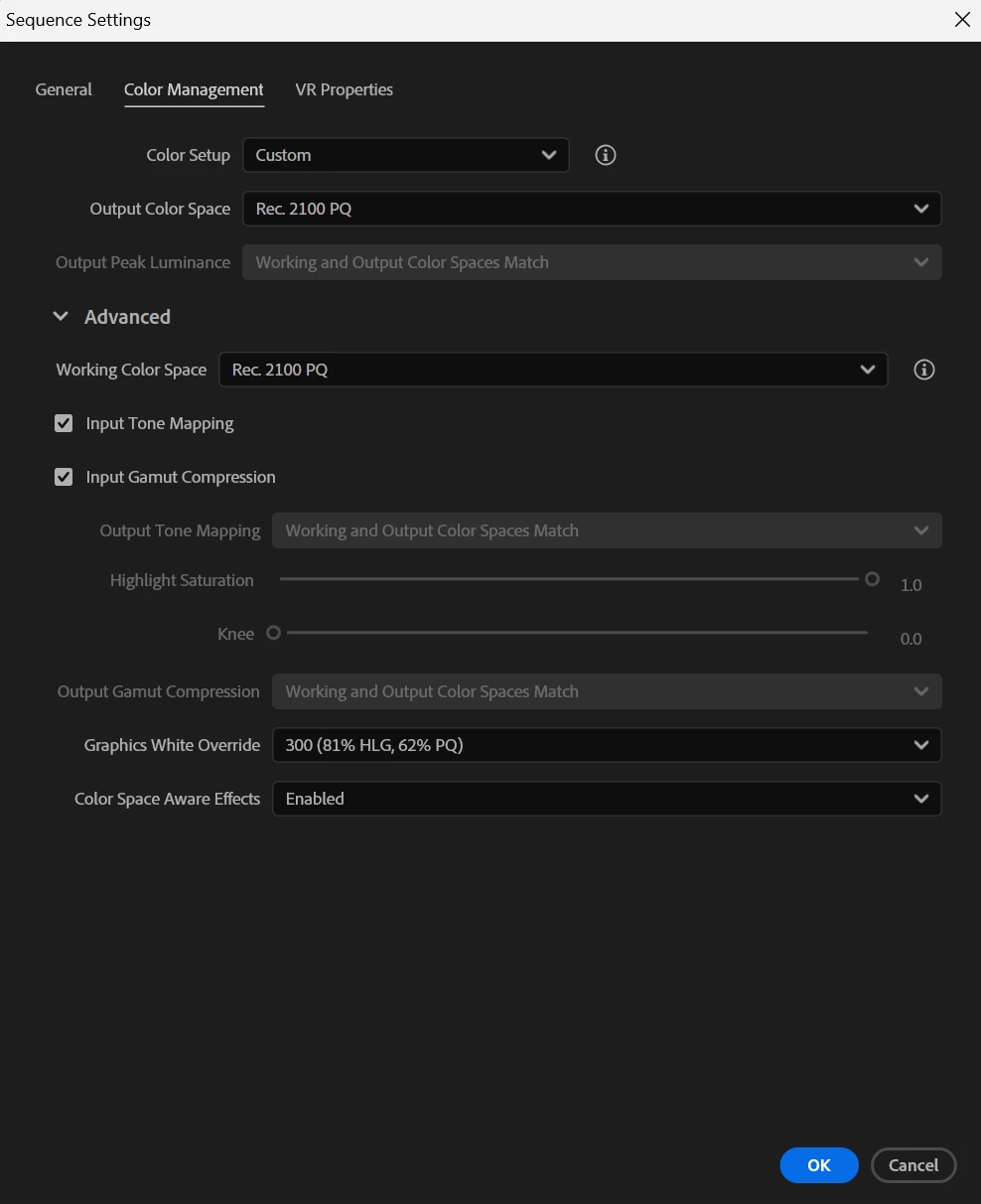
in the screenshots you'll find all the settings i use in obs and premiere pro 

i tried all the sulotions on the website. yet, i can't figure the problem


Screenshots :
 

2 replies

R Neil Haugen
Legend
July 29, 2025

First of course, all color management controls should be used from the Lumetri panel's Settings tab ... the tab named Settings. With everything from project to input to monitor to working space to sequence there, that's the main place for all CM stuff.


Next, after getting all the correct CM settings, and working on a sequence, you need to export using the sequence presets designed for the color space of the sequence.


So for an HLG HDR workflow, you need display color management, extended dynamic range (if on a Mac), auto detect log, and auto tonemapping on ... set the sequence CM to HLG, and make sure your OS and monitor are both set to their HDR settings.


Then you use an export preset with HLG in the preset name.


I would recommend leaving the 'graphics white' option at the native 203 nits setting, as that is the typical pro colorist's setting area for graphics white.


Everyone's mileage always varies ...
bandar367Author
Participating Frequently
July 29, 2025

The original video colors are perfect the problem is that after exporting the video  premiere ruins the colors


So i should never use PQ2100 ?

Because i imported the video with it, should i override it with HLG ?

Kevin-Monahan
Community Manager
Community Manager
July 28, 2025

Hey Bandar,

Thanks for the notes. I was looking at your screenshots and did not see anything unusual. Can you show us any screenshots of the actual issue in the Program Monitor? You say it is a screen capture in OBS, right? Let us know more. I hope the community can help. Sorry for the frustration.


Thanks,
Kevin


Kevin Monahan - Sr. Community and Engagement Strategist – Adobe Pro Video and Audio
Participating Frequently
July 29, 2025

Make sure you're recording in HDR (Rec. 2100 PQ or HLG) in OBS, and that you preserve this color space in Premiere Pro by setting the sequence and export settings to match (Rec. 2100 PQ, 10-bit depth). Also, ensure you're exporting in HEVC (H.265) with HDR metadata enabled. If the video appears too bright or ends up in SDR, it's likely because the color space or bit depth isn't consistent across your workflow. 

Legend
July 29, 2025

hi

sorry for responding late

here are screenshots of all the things you mentioned :


and here is a screenshot of the original video before importing it to premiere. this is how it should look after exporting it


I think I found the problem:


Your timeline is in HLG, not PQ. That breaks your PQ workflow from the start.


Unfortunately, there is no factory preset with a PQ timeline. The only default presets with HDR in their name all use HLG. The conversion from PQ to HLG during rendering and then back to PQ during exporting will ruin your HDR exports.