
Known Participant
August 16, 2018
Question

Help! Video quality drobbed too much on uploading to youtube or vimeo

  • August 16, 2018
  • 5 replies
  • 8065 views

Hey guys,

I uploaded video of 1080 HD to youtube and then to vimeo when i upload it and click on playing setting and set it to the fullest which is 1080 HD

the video seems too blury and almost has no colors and it seems to have a blury transparent layer on the video as you can see in the picture attached here

On the left side it is the original on my windows it appears full HD all color grading is on the point

On the right side is that of vimeo and youtube as well
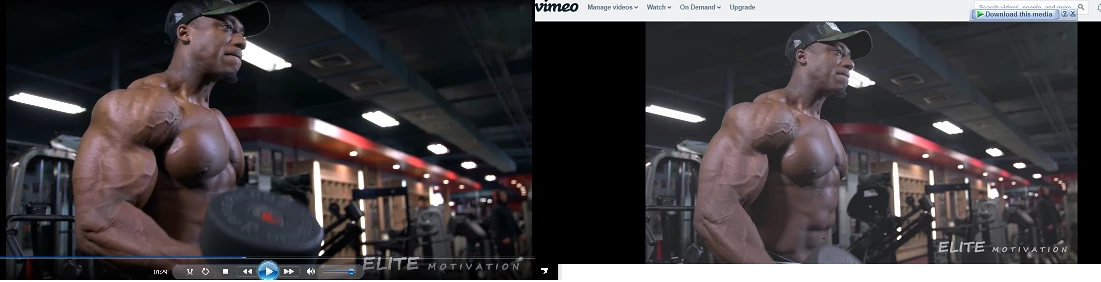
For sure you have noticed that blury transparent layer on the video which makes colors do not appear as well as very very low quality also i switched the play setting to the fullest which is 1080 HD

i tried different format and codec i increase the bit rate and does not make a sense as youtube and vimeo will compress the video to the required bit rate

so it does not make a sense the problem is that blurry transparent layer on the video which washes out all the colours and make it looks like ****** 240 video

anyone can help please URGENT!


Thanks in advance

This topic has been closed for replies.

5 replies

Pierre-Carl_Cote
Participant
December 29, 2018

https://www.youtube.com/watch?v=f8TalCyMw9Qhttp://

This is the video where you can get the LUT

Pierre-Carl_Cote
Participant
December 28, 2018

Hey, I had the same issues with my color in youtube. For some reason youtube desaturate the color and everything look flat. After several research because I was freaking out I found a LUT that you applied after you finished your color grading. When you applied the LUT you gon see that everything is over satured (in premiere pro) but when you export on youtube, facebook, vimeo, the color grading still the same. If you interested I can send you the LUT via email or dropbox !

R Neil Haugen
Legend
December 28, 2018

Good luck.

Though on any system with a carefully set up viewing environment your material will now probably be over saturated and too contrasty, likely clipped booths whites and blacks.

And will not appear similarly to professionally produced media on those systems.

You're trying to game the system rather than learning how it actually works and mastering it.

Neil

Everyone's mileage always varies ...
Participant
August 17, 2018

I had the same problem in the past - after uploading the movie to YT it seems like during online compression a gamma transparent filter was automatically added and the results: colours were washed out so as contrast of the clip...

Known Participant
August 17, 2018

Did you solve it ...if yes how?

R Neil Haugen
Legend
August 17, 2018

Anyone using an online service like YouTube, Vimeo, whatever ... the browser used matters also.

Chrome & Safari are both color - stupid. Completely.

Firefox is the only browser currently that pays any attention to color flags in media.

And understand ... once anything leaves your system and goes out into The Wild, you have no control whatever. No two screens ever made will ever, no matter the calibration, show the material the same even on the same system. No ... throw it out on the 'net, through various browsers onto screens with varying color spaces and settings ... you can't control how it looks. Even coming back into your own system from outside!

No one can. Not even full professional colorists delivering only to full broadcast outlets with tightly enforced QC tests. As one colorist stated, "You can't fix Gramma's green tv ... "

Neil

Everyone's mileage always varies ...
Legend
August 16, 2018

First of all, you can only judge the quality of a video signal under the proper conditions.  That means on a calibrated display from a hardware player.  You can't use your computer for this.

Second, once the image does look good on a calibrated display, you're job is done.  How it looks anywhere else is beyond your control.  YouTube will reencode the video.  Different browsers will affect the look.  There's nothing you can do about those factors.

Finally, I have found that exporting and uploading Cineform files provides better end results over H.264 uploads.  Choose QuickTime as the Format and the GpPro Cineform YUV 10 bit as the Preset.

Vishu_Aggarwal
Participating Frequently
August 16, 2018

What settings you have used to export from premiere pro i.e. Codec & format, a screenshot of your export settings can give a better understanding of what could be wrong in export settings.

Vishu AggarwalAdobe Certified Instructor, Professional and Expert
Known Participant
August 16, 2018

That is Here ,.... i used other presets and higher bit rates but gives  the same output when uploading  but this is the setting i used for exporting the video on my pc as shown in the previous pictures  and it gives me a full HD video

Participating Frequently
August 16, 2018

Can't see your example ...

Neil


Please try this - Import the exported video back into Premiere. Put original clip in track V1, put new clip right above it on V2. Toggle the V2 layer on/off to compare the two. Do you see the issue there? That will tell you if the problem is with the clip, or something with the online platform being viewed on.

Thanks

Jeff