
Participating Frequently
May 12, 2024
Answered

How can I efficiently batch add text to videos with varying lengths?

  • May 12, 2024
  • 4 replies
  • 1463 views

How can I efficiently batch add text to videos with varying lengths, incorporating the title of each file as a label or subtitle? I'm aware of the MOGRT method, but it seems cumbersome as it involves opening each file individually, applying the MOGRT, and then exporting each file separately. Is there a more streamlined approach or tool that can automate this process for all files within a folder?
This topic has been closed for replies.
Correct answer Mathias Moehl

the correct link: https://drive.google.com/drive/folders/1a8bh77OhoD8QJ--xmaS1yyQtMQ07L3VM?usp=sharing


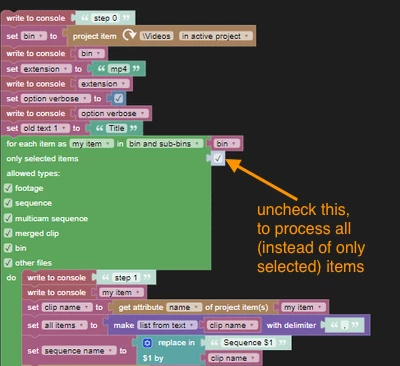
You have the option enabled to only process the selected items. That means, items are only processed if they are A) contained in the bin "Videos" and also B) selected in the project panel

You probably want to uncheck that option?

4 replies

Mathias Moehl
Community Expert
Community Expert
May 13, 2024

You could create a custom automation with my (paid) extension Automation Blocks.


With Automation Blocks you can implement your own tasks by combining little blocks like lego bricks. In your case something like this:
for each clip in a particular bin

    create a new sequence with that clip (in track V1)

    insert a mogrt in V2

    set the duration of the mogrt to the duration of the clip

    set the text of the mogrt to the name of the clip (or whatever else you want to use as text).


Get started here

https://docs.mamoworld.com/automation-blocks/tools-pr/templateTools

and here

https://docs.mamoworld.com/automation-blocks/tutorials-pr/mogrtFromSpreadsheet


Mathias Möhl - Developer of tools like BeatEdit and Automation Blocks for Premiere Pro and After Effects
lgy00Author
Participating Frequently
May 13, 2024

Thanks Mamo, I will try to create the blocks first.

MyerPj
Community Expert
Community Expert
May 12, 2024

BTW: Strech out the Adjustment layer to cover all the clips you want to display the info, and there are 5 lines of metadata you can add in just the one effect.

MyerPj
Community Expert
Community Expert
May 12, 2024

You also might try an adjustment layer over the clips and add the new-ish Metadata&Timecode Burn-in effect. Set the meta field to File Name and you'd be good to go.

R Neil Haugen
Legend
May 12, 2024

I'd go to aescripts.com to see if any of the many plugins available through them can do that.

Everyone's mileage always varies ...