alex_zagreba
Participant
January 28, 2018
Answered

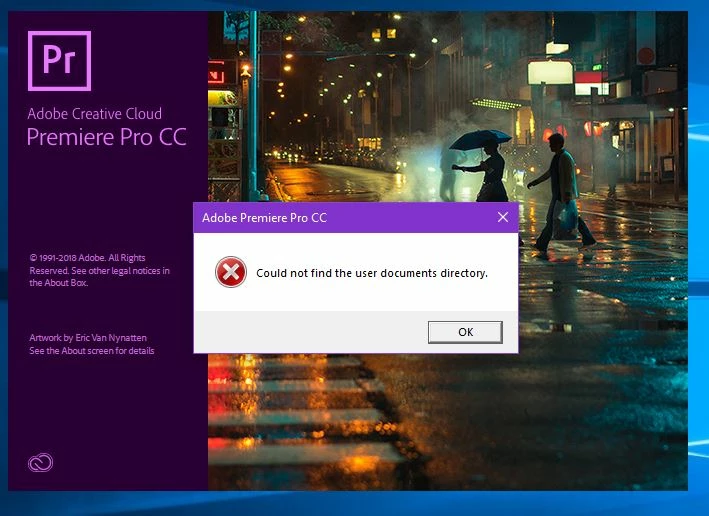
How can I fix this error : "Could not find the user documents directory"
  • January 28, 2018
  • 12 replies
  • 43144 views

    This topic has been closed for replies.
    Correct answer excelg71059738

    I've found a way to fix this but I've only gotten so far.. Go to Windows Defender Security Center in your settings. Turn off all of the protections, Real-time, Cloud-delivered and Automatic. Once you have done this run the program and you wont have no errors or problems.

    12 replies

    PhoenixOrange
    Participant
    May 11, 2020

    You likely have controlled folder access enabled, which blocks Premiere from accessing your folders. Once you give it permission, you shouldn't have any issues.

    jamesb15042739
    Participant
    April 15, 2020

    Hi all, I have fixed the problem on my machine. It has to do with Windows registry settings related to the default location of your documents folder. There are 2 separate areas in the registry that must be modified, followed by a reboot to fix this.


    Just open up regedit and navigate to the following paths, one at a time, and change the value for "Personal" on each to the actual path of the Documents folder you use on your computer. I haven't seen this solution online anywhere, so hope this helps!!


    Computer\HKEY_CURRENT_USER\Software\Microsoft\Windows\CurrentVersion\Explorer\Shell Folders

    Computer\HKEY_CURRENT_USER\Software\Microsoft\Windows\CurrentVersion\Explorer\User Shell Folders


    Participant
    June 17, 2020

    This resolved the issue for me. Thank you so much!! In the registery, I had to change the Shell folder and user shell folder's path for Pictures and Personal to C: drive from home directory on the server.


    Participant
    January 24, 2019

    all you need to do is add the app onto programs allowed access in windows defender.

    Participant
    June 2, 2018

    Go to Windows defender security center and add an allowed app

    c:\program files\Adobe\Adobe Premiere Pro cc 2017

    Participant
    June 2, 2018

    i am Agree with

    tl3k Mar 4, 2018 7:34 AM (in response to Jim_Simon)

    First open (Windows 10) Settings

    Go in Update and Security -> Windows Defender -> Open Windows Defender Security Center

    On the left side, click on Virus and Threat Protection

    Under Controlled Folder Access click on Allow an app through Controlled folder access

    Click on the + (Add an allowed app) sign and browse to the install location of your adobe Premiere Pro install

    The  Default location is C:\Program Files\Adobe\Adobe Premiere Pro CC 2018\Adobe Premiere Pro.exe

    So the problem here is that Premiere Pro try to access a folder on your system, but windows defender is blocking it because the folder is in your Documents folder. By doing so you allow Premiere Pro to access your Documents folder and probably other file in there, but this solution is way much safer then disabling windows defender completly.

    Hope this help a few, i search a while to figure out how to get this app working on my system !

    Participant
    June 2, 2018

    other wise

    just off the controlled folder access

    go to ransomware protection and off the controlled folder access

    but take care i have no idea about ransomware protection .

    Participant
    May 22, 2018

    I'm having this problem..  using Windows 7.  how do i fix?

    TonyaSkinner
    Participant
    May 16, 2018

    My school is a Certiport testing center. I isolated my problem.

    Sometimes, when students would test, the Windows path to the Pictures folder or Documents folder would "path" incorrectly (like to the P drive or something). When I repaired that error, it worked without incident.

    Participating Frequently
    May 16, 2018

    That seems like the obvious answer, but how were you able to change the path without being able to access the application?

    I'm either being really dumb or this is unnecessarily complicated.

    TonyaSkinner
    Participant
    May 16, 2018

    I right clicked the Documents folder. It said some other path. I clicked Restore Default. Just in the Windows explorer/file view, not inside any program.

    Participant
    April 20, 2018

    I too suddenly had this problem with After Effects and Premiere. After a long and unhelpful session Adobe Remote Support could only tell me it had to do with permission prblems and that I needed to contact "my IT expert" without givinga ny further info on the problem. I found out it had to do with Windows 10's Controlled Folder Acces. Once I enabled it for AE and PPro it worked again. No idea what caused it though, maybe the critical update from April? Turn on the protected folders feature in Windows 10 | Microsoft Docs

    TonyaSkinner
    Participant
    April 30, 2018

    My Controlled Folder Access is in "off" position anyway and I am getting the error. Are you saying to make it "On" and then add those controlled access? Because if mine is off, I feel like it should work... ugh.

    I teach in a computer lab. It's only happening on one computer, but I am concerned the whole room is going to have problems soon.

    Participant
    April 30, 2018

    I still have no idea why it happened to mine. All I can tell you is I noticed in the Windows notifications (bottom right in the taskbar) that AE/PPro/AME were denied acces to the internet. Clicking the alert brought me to Controlled Folder Access, where I navigated to “Premiere.exe“ to allow it acces. Same for Aftereffects.exe and AME. No trouble since.

    dilanig9501563
    Participant
    March 3, 2018

    Hi,

    I have the same issue. I've just installed the paid version, but I can't open it.

    Can someone help please?

    Legend
    March 3, 2018

    Look back through the thread.  Try the troubleshooting steps.

    Participant
    March 4, 2018

    To everyone having this problem, one solution, instead of disabling windows defender, is to add the Premiere Pro to the autorised app list in windows defender, to do so :

    First open (Windows 10) Settings

    Go in Update and Security -> Windows Defender -> Open Windows Defender Security Center

    On the left side, click on Virus and Threat Protection

    Under Controlled Folder Access click on Allow an app through Controlled folder access

    Click on the + (Add an allowed app) sign and browse to the install location of your adobe Premiere Pro install

    The  Default location is C:\Program Files\Adobe\Adobe Premiere Pro CC 2018\Adobe Premiere Pro.exe

    So the problem here is that Premiere Pro try to access a folder on your system, but windows defender is blocking it because the folder is in your Documents folder. By doing so you allow Premiere Pro to access your Documents folder and probably other file in there, but this solution is way much safer then disabling windows defender completly.

    Hope this help a few, i search a while to figure out how to get this app working on my system !

    excelg71059738Correct answer
    Participant
    February 28, 2018

    I've found a way to fix this but I've only gotten so far.. Go to Windows Defender Security Center in your settings. Turn off all of the protections, Real-time, Cloud-delivered and Automatic. Once you have done this run the program and you wont have no errors or problems.

    Legend
    March 1, 2018

    Go to Windows Defender Security Center in your settings. Turn off all of the protections, Real-time, Cloud-delivered and Automatic.

    I think that's bad advice.  It certainly isn't necessary for Adobe software to run properly.

    Participant
    March 2, 2018

    It's not bad advice.. it works. May not be the best advice but hey it works.

    freaksalex
    Participant
    February 4, 2018

    Hi,

    I have the same problem...

    Photoshop ok

    Premiere Pro, After Effect : same message...

    I tried all the proposed solutions.

    Legend
    February 4, 2018

    If you've already done Step 3G below, then also try Steps 3D, E and F.  Try them in that order, and one at a time.

    Unofficial Premiere Pro Troubleshooting Guide
