
Participant
July 8, 2020
Answered

How do I attach markers to clips so they move together within timeline?

  • July 8, 2020
  • 2 replies
  • 25519 views

Hi All!


I'm working on a project that has about 40 different marker points to help me organize all of the clips. I'm adding footage from a range of different sources, and each time I drag a new clip into the timeline or set and in+out point, I need to move a bunch of other clips around. Every time I do this, I need to make a ton of little adjustments to my markers because they don't move with the clips as they adjust their placement. Is there a setting within Premiere to connect a marker to a specific clip so they move together when timeline changes occur? 


Thanks for your help!
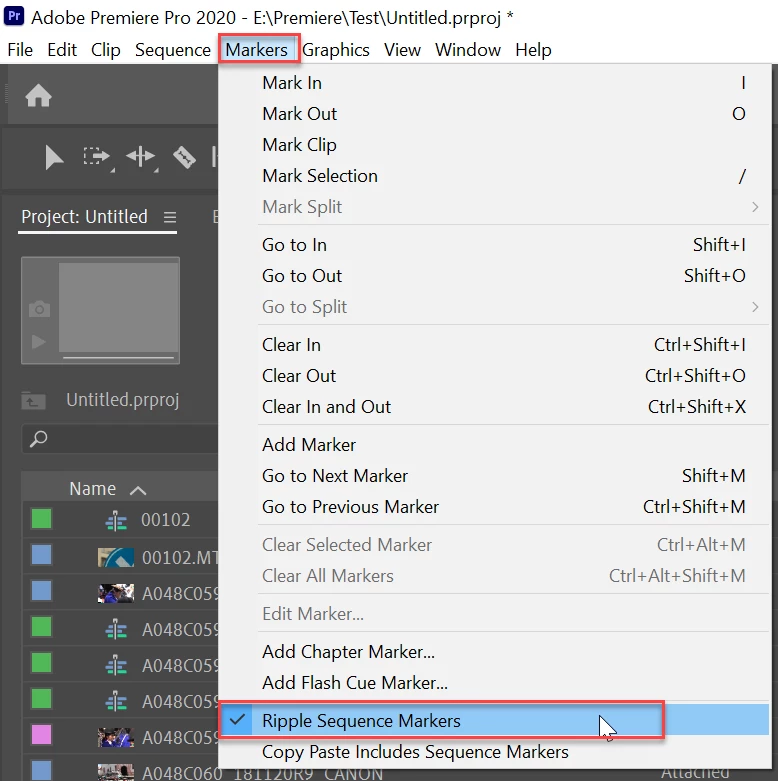
Correct answer Ann Bens

If you insert a clip the clips will ripple so will the markers.

2 replies

Participant
March 30, 2023

It sounds like your markers are on the timeline rather than on the clip. If you select the clip, then add the marker, that marker will be attached to that clip and move with that clip.

Participating Frequently
September 26, 2023

Clip markers are frustratitng to work with beyond adding them on the clips.  While you can rename and move markers on clips, you have to do it in the Source Monitor as you can't do it in the timeline for some reason - I think a clip marker tool would solve the issue.  ALSO, if you edit the marker from the Source Monitor by double-clicking, it reverts to just the marker without the in-out points you may have set - if you do it from the Markers Panel, all is fine.  Overall, it's just a very overlooked feature.
Timeline markers would be fine if you could link their time to clips, like you can with other clips and if it just worked with the Track Forward Tool.  Yeah, workarounds exist, but they're there because the core functionality isn't present in the app.

Ann Bens
Community Expert
Ann BensCommunity ExpertCorrect answer
Community Expert
July 8, 2020

If you insert a clip the clips will ripple so will the markers.

Participant
July 26, 2021

A workaround is to move your clips where you want, then select all the markers by holding shift while you select each one, then drag them to line up with the new position.