
Known Participant
June 28, 2016
Answered

How do I crop video in Premiere CC ?

  • June 28, 2016
  • 8 replies
  • 62624 views

A version of this question has been asked many times and I have read most of them - they do not answer my question.

I found the crop tool.

I drew a 4-point shape (although I am baffled why it does not 'snap square' when you hold shift).

In Photoshop you make that selection and 'Crop'.

I'm looking at an array of options in Premiere CC and cannot see the 'Delete everything that is not selected'button.

Help!

I really hate it when you stay loyal to a company/range of products - but the process for doing something in 2 packages (that have been around for many. many years) has such a different 'psychology'.

Am I really the only person who wants to 'Draw a rectangle around something, click crop, and you're only left with the selected area' ?

Any thoughts/feedback much appreciated!
Correct answer Meg The Dog

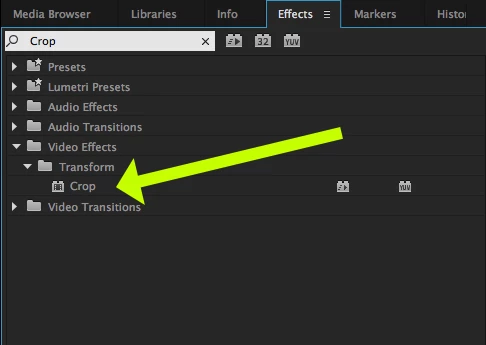
Have you tried using the Crop Effect on your clip?

MtD

8 replies

Participant
November 8, 2019

***I found what I was looking for.......

Participant
November 8, 2019

AND WOW, I finally found what I was looking for in a random video that had nothing to do with this.  


on EXPORTING, you can select SOURCE in top-left and then ACTUALLY crop your video from there.  WOW.  C'mon ADOBE!  That is so hidden while the CROP tool doesn't even really CROP!

leunam4
Participant
October 31, 2019

Hi everyone! I'm having a hard time figuring how to permanently get rid of the masked area of the frame when trying to crop a video. I'm trying to make a video ad banner for the web but I can't get rid of the black masked part of the frame when exporting to .mp4. See attached screenshot and this link to my blog to see the end result. http://zjh.7e5.myftpupload.com/


Also, I was wondering how to export to get a web friendly file size? So far my file is somewhere between 20 and 30MB which is way too big for a single banner.


Thanks!


leunam4
Participant
November 1, 2019

Anyone??

Participant
July 9, 2019

I understand the OP is long gone (probably) and has likely upgraded to a more current version in the meantime (hopefully). I found this post today after searching for the same question (I am also coming from Ps).  Like with all the Effects tools I have experimented with in Pr, understanding the parameters in the Effect Control panel (bottom left of the screenshot) is critical.

Like the OP and a few other reply posts, I also could not figure our how to "draw a rectangle" after I double-clicked Crop under Video Effects > Transform.  Then I remembered to click the little stopwatches for the four Crop parameters to place a keyframe in the Effect Control timeline, and started playing with the parameter numbers by typing reasonable numbers and adjusting based on the results.  It took a few seconds.

To get the now-cropped area to fill up the available space, just click the stopwatch for the Zoom parameter and check the box. If the image becomes distorted, just change the frame size on the Sequence menu under Sequence Settings...

It's not terribly intuitive, but it's doable.

Bottom line: There are no grips.

Ann Bens
Community Expert
Community Expert
July 9, 2019

Grips as in handles?

If you highlight the word Crop in the Effect Controls you get a wireframe in the ProgM. Now you can manipulate the effect in the PM.

leunam4
Participant
November 1, 2019

Hi Ann, could you help with my issue on this same topic? Thanks!

Participant
March 31, 2019

Does Premiere Pro CC 13.03 Build 9 have a mask feature?

I'm just flabbergasted at the murkiness of Adobe products. There is no consistency of user experience/ergonomics between their products, even between programs so intimately related like Photoshop, Lightroom and also Premiere. The products come from different planets, even though the users are the same people. Almost nobody is exclusively a photographer or a videographer anymore. It takes AGES to get used to a product. Huge barrier.

R Neil Haugen
Legend
March 31, 2019

The products have all come from very different paths and user groups. Yes, tfat is blending more these days, but you cant simply take a large user-base app and completely change the UI and the underlying code without causing in itself massive disruption.

Let alone how differently the apps *have* to work.

You mentioned Photoshop and Premiere. Ps is built for working incredibly detailed pixel by pixel modifications on one image at a time or small batches. And yes, there are some abilities within Ps to apply that work on video.

Premiere *has* to work across thousands of images at a time, of different formats/codecs, and so has to have a completely different underlying structure. Some tools in Pr that seem similar in results to Ps are actually nothing at all like the Ps tool.

I came into  video post from 35 years of pro stills work including running a pro portrait photographers lab alongside our studio for 25 years of that. I started with Photoshop around CS4. Lightroom with Public Beta 0.8.

When I started video post I wanted just to use the same type of tools and was frustrated. However, with time, experience, and learning I understand why the difference is there, and I most certainly do not want Pr to look or work like Ps.

Masking controls btw are in the Effects Control Panel. That is where all animation controls effects are controlled. Amazing tool.

Neil

Everyone's mileage always varies ...
Ann Bens
Community Expert
Community Expert
April 5, 2019

Hey Neil,

Thanks!

I understand how this all came to be, especially comparing Photoshop and Premiere (PS & LR is beyond me), but it still strikes me how absolutely nothing is similar. This means that there doesn't seem to be an effort and/or a vision to create a true "family" of tools.

To illustrate: people point at the "Effects Control Panel". Searching there for the word "Masking" returns no result. Change the search to "Mask" gives me "unsharp mask". Amazing tool indeed.


There is a difference in the Effect Controls Panel and the Effects Panel.

The first will give you the transform effects (as it is called in cs6) the second all other effects.

Known Participant
December 20, 2018

Has anyone figure out how to do this "CROP and Remove outside" so that it works like in Photoshop ? I feel stupid that currently i have to (photoshop-meaning) crop in another application !

Help !

dataforge
Inspiring
December 20, 2018

I'd love to know also.  From what I can tell its possible with Premiere.  You have to emulate it by using motion effect to change position and zoom to fill the screen with what you want to crop to.

Ann Bens
Community Expert
Community Expert
December 20, 2018

Use the mask from Opacity as already mentioned in post 1.

Much easier to use.

Participant
October 10, 2017

For anyone searching this you want to change position and scale under effects>motion don't use the crop tool

Meg The DogCorrect answer
Inspiring
June 28, 2016

Have you tried using the Crop Effect on your clip?

MtD

Lovision
Participant
August 30, 2016

i can't seem to apply it. i dragged the points to get a square shape but it wont stay? is there a button i should click on? Something like the 'apply' button in audition?

Legend
June 28, 2016

I find the Opacity mask more useful than the Crop effect.