

mandicreally
Inspiring
December 24, 2018
Answered

How do I delete Essential Graphics Templates?

  • December 24, 2018
  • 2 replies
  • 16566 views

Just like the title says, how the heck do I delete Essential Graphics Templates?  A  week or so ago ALL of my Essential Graphics templates quit working (Ones that come with Premiere, One I bought from Adobe Stock, and a handful from a third party company.).  So I uninstalled Premiere and reinstalled it.  That fixed the ones that come with Premiere and the one I have from Adobe Stock, however the third party ones still do not work.  So I'm trying to delete them and I simply cannot do it.  As soon as I reinstalled Premiere they were already sitting there in the Essential Graphics tab.

I specifically chose "Do Not Save My Preferences" when I uninstalled Premiere but when I reinstalled it, all of my preferences and settings were exactly the same as before.  Now if I click one of the non-working templates and right click, Delete is greyed out.  So if I just click the 'Delete' keyboard button I'm prompted "Are you sure you want to delete?" I click yes, and nothing happens.  The Template is still there and still non-functional.  If I try to fresh install the templates, they install second versions of them but they still do not work.

The parameters of these templates are completely blank.  It is like they are blank slates that never did anything to begin with.  However all of their previews still function and appear as they should, so clearly there is data there Premiere just isn't picking up.  I used these templates for a few weeks before they just suddenly quit working last week.

Here is a shot of the templates with zero info:
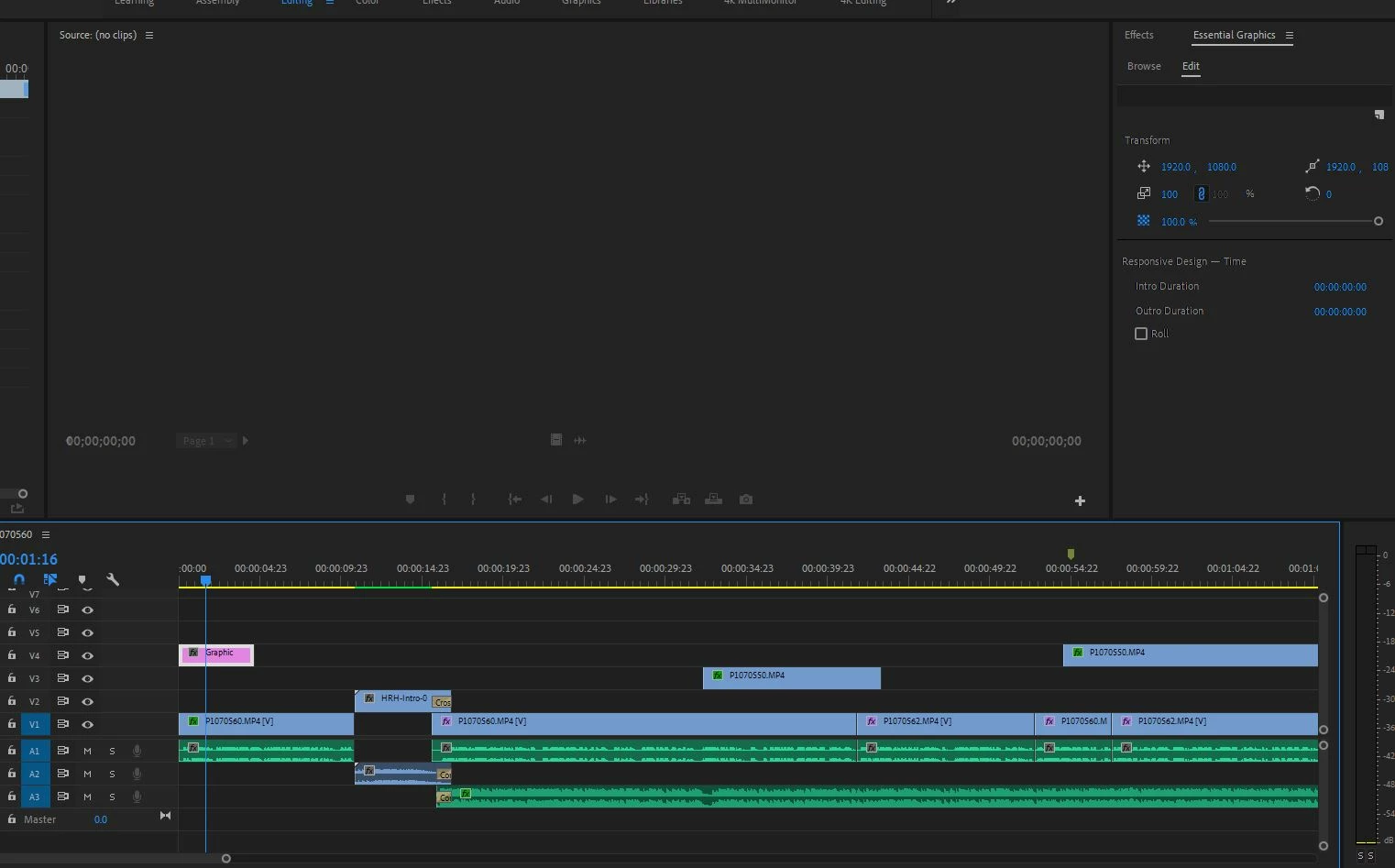
    This topic has been closed for replies.
    Correct answer R Neil Haugen

    Sigh.  I uninstalled Premiere.  Went into "Documents - Adobe" and deleted everything associated with Premiere Pro.  Then I reinstalled Premiere.  When I loaded it up, the Motion Graphics Templates were all still there!  And all of my preferences were still all set the same as before.  Despite me clicking "Delete Preferences" when I uninstalled AND manually deleting files.  Is this some cloud sync thing?


    Use the Adobe CC Cleaner Tool to both uninstall Pr and do the cleanup of related files. Don't have the link on my phone but it is listed on the Overview page of this forum.

    Neil

    2 replies

    christopherl0p3z
    Participant
    June 16, 2021

    PORTUGUÊS

    Achei a solução!

    Pesquise o nome do arquivo MOGRT na pasta do premiere dentro do appdata.
    Para acessar a pasta, digite na barra de pesquisa do windows "%appdata%". Automaticamente ele abrirá a pasta "Roaming".

    Acesse a pasta da Adobe.
    Acesse a pasta do Premiere

    Na barra de pesquisa do explorador de arquivos, digite o nome do arquivo MOGRT.

    Apague o arquivo e ele desaparecerá do seus "essential graphics"


    INGLÊS

    I found the solution!

    Search for the MOGRT filename in the premiere folder within the appdata.
    To access the folder, type in the windows search bar "%appdata%". It will automatically open the "Roaming" folder.

    Access the Adobe folder.
    Access the Premiere folder

    In the file explorer search bar, type the MOGRT file name.

    Delete the file and it will disappear from your "essential graphics"


    mattwattsart
    Known Participant
    November 6, 2021

    In the Essential Graphics panel, the option to delete the template was grayed out for me after I created it. I searched through all the roaming folders on my PC and application folders. Still, I couldn't find how to delete it on the back end. Finally, I found the solution: You have to go to the Libraries window panel instead of the Essential Graphics panel in order to click on the template to delete it. 

    mattwattsart
    Known Participant
    November 6, 2021

    The previous image I posted wasn't as clear as I wanted it to be. I think this image explains things better:

    Peru Bob
    Community Expert
    Community Expert
    December 25, 2018

    Do a Windows search for .morgt to find where they are located and then delete them from there..

    mandicreally
    Inspiring
    December 25, 2018

    Ok, I closed Premiere, deleted all the offending .mogrt files, and reopened Premiere.  The thumbnails are still in Premiere and still not doing a damn thing.  Search for the .mogrt files and they are nowhere to be found on my drive.

    mandicreally
    Inspiring
    December 25, 2018

    Sigh.  I uninstalled Premiere.  Went into "Documents - Adobe" and deleted everything associated with Premiere Pro.  Then I reinstalled Premiere.  When I loaded it up, the Motion Graphics Templates were all still there!  And all of my preferences were still all set the same as before.  Despite me clicking "Delete Preferences" when I uninstalled AND manually deleting files.  Is this some cloud sync thing?