
Participating Frequently
January 4, 2021
Answered

How do I STOP my Text Effects Scaling down when I crop my video?

  • January 4, 2021
  • 7 replies
  • 5813 views

I have a video finished and edited. It has LOTS of titles and text effects.


I export my widescreen 1920x1080 version and everything looks great.


Then I duplicate that sequence and change the settings to 1080 x 1080 for a square version I will post on FaceBook and instead of just cropping, it resizes all the text and it looks terrible.


All my text was placed within the 1080x1080 square boundary.


See screenshots.


I just want it all to stay in place but Premiere automatically resizes.


I have tried with and without the "Scale motion effects Proportionally when changing frame size" option in the sequence setting box.


Please help!


Thanks in advance.
Correct answer lakedrop

I've had this problem, too. Here's a solution that works for me.

1 - Create a new, empty sequence with the new dimensions. 

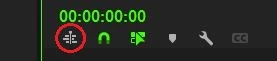
2 - In the timeline settings of your new sequence, deactive the option that allows for other sequences to be dragged in as nests. (see photo, it's the icon that's circled in red)

3 - From your project panel, drag the old sequence into the timeline of your new sequence. 

With this method, the text and graphic elements should not automatically resize. 

7 replies

Inspiring
September 26, 2025

I tried everything suggested in this feed.
Either the suggestion does not work
or there's no clear way to apply the technique to all my titles globally (e.g. the responsive design setting).

16x9 sequence to a 1x1 sequence: I just don’t get why the default is to scale all my titles down.
Especially considering really the sequence is effectively cropped, not scaled.
By that logic then every other video clip should be treated the same way - which I’m very glad it does not(!).
There should be a basic setting or even a question when pasting that simply asks
“Do you want Premiere to rescale your titles?”
Um, no thank you. I’ll take care of this myself.

Instead I have to scale each and every title up to 150% (??)

Participant
May 20, 2024

I ran into the same issue and tried most of the suggestions here - then I realized I had the "responsive design" feature checked in the Essential Graphic panel. Turned that off and was able to duplicate and resize the sequence without issue. 

Known Participant
June 3, 2025

This worked well for me, thank you!

Known Participant
June 3, 2025

@Brett_Rooftop Are you refering to the post by Tanner24443085nkr1? If so, did this work for you by just deactivating the "Pins"? I'm asking, because it didn't work for me. What works though is activating both pins on the side, that keeps its dimension. So, for 1x1 to 16x9, I'd have to check the left and the right pin, for 1x1 to 9x16 it would be the top and bottom.


EDIT: To clarify, my post went to the next page. It is a reply to @Brett_Rooftop.

lakedropCorrect answer
Participant
August 8, 2023

I've had this problem, too. Here's a solution that works for me.

1 - Create a new, empty sequence with the new dimensions. 

2 - In the timeline settings of your new sequence, deactive the option that allows for other sequences to be dragged in as nests. (see photo, it's the icon that's circled in red)

3 - From your project panel, drag the old sequence into the timeline of your new sequence. 

With this method, the text and graphic elements should not automatically resize. 

Participant
January 21, 2024

This is the correct process/workaround. Thank you so much for posting this. 

terryp98637463
Participant
January 15, 2023

I found a better solution.... NEST your graphics before your (se)set your sequence settings. 

terryp98637463
Participant
January 15, 2023

Which only works - it turns out - if you don't have any blend modes on your typeography... YIKES!

Inspiring
January 5, 2021

If you want your text to stay exactly the same without Premiere doing anything to it, do the following.

1- Duplicate the sequence and change the frame size.

2- Remove all your text from the new sequence.

3- Select all text from the old sequence and nest.

4- Copy the nest and paste it on the new sequence.

5- You can open the nest and do the change you need, just be careful that any changes you make inside the nest will affect both sequences, if you don't want that, you need to duplicate the nest from the project window.

Participant
August 8, 2023

An easier way is to create a new, empty sequence with the new dimensions, then drag the old sequence into your new timeline. (if it propogates as a nest, then just click off the "nest imported sequences" button on your timeline settings and try again.) Viola, same edit, no auto scaling, new dimensions.

R Neil Haugen
Legend
January 4, 2021

Have you tried auto-reframe? That was designed to work for this situation.


Neil

Everyone's mileage always varies ...
Participating Frequently
January 4, 2021
 
Unfortunately Auto Frame does not suit me... I need very precise control over this project.
 
Thx
R Neil Haugen
Legend
January 4, 2021

Auto-reframe is designed to do the quick conversion, and then you 'trim' things as needed. Supposed to simply save some steps.


You do need to know how to properly "pin" your graphics in the original project sequence so the a-r controls move them where you want them when it sets things up in the new format.


Neil

Everyone's mileage always varies ...
Ann Bens
Community Expert
Community Expert
January 4, 2021

Participating Frequently
January 4, 2021

Ann Bens
Community Expert
Community Expert
January 4, 2021

Instead of changing sequence settings (Scale motion effects Proportionally wont do anything in this case) crop on export.