Participant
August 12, 2019
Answered

How do you create and highlight karaoke text but as tabs?

  • August 12, 2019
  • 2 replies
  • 7895 views

New to Adobe Premiere as a Windows Movie Maker user. I just started today and still trying to understand the basics. What I'm having really trouble with is, how do you create a sequence of text illustrated as a tablature system? For example, like this video except I want the numbers to be highlighted like if it were a karaoke track where the singer has to sing along with the highlighted lyrics.

https://youtu.be/axett-3c4Ys

I'm a musician that creates videos of harmonica covers and I would like in my videos to show/highlight the notes/tabs (written in numerical form) synced to the music so they can know exactly which note to play in, like a karaoke video? How do I go about doing that? Also I would like to overlay a picture of a harmonica right next to the tabs.
    This topic has been closed for replies.
    Correct answer gerikp

    It's a little bit of work, and if you're new to Premiere Pro I'm not sure this will be easy to follow. But here's a quick idea of one way to do it.

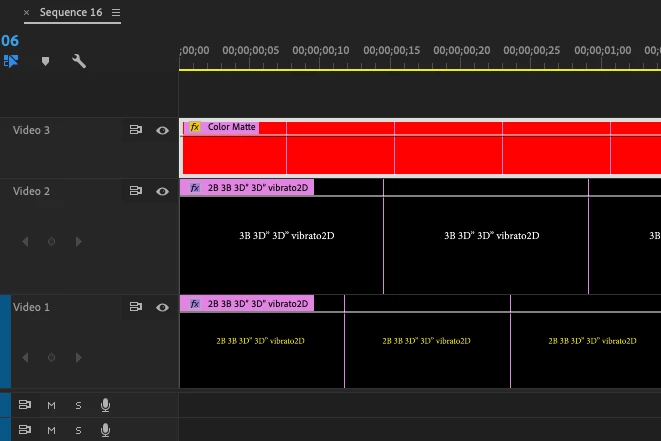
    1. On video track V1 place your tabs in the highlight color you want. I picked yellow.

    2. Duplicate your text to Video Track V2 (Hold your option key while dragging your text clip up, this will duplicate it). Now change your text to white for instance.

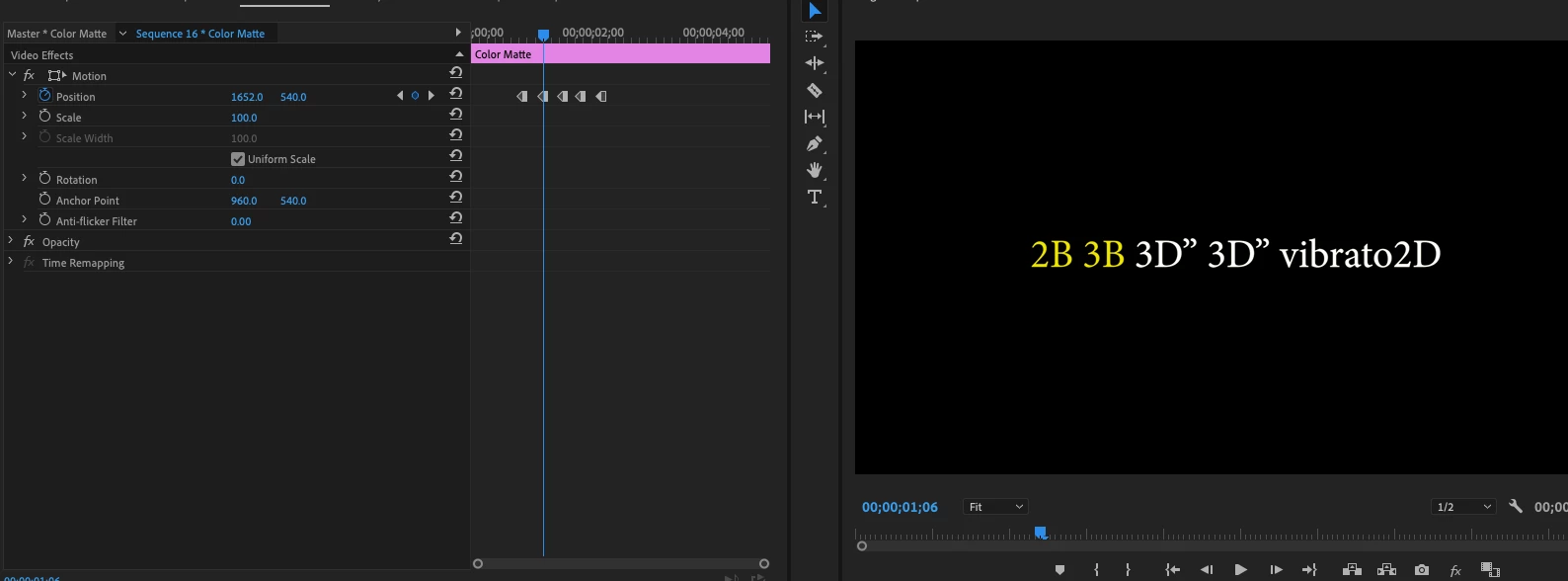
    3. On video track V3 I placed a red color matte. And then I added keyframes as I used  Position under the Motion Effect and moved it across to reveal each tab as it's being played. I made each keyframe a HOLD Keyframe by selecting all the keyframes, right-clicking and selecting Temporal Interpolation > Hold.

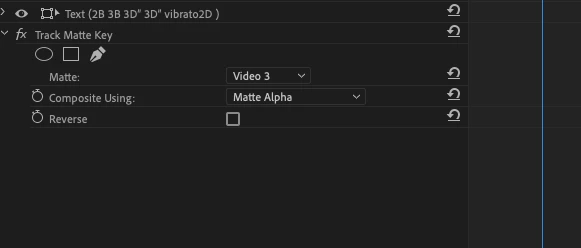
    4. Then in the effects panel choose Video Effects > Keying > Track Matte Key and drag this over to the video clip on Video Track V2. In the Track Matte Key change the Matte to Video 3.

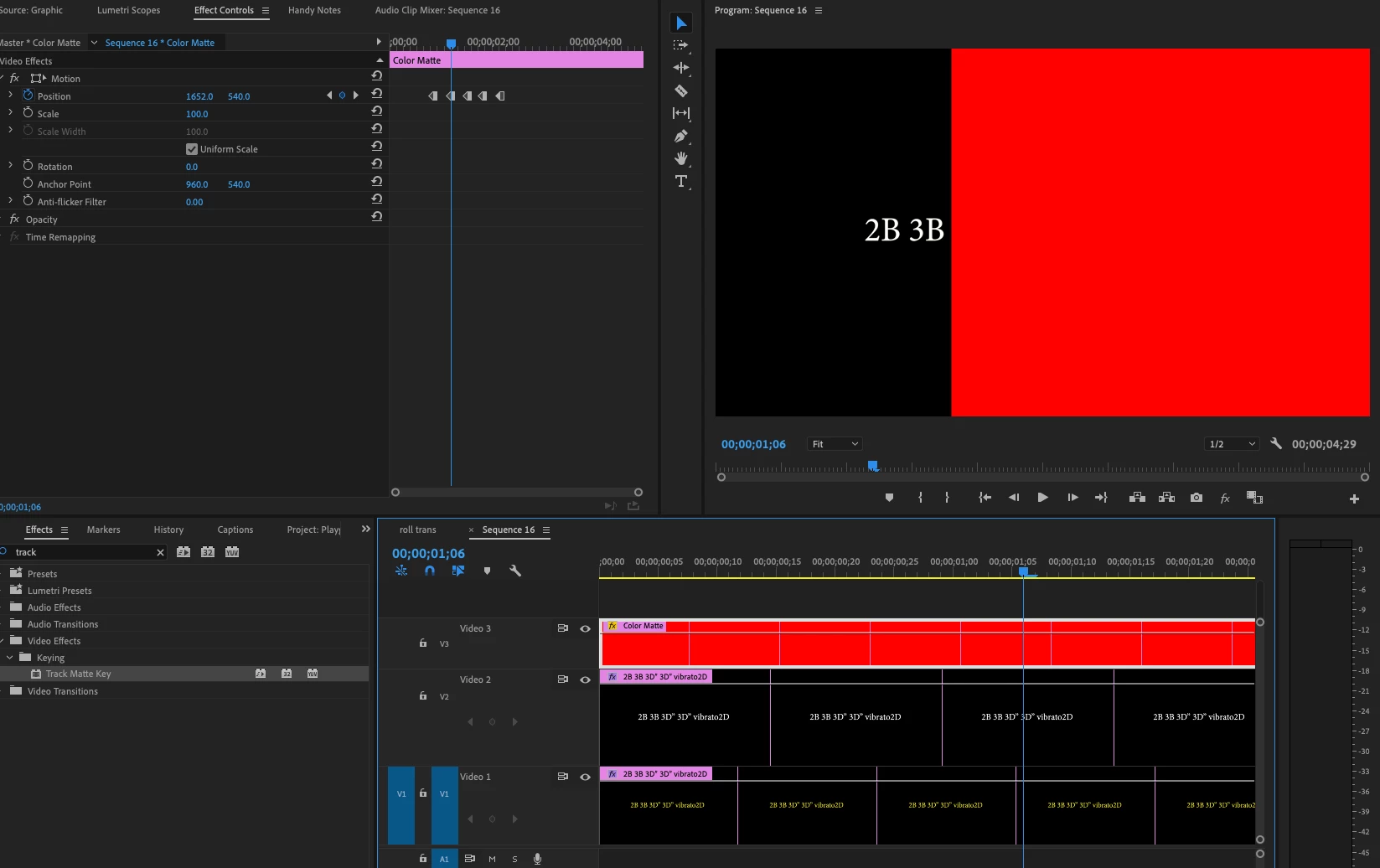
    You should now see your text and depending on where your color matte is a different color of text. And as you play your timeline the tabs should change color as the color matte moves.

    2 replies

    gerikp
    Community Expert
    gerikpCommunity ExpertCorrect answer
    Community Expert
    August 12, 2019

    It's a little bit of work, and if you're new to Premiere Pro I'm not sure this will be easy to follow. But here's a quick idea of one way to do it.

    1. On video track V1 place your tabs in the highlight color you want. I picked yellow.

    2. Duplicate your text to Video Track V2 (Hold your option key while dragging your text clip up, this will duplicate it). Now change your text to white for instance.

    3. On video track V3 I placed a red color matte. And then I added keyframes as I used  Position under the Motion Effect and moved it across to reveal each tab as it's being played. I made each keyframe a HOLD Keyframe by selecting all the keyframes, right-clicking and selecting Temporal Interpolation > Hold.

    4. Then in the effects panel choose Video Effects > Keying > Track Matte Key and drag this over to the video clip on Video Track V2. In the Track Matte Key change the Matte to Video 3.

    You should now see your text and depending on where your color matte is a different color of text. And as you play your timeline the tabs should change color as the color matte moves.

    Participant
    August 12, 2019

    So it is possible to highlight text in Premiere. I thought After Effects was needed. Thanks. I will use this the next time I use Premiere. I'll let you know if I have any further questions.

    Community Expert
    August 12, 2019

    What you’re asking for as far as having text highlight would probably be most easily and  quickly accomplished in After Effects.

    Participant
    August 12, 2019

    Thanks for the response. I don't have experience with After Effects so it looks like I might have to pass the highlighted part, but surely Premiere is capable of creating the tabs and overlay it with a small picture of the harmonica next to it, correct?