Inspiring
November 10, 2022
Question

How do you reveal an image with a mask without moving the mask?

  • November 10, 2022
  • 4 replies
  • 3816 views

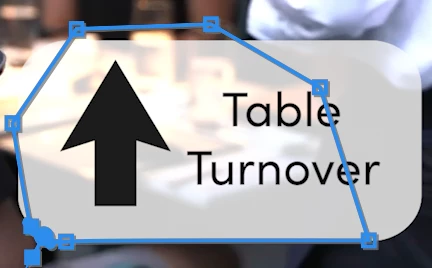
I created a little rectangualar shape in the bottom right of a video. I want to reveal the arrow (png) as it moves upwards from the bottom of the shape and stops in the middle. 
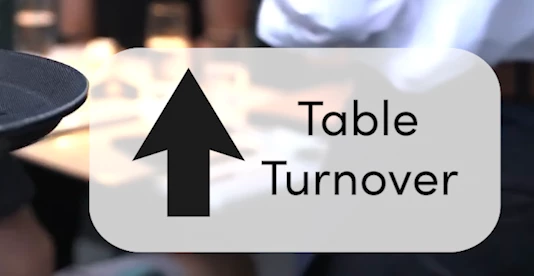
 

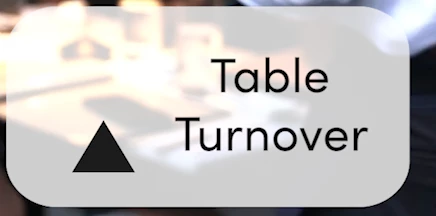
I've created the mask, but moving the position arrows also moves the mask. I've tried using the transform effect, but it cuts the arrow off - both on top and below when I change the transform's position (shown below). Can someone please help me?   
 

This topic has been closed for replies.

4 replies

Richard van den Boogaard
Community Expert
Community Expert
November 21, 2022

Instead of trying to solve this in Premiere Pro, which is made for Non-Linear Editing of video assets, consider doing motion graphics work in After Effects and use dynamic linking to be able to communicate back and forth between PPro and Ae.


After Effects was made for this stuff.


Why make life harder when you can make it easier/faster?

Ann Bens
Community Expert
Community Expert
November 21, 2022
quote

Instead of trying to solve this in Premiere Pro, which is made for Non-Linear Editing of video assets, consider doing motion graphics work in After Effects and use dynamic linking to be able to communicate back and forth between PPro and Ae.


After Effects was made for this stuff.


Why make life harder when you can make it easier/faster?


By @Richard van den Boogaard


I disagree. You can do a lot in Premiere.

Community Expert
November 21, 2022

@R Neil Haugen 

Feature Request?

I tried track matte and never got it to work properly as it works with graphic clips.

Your suggestion, which is better, only works with graphic clips as well, but not with external assets.

R Neil Haugen
Legend
November 21, 2022

Works perfectly with png files ... apply them from the Edit tab of the Essential Graphics panel, the "add item" icon. The "from file" option or however they word that.


I do this regularly without a problem.


Neil

Everyone's mileage always varies ...
Community Expert
November 28, 2022

yeah works perfectly, so then we have a problem when these same assets are imported from the project panel.

R Neil Haugen
Legend
November 14, 2022

You can do this much more simply.


Yes, delete all masks and other track stuff. Work ONLY with the graphic item you already have.


In the same graphic element as your arrow, add a rectangle that is above the arrow in the EGP layer stack.


Set it to mask with object.


Position the top so it just sits at the line where you want the arrow to appear.


Move the arrow down under it, then animate the arrow.


Only 2 items needed are the arrow and the rectangle shape used as a mask, both in the one EGP graphics item.


Neil

Everyone's mileage always varies ...
Richard van den Boogaard
Community Expert
Community Expert
November 18, 2022

Sounds like a workable solution to me.


Have you tried this, @Jack24443636o995?

Community Expert
November 21, 2022

the problem is that the arrow he is using is not a graphic element but a png instead,

and that is the cuplrit, if it was a graphic element all our suggested solutions would have worked.

(graphic created inside premiere pro)

Community Expert
November 11, 2022

Deselect everything, and delete all masks.

take the Pen or Rectangle tool to draw a filled shape

where you want the arrow to appear.

Let's say your arrow is on Video 1, put the shape right 

above it on Video 2 track on the timeline.

Apply a Track Matte Key effect on the arrow clip and

set Matte to video 2.

Now moving your arrow will make it appear only when it 

is inside the shape you drew.

Hope it helps, if no let me know to prepare a short video.

Ann Bens
Community Expert
Community Expert
November 21, 2022

Arrow is a png, but you can make that too in the EGP.

Outside images used in the EGP do not have the mask feature: hence the crop

I animated the crop too but you can make it static.