
Participant
October 15, 2019
Question

How to add a duplicated scene/sequence onto timeline as an organized element...

  • October 15, 2019
  • 4 replies
  • 525 views

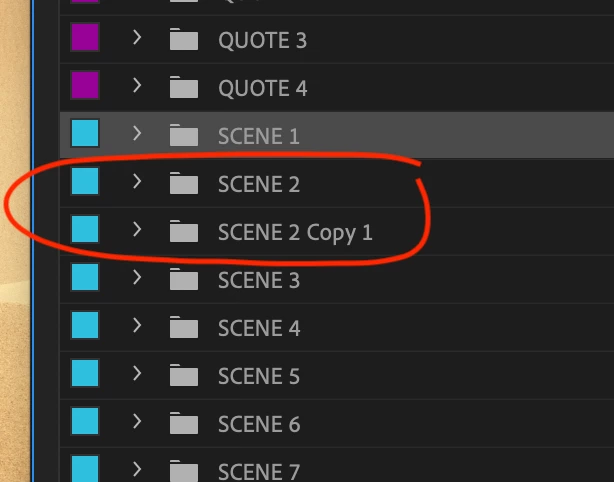
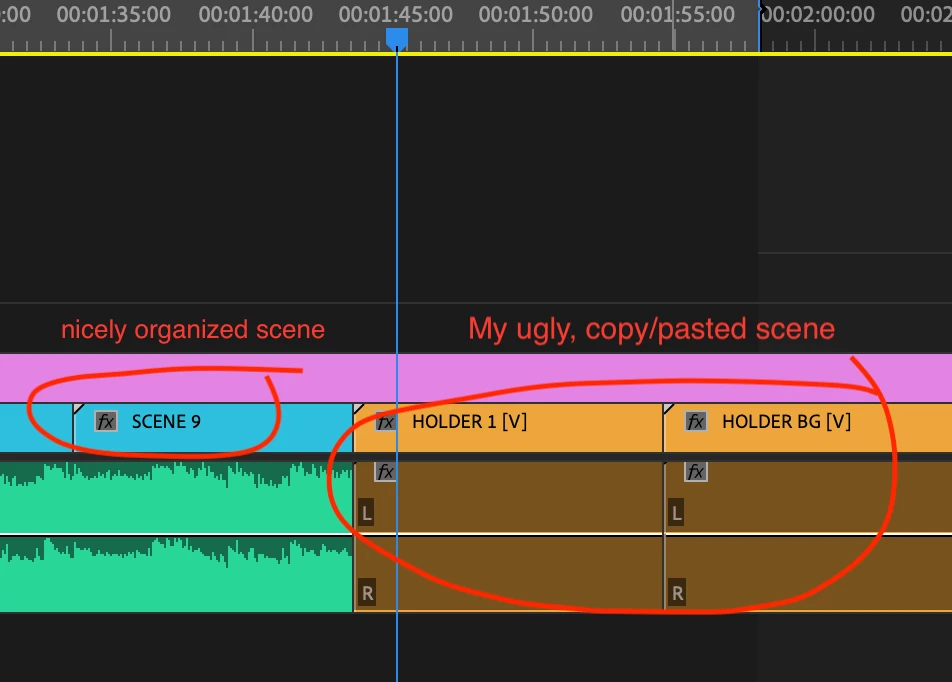
I downloaded a pre-made movie template from Envato and have been editing it. It isn't long enough so I need to extend. I tried adding a simple copy/paste of an earlier "scene" to the end of the lineup, but that didn't work because it wouldn't let me edit the scene independently without affecting the original one I copied from. So I read that I am supposed to duplicate the scene in the project panel and then add it to the timeline. But when I do THAT,  it adds all of the elements to the timeline individually, rather than bulking it together as a "scene". See screenshot attached. How do I drag the new, duplicated scene onto the timeline and have it take the form of the previous scenes?
 

    This topic has been closed for replies.

    4 replies

    R Neil Haugen
    Legend
    October 15, 2019

    You created a duplicate, applied that, then went back to re-edit the original.


    I'm ... puzzled at this. I would have thought you'd have been editing the duped scene.


    Neil

    Everyone's mileage always varies ...
    Participant
    October 15, 2019

    I duplicated the scene, renamed it, then added the duplicated scene to the end of the timeline, then edited that newly placed duplicated scene. Then I went back and checked the original scene 2 and it was now reflecting the changes I made to the duplicated scene. I didn't touch the original.


    BUT, keep in mind my original comment that started this thread - I downloaded this template from a creator on envato. So I had to go into the scenes and edit them to make them unique to my project. When I did that, I had to unlock some of the layers. So I am wondering if unlocking those layers may have messed something up and made the scene un-duplicatable (at least in the type of case we are trying right now).

    R Neil Haugen
    Legend
    October 15, 2019

    Ahh ... then first, duplicate the sequence, rename it, and nest THAT duplicated sequence.


    Neil

    Everyone's mileage always varies ...
    Participant
    October 15, 2019
    That's what I did originally (See screenshot above). I duplicated scene 2 and called it "scene 2 copy 1". Then I nested that new copy based on your instructions. When I edited the original scene 2, I unlocked a bunch of items within the nest that had been locked by the creator. Could that be the issue?.
    R Neil Haugen
    Legend
    October 15, 2019

    Very simple ... you nest the sequences into the current timeline.


    Make sure the Nest icon, the sequence-icon on your timeline header block ... is blue (active). Then when you double-click a sequence in a bin, it comes onto the current sequence as a nested one ... complete, not showing individual cuts.


    Here's a nested sequence ... it's the one in green:


    Neil


    Everyone's mileage always varies ...
    Participant
    October 15, 2019
    Thanks! this worked, but it still won't let me edit the new nest/scene I've now added without also changing the one I copied it from 😞
    Vishu_Aggarwal
    Participating Frequently
    October 15, 2019

    Make sure that in timeline Icon of "Insert & overwrite sequences as nested or as an individual clip" is selected. Please refer to the screenshot.


    Vishu AggarwalAdobe Certified Instructor, Professional and Expert