alekseit73613869
Participating Frequently
August 29, 2018
Answered

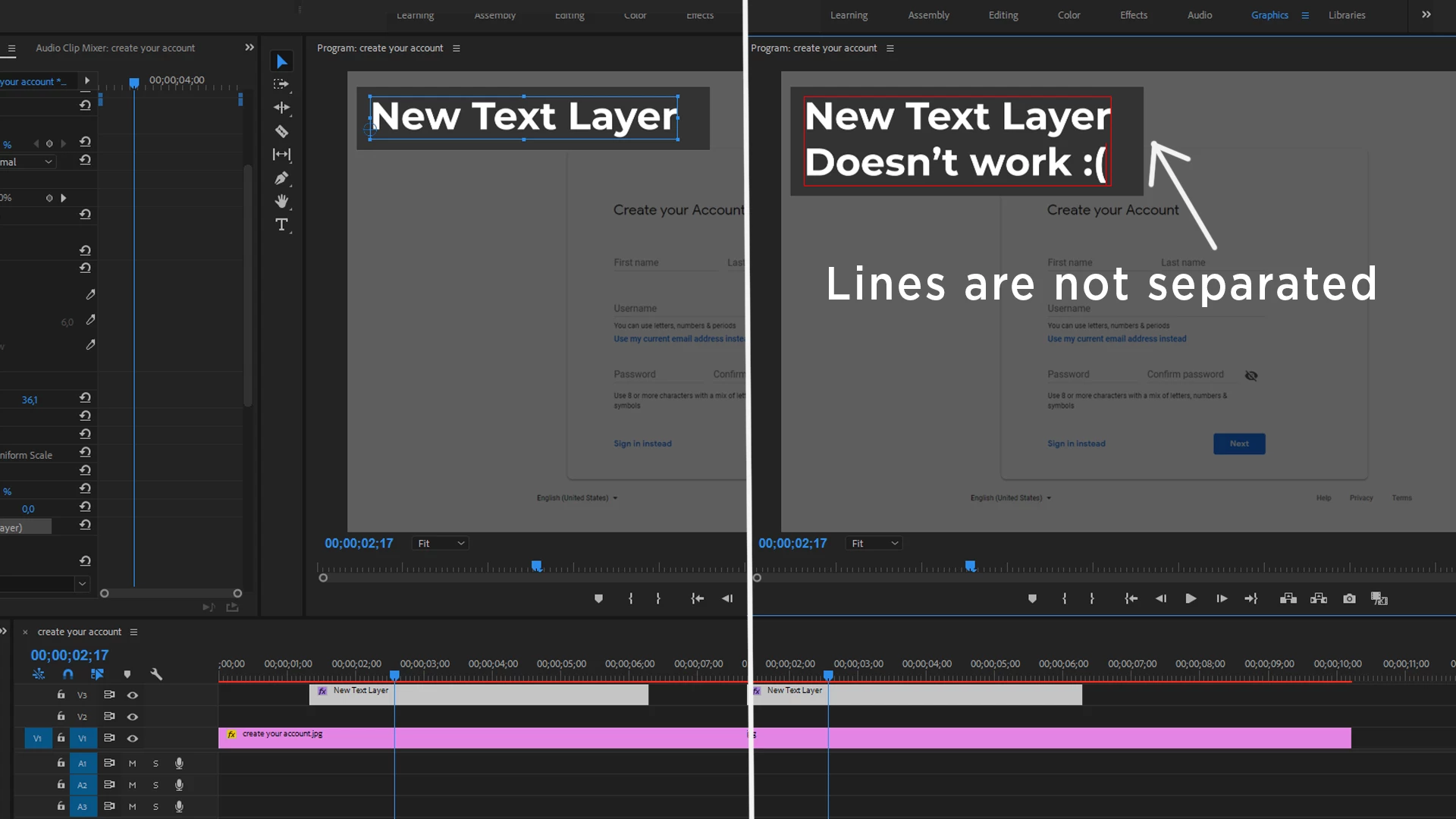
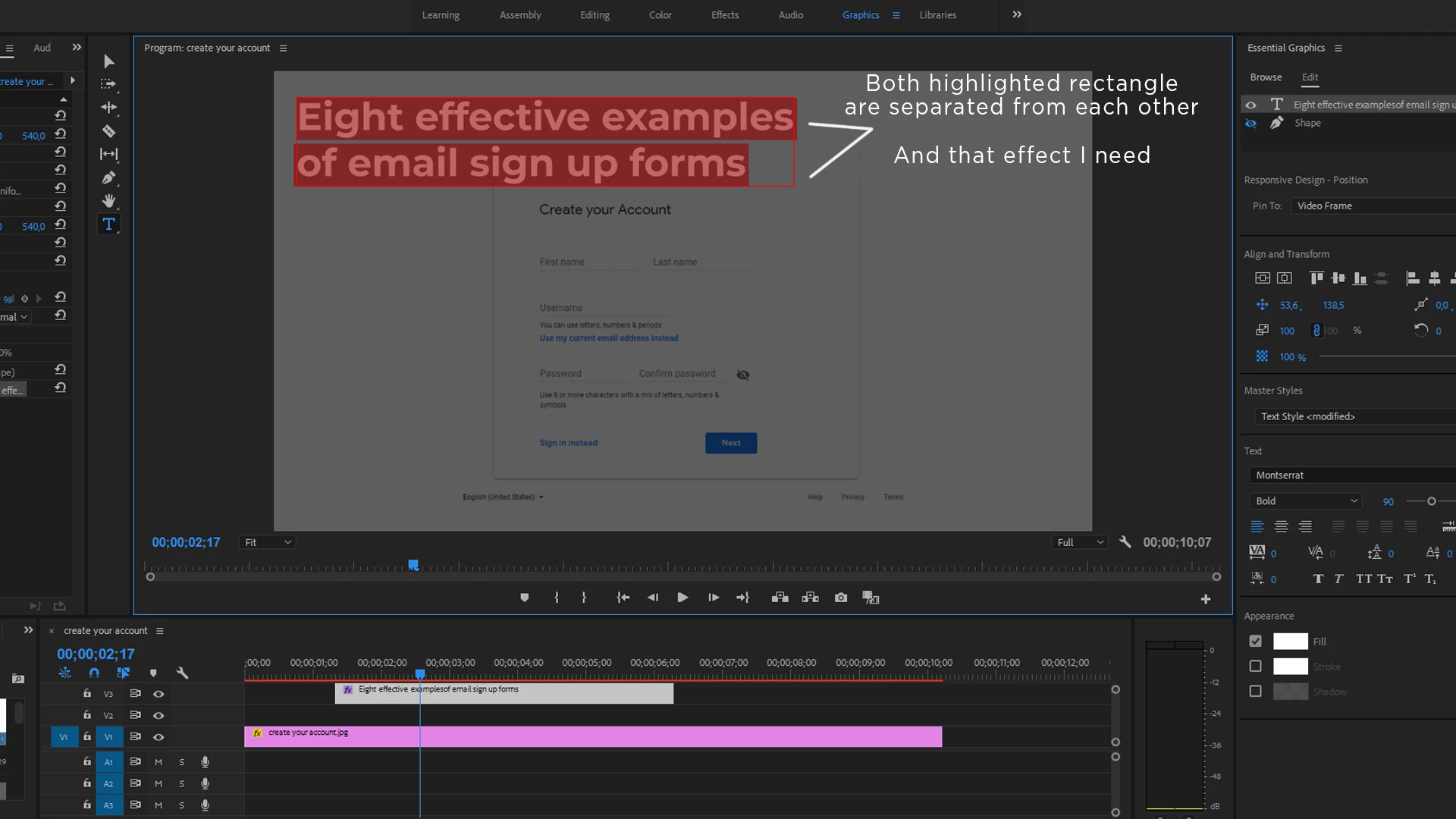
How to create a title box with EACH line sepatated? (photos are inside)

  • August 29, 2018
  • 2 replies
  • 3632 views

I tried with Open Captures and Essential Graphics but there's no result, I just need that highlight effect for a project but instead I have that bulky unseparated box background which looks too massive.

Can someone explane how to do what I want? I really need help...

Also, if someone knows, is there any effect in Premiere Pro for text appearence?(Not AE but PP) Like Linear Wipe but for EACH line of the text? Hmm, just like Type-On Text effect.

Thanks a lot for your help in advance!
Correct answer R Neil Haugen

It could easily be I haven't figured out exactly what the problem is you're seeing.

Do you want separate lines each with a graphic box? Or just lines of text separated?

Creating text and creating graphics shapes are different steps.

With the EGP, once you've created a layout you like, you save as a mogrt ... a motion graphics template. Then refuse the template as often as you wish, changing the text for each use as needed.

Neil

2 replies

Participating Frequently
January 1, 2023

Easy. In the graphics panel, highlight the text "eye" then next to "Appearance" click on the monkey wrench and when that panel opens select "per-line"

Participating Frequently
January 1, 2023

I mean, highlight the text in the graphics panel, not the "eye"

R Neil Haugen
Legend
August 29, 2018

You create each line by itself. Click in the Program monitor, type one line. With the Text tool still active, click to start the next line.

Or, in the EGP Edit tab, click for a new item (folder icon just to right and below layers section at top). Click in the program monitor for the new line, begin typing.

Neil

Everyone's mileage always varies ...
alekseit73613869
Participating Frequently
August 29, 2018

It sounds really complicated.. I mean I have a lot of text and wanted to create or find template for typing.

But as I understand from your words, I need to formate each sentence for it(put each line separate) and there is no easy way, right?

I hope I'm wrong

Community Expert
August 29, 2018

Exactly, that's what I'm looking for, I just don't understand how to separate a box into few boxes and then,  when I add a new line, the box would be already separated


Hello,

I think the answers have been posted above. Neil mentioned how you can add a New Line of Text in the "Graphics" Workspace, on the right the Essential Graphics Panel (EGP), there is an "Edit" button. If you click that you will see your text that you created and you can click the little "New Layer" icon to add another line of text.

If you want to create typewriter text you can use a Wipe Transition. Click on the "Effects" workspace at the top of Premiere. Then on the RIGHT you will see the effects panel. In the search bar in that panel next to magnifying glass icon type "Wipe" and you will see it and you can drag it onto your text graphic in the timeline. But it won't look so great.

A better way, not automatic... but pretty fast and easy.

Step 1:

Use the Text Tool and Click to Create a text box or click and drag to draw it out(one click is better, but might be tougher to select)

Step 2: Select the "Effects" workspace - which brings up the "Effect Controls" panel.... on the left. Look for your new text, in that panel(probably called "Text" and click the little blue stopwatch icon as shown below. Choose your font at this point, there is one called "American Typewriter" that will work well... but choose your preferred font before starting.

Step 3: Now that you turned on keyframing...  everytime you type a new letter, it will record the step and keyframe it.
So type your first letter, and then click the "Frame Forward" button 5 times, to move forward down the timeline 5 frames, then type your second Letter in your word, and then click the Frame Forward button 5 times, then type in your 3rd letter, and repeat.

Very quickly you are setting keyframes for lets say H, then E, then L, then L, then ) to animate in the word "Hello"

hope this helps!

cheers!
mark

headTrix, Inc. | Adobe Certified Training & Consulting