That's the info I needed. As I suspected, that's the problem. Under the video section is says "1080x1920" - that's the frame size of your video clip, measured in pixels. The frame size is always measured horizontally and then vertically. In other words, this shows that your footage is taller than it is wide - 1080 pixels wide, 1920 pixels tall. The good news: 1080 and 1920 are standard sizes; the bad news: they're backwards.
The solution: Create a sequence that we know is correct, and then add the footage into that sequence (no reinterpretation necessary) and rotate. What happens when you simply drag a clip from the project panel to the timeline is that Premiere creates a new sequence for you that is tailor made to that clip. That's awesome when everything is to spec. However, in this case it works against you because the video isn't to spec. So, we need to use what you did before but tweak it.
1. Click in your Timeline to make it the active panel
2. Choose "Sequence>Sequence Settings..."
In the new dialogue box, you'll see something akin to this:
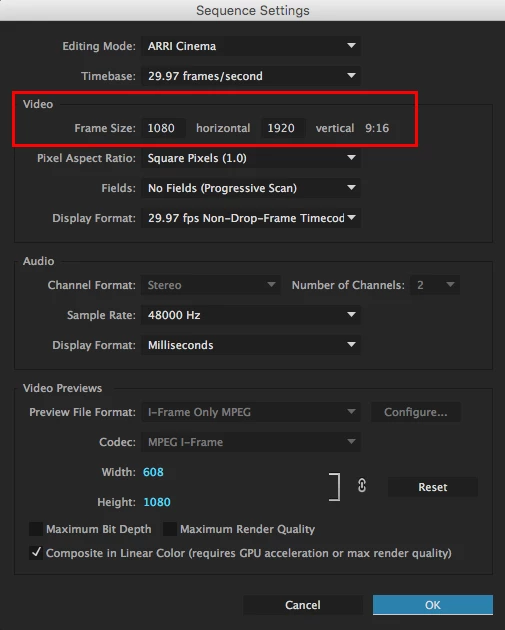
The editing mode and timebase will likely be different, but look at the area that I've outlined in red.
3. Change the Frame Size to 1920 horizontal, and 1080 vertical.
4. Click "Ok"
You'll probably notice that the video now looks wrong again, even though the black bars are now on the left and the right. Just a few more things should solve the problem.
5. Select the clip in the Timeline
6. Choose "Window>Effect Controls" (unless that panel is already open, in which case just start using it)
7. Change your rotation value until the video is correct - usually this is either 0, 90, 180, or 270.
Hopefully this helps. If not, please let me know.

 AdChoices