

patrickh27764550
Inspiring
July 28, 2024
Question

How to get rid of an overpowering yellow in a video

  • July 28, 2024
  • 2 replies
  • 2042 views

I made a video out the window of a plane.  This model plane has windows that are automatically controlled by the Flight Attendents.  The particular window at my seat was broken and had a strong yellow tint which came out even stronger on my video.


Can anyone figure out the best way to make this look as realistic as possible?  The sky is the most offensive part.


I tried various color and Luminentri adjustments in Premiere Pro, but didn't do so well.


I ended up converting the video into PNGs.  I got a pretty good picture using the Camera Raw Filters in Photoshop.  I created those settings into an action, however it didn't work so well when I batch processed my first 3000 images , because the sky mask didn't adjust for each image as the plane moved, is used the mask of the original picture.
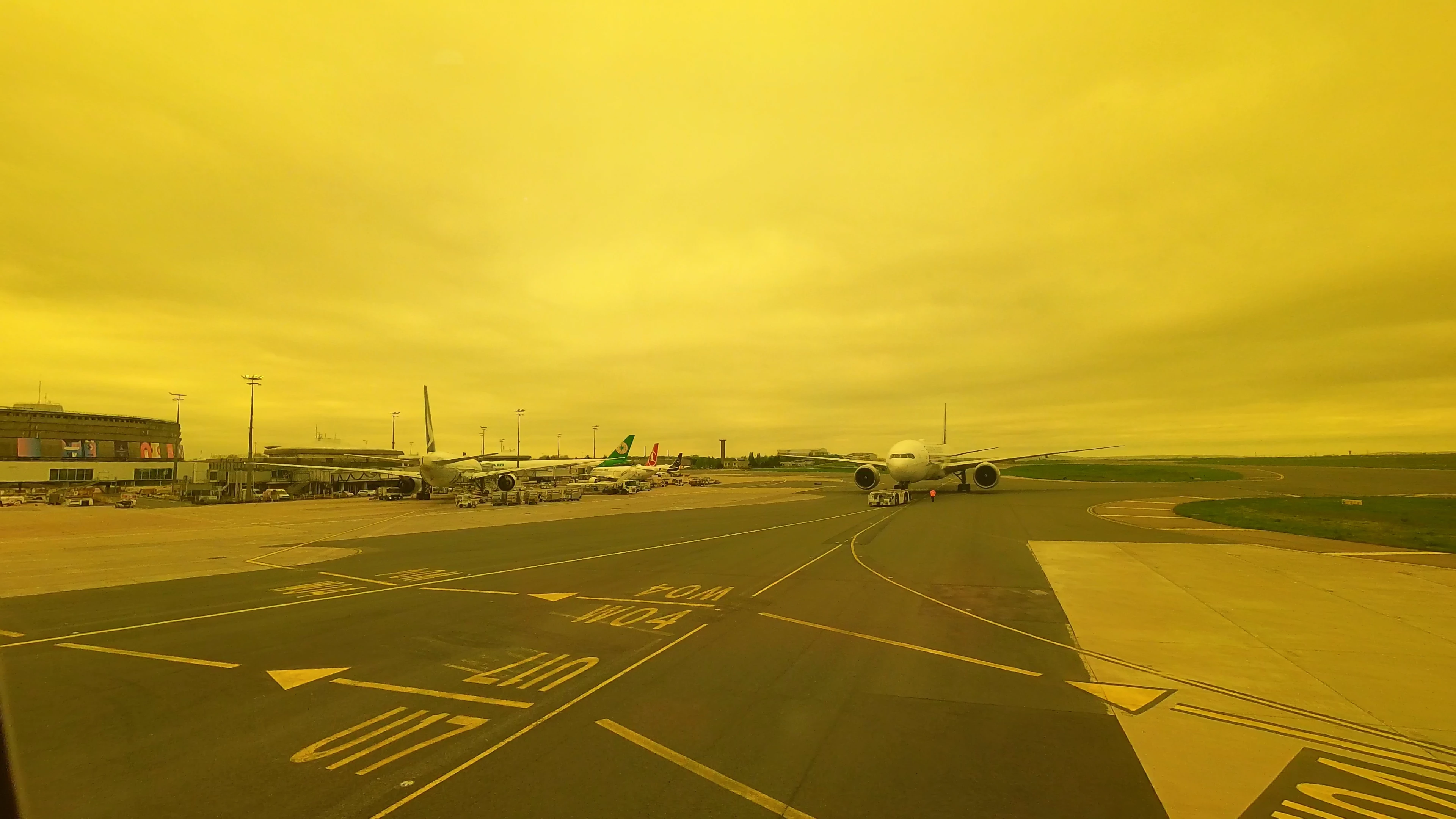
 

Link to small clip of video


Any advice to make this look as realistic as possible is appreciated.  Thanks in advance.


This topic has been closed for replies.

2 replies

R Neil Haugen
Legend
July 28, 2024

That's gonna be a challenge ... and I think the object isn't to get to completely 'normal', but to less awfully YELLOW. Because that is very much like working with a heavy yellow filter over the lens, which I've done at times. All colors are affected.


I would go to the Color Workspace, Lumetri panel. Curves ... and work especially with the Blue curve to reduce blue throughout the image. Notice, reduce ... not eliminate. Push it too far, you induce problems.


And ... the Hue v Hue curve next, adjust the side to side control points on the curve so you cover the entire range of the yellow and a bit more (wider) so there is some feathering ... then use the center point to try to reduce yellow.


You may also need to do some adjusting to the other colors to get a bit more of them ... again, do smallish amounts, just to improve the image but not trying to fix it.


And at times you do one layer of Lumetri, get so far, then do a bit more in a second layer of Lumetri. 

Everyone's mileage always varies ...
patrickh27764550
Inspiring
July 29, 2024

Mr. Haugen:


Thanks for your ideas.  I unfortunately won't get to test your method until towards the end of the week, but I will try and will report back.  I agree that making this look perfectly normal is probably unrealistic.


In the meantime, I had some success with this.  I simply turned the sky into a gray sky using a straight line mask and desaturating the sky.  While far from perfect, it gave me more control of the non-sky portions.  


The most difficult part was removing the mask line as the plane moved into the clouds, through the fog.  I had to maintain the mask above the cloud line while having a new mask, inverted from the first mask, fade in.


If all else fails, there is always the B&W option.


I'll try your tricks later in the week and report back.

patrickh27764550
Inspiring
August 4, 2024

Update:  Unfortunately I got lost trying to do what you recommended.  When I got to the hue vs hue curve I didn't understand what you mean.  I admit, I'm still a novice with Premiere Pro outside of the tools that I normally use.


See attached: Sample of final 


The easiest way to esplane it is I desaturated the sky with a straight line mask, then played with the opacity and a full screen desaturate to work the plane into the clouds.  Once I desaturated the sky, the ground was a lot easier to work with.


Thankfully the horizon was a straight line and far away.  This would have not worked in a region with a jaged skyline.

Ann Bens
Community Expert
Community Expert
July 28, 2024