
Known Participant
March 17, 2023
Question

How to interpret duration when setting the length of clips?

  • March 17, 2023
  • 1 reply
  • 2733 views

Hi guys,


I have a very simple question that somehow I did not find the answer to, maybe I did not know how to word it correctly. I'm trying to set the duration of multiple clips to all be .5 seconds, by selecting them all and going to speed/duration and end up here:
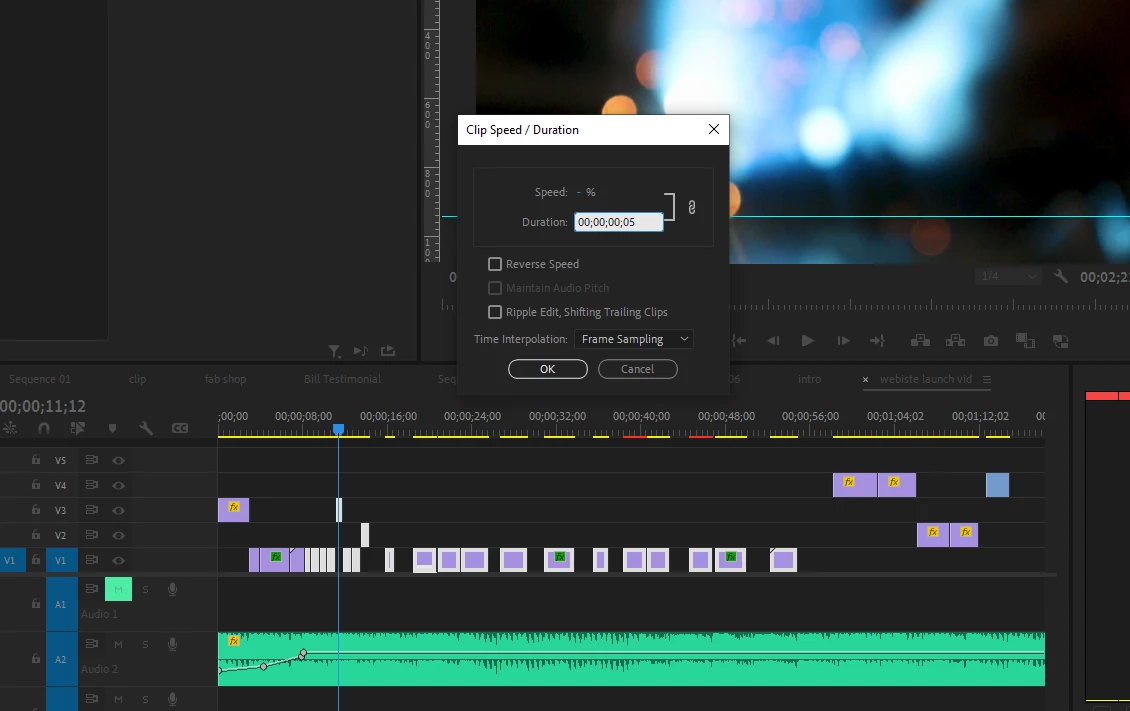
The only problem is, I don't now how to input .5 seconds here. I know it's not what I have on the screen because it's way to short now. How can I make all of them .5 seconds? please let me know what numbers I should input, and I apologize if this is super obvious! I hope I'm not the only one that has wondered this...


Thanks in advance!

This topic has been closed for replies.

1 reply

Averdahl
Community Expert
Community Expert
March 17, 2023
quote

How can I make all of them .5 seconds?


By @COAC


In this dialog you type in HH:MM:SS:FF were FF stands for frames. So you must know the frame rate in the timeline and/or clips. Let´s say that your frame rate is 60 fps/second, then 0.5 seconds is 30 fps/second so the correct value should be 00:00:00:30 to make that clip 0.5 seconds.


To make all 0.5 seconds, select all clips on the timeline and press Ctrl+R to bring up the Clip Speed/Duaration dialog and enter the amount of frames that adds up to 0.5 seconds and make sure to tick the Ripple Edit, Shifting Trailing Clips and clik OK.


Good to know is that if you have video clips this may not be the right method to use. I just tried on a two hour clip and it became 34 seconds instead of 0.5 seconds... It works as expected on still images though.

COACAuthor
Known Participant
March 17, 2023

Thank you, I never knew that! That's super helpful. So, most of my footage is 120  fps and some is not. I did 00:00:00:15 to make them the right length but now some are in fast motion. I'm guessing I would manually have to do these and can't in one batch because of the frame rate difference... is that correct? 

Averdahl
Community Expert
Community Expert
March 17, 2023

Wait, how would I go about that? That was what I was trying to do the whole time and I'd rather not do anything with the frame rate if I don't have to. 


quote

Wait, how would I go about that?


By @COAC


I do it by knowing the frame rate of the timeline i am working with. So if i have a timeline that is 50 fps and if the clip starts at 00:00:00:00 i move the time indicator to 00:00:00:25 by pressing +25+Enter on my numerical keyboard and then trim the clip with the mouse. So the key is to know the frame rate of the timeline and not all individual frame rates of the clips.


Ooops, i see now that i am back with frames instead of seconds i wrote about in the previous post... There should be a way to type in seconds with the keyboard but i cannot get that to work now. (Was it +.5+Enter to jump forward 0.5 seconds, or...?)