
Inspiring
July 15, 2023
Answered

How to keyframe stills as an infinite zoom

  • July 15, 2023
  • 1 reply
  • 2805 views

I am trying to string together a series of images into an "infinite zoom" animation.  Each sequential image is a 2x zoom of the previous image.  I have each image in the timeline for 1 second, and each image starts at scale 50% and scales to 100% over the course of 1 second.  I have all the keyframes set to "Linear".  When I play back the final result, I'm expecting a smooth zoom, but I can tell there is keyframe interpolation that is causing the scaling on each image to "ease" - so the scaling is either slowing down (or speeding up) briefly at each keyframe. I'd like to eliminate all the slowing-down/speeding-up in my keyframes so I have a smooth continuous zoom. Can someone please tell me what I need to adjust to make that happen?
This topic has been closed for replies.
Correct answer Ali Jaber

Thanks. I sent a private message.


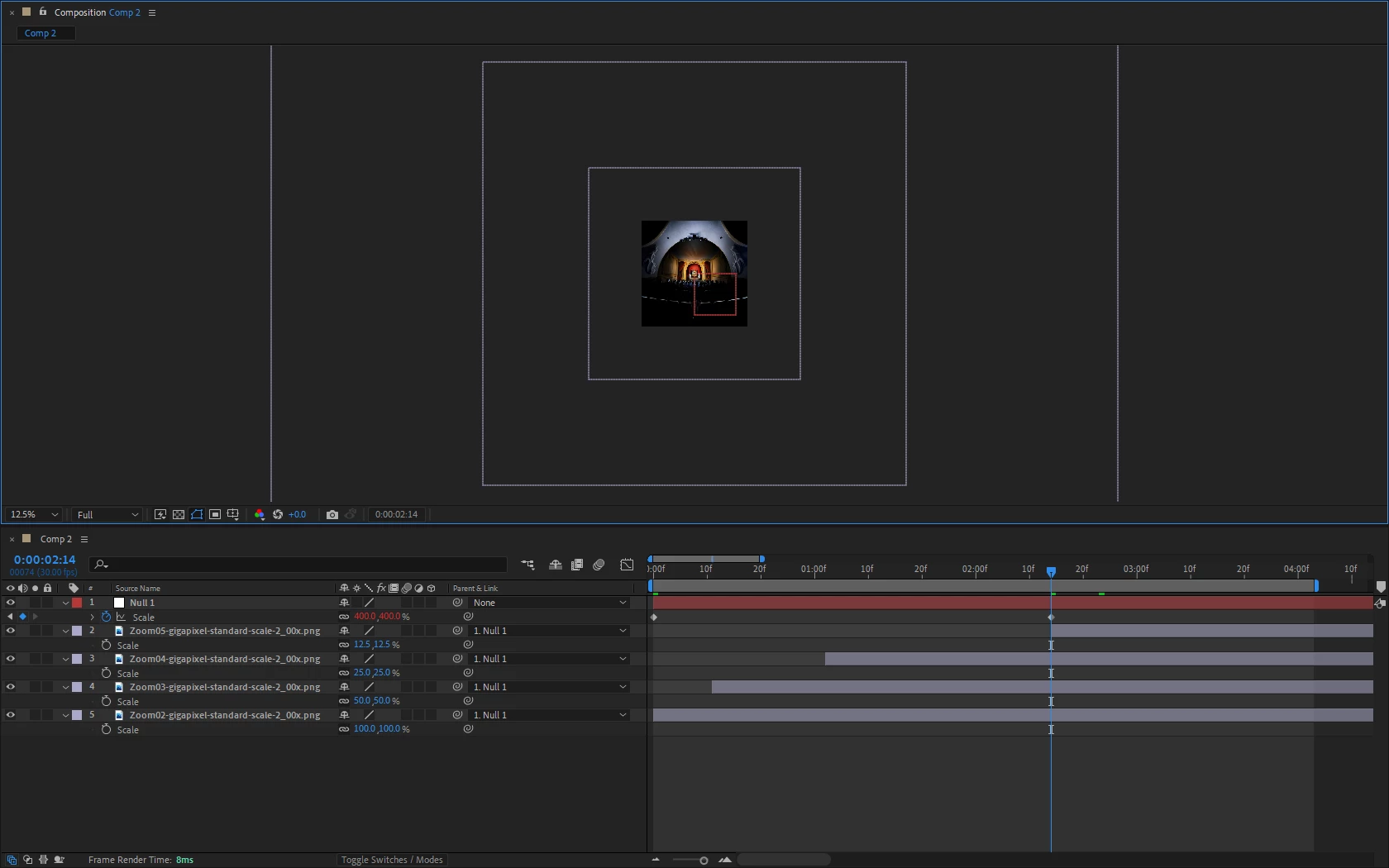
I can't tell exactly what's the problem, but it looks like it's impossible to scale layers separately and get a smooth animation inside of Pr. I did an experiment in After effects with 4 images and I was able easily to scale them smoothly by parenting layers to a single null, and then animate the scale of that null:


As you can see, while the scale's speed of the null is linear, the In points of layers are not evenly distributed. At each In point, the layer is exactly filling the frame.... This means that the duration of layers should not be equal in Premiere Pro... Why? I really don't know, but that's what's shown in that experiment.
This is the Ae file in case you want to do it in Ae:
https://drive.google.com/file/d/1wsHWc9IF7X-CAyf4xZlUeo-R3OYPXu7i/view?usp=sharing


1 reply

Inspiring
July 15, 2023

Hi, gigasaurus.

You must put all image file in sequence with desire lenght of each still frame. Than move cut point between first and second image one frame forward. On first image make your zoom from 50% on first frame to 100% on lastframe with linear keys. Than move cut point between first and second image one frame backward. Finaly copy this motion-"zoom" to all still frames and this is it....if I understand correctly,what you want to achieve.

Inspiring
July 15, 2023

I'm doing all this, and it is working as expected. My problem is, when I view the final animation, I can see that there must be some easing going on, in that the scaling seems to speed up briefly at each keyframe, and then slows down in the middle of the scaling on each image. I have set the keyframes all to "linear" (both on the "spatial" and the "temporal" options). If I click the triangle beside "scale" in the editing panel, I can see nodes that can be edited in there, but I have no experience with using those.  Since I want everything to be completely linear, it would be great if this is something I could turn on/off (rather than pulling out nodes to approximate linear easing).

Inspiring
April 19, 2024

I can't tell exactly what's the problem, but it looks like it's impossible to scale layers separately and get a smooth animation inside of Pr. I did an experiment in After effects with 4 images and I was able easily to scale them smoothly by parenting layers to a single null, and then animate the scale of that null:


As you can see, while the scale's speed of the null is linear, the In points of layers are not evenly distributed. At each In point, the layer is exactly filling the frame.... This means that the duration of layers should not be equal in Premiere Pro... Why? I really don't know, but that's what's shown in that experiment.
This is the Ae file in case you want to do it in Ae:
https://drive.google.com/file/d/1wsHWc9IF7X-CAyf4xZlUeo-R3OYPXu7i/view?usp=sharing


Any chance you could re-share that ae file, or is it too long out of sight, out of mind?