There is a way to do what you want, but it needs to be used carefully. If you open the Audio Mixer, select the Track mixer and then the track that your clips are on. Click on the arrowhead in the top left of the track you are working on (you may need to do this twice) and and access the small white window that drops down. (See Adobe Help https://helpx.adobe.com/pdf/premiere_pro_reference.pdf page 365 if you have not done this before) In the right hand side of this window, right click on one of the small back arrowheads and select Amplitude and Compression and then Dynamics.
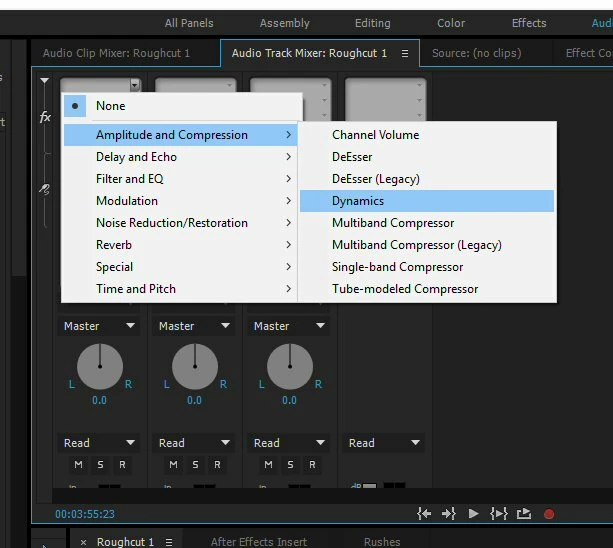
The word Dynamics will appear in the white window at the top of the channel mixer. Left click on the word Dynamics and select edit. I have pasted in below suitable settings.
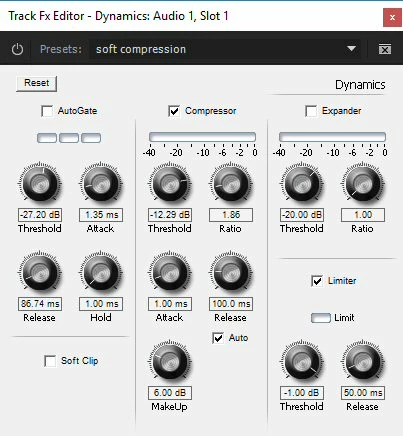
If you are not familiar with Compressor/Limiters use the setting above.
Now play back your timeline and listen carefully while watching the meters These setting should be fine for normally recorded material and hopefully you will not have to do anything more. If there are still problems the following may be necessary. Any clip that is too soft drag onto the audio timeline below (2). Anything that is too loud drag onto the timeline below that (3). For audio timeline 2 repeat the process with the Dynamics effect but change the MakeUp setting to 12.00dB. For audio timeline 3 change the MakeUp setting to 0dB. This is not perfect but it should give you a rough and ready fix. I hope this helps.


 AdChoices