Hagen Schmiedel
Inspiring
September 18, 2020
Question

How to move only certain clips from one sequence into another (Drag & Drop Templates)

  • September 18, 2020
  • 3 replies
  • 617 views

Hello, I'm building a template project for myself and unfortunately I couldn't find anything about that topic on google nor here on the forum.


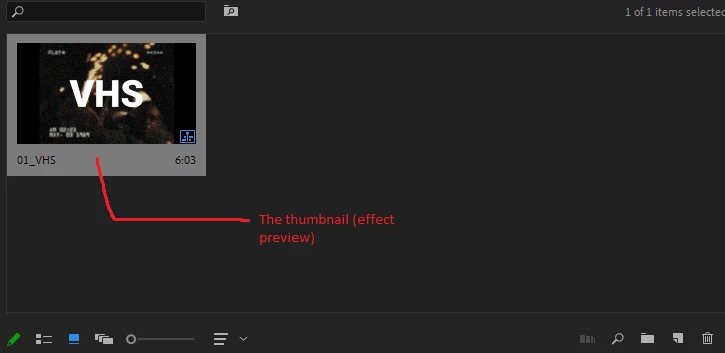
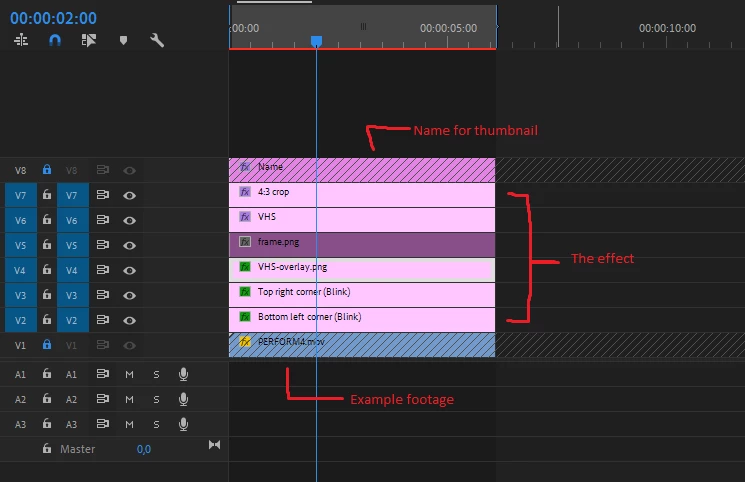
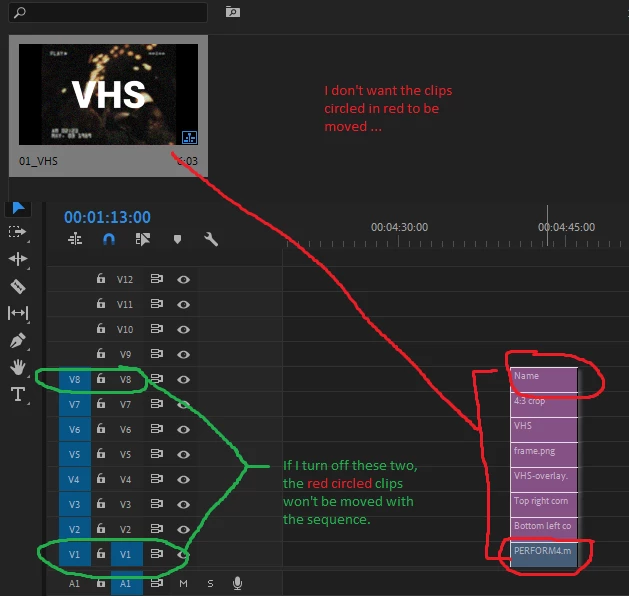
I am trying to figure out how I can drag and drop only certain clips of a sequence into another sequence. I managed to provent it by unchecking the corresponding "source patching for inserts and overwrites"-fields in the "target sequence" (the sequence in wich I want to apply the the pre-composed effect) // (image: "03_moved-sequence.png")


But I'm searching for a solution to lock the clips I don't want to be moved directly in the template sequence. 


Does anyone know a solution for this? Would be so helpful. 🙂

(There are images attached below)


[Moderator note: please simply drag/drop images onto your text reply box so they appear in your post and users do not need to download strange files to help you. I've fixed this for you in this post.]


This topic has been closed for replies.

3 replies

Community Expert
September 19, 2020

check this video tutorial that shows you how to create a Pancake Workflow

that helps a lot when creating or customizing templates:

https://shared-assets.adobe.com/link/aa456502-9a67-49cf-7dd9-c2568fda2088

Hagen Schmiedel
Inspiring
September 19, 2020

Hey Carlos, thanks for sharing. 

Community Expert
September 20, 2020

welcome!

Ann Bens
Community Expert
Community Expert
September 19, 2020

With a pancake setup (two sequences open at the same time) you can easily drag and drop from one sequence to another.

Hagen Schmiedel
Inspiring
September 19, 2020

Hey Ann, thank you very much for your response. You're totally right, it is definitly possible to do it that way, but it's not exactly what I hoped for though.


I hoped it would be possible to drag and drop it from the folder view. But in order to do it this way it should be manageable to lock the layers in the first place.

Brandon Loshe
Legend
September 18, 2020

Hi Hagen,


Am I oversimplifiying my understanding of your question and my resulting answer by saying - why don't you just lasso-select or shift-select the clips that you want to move and/or copy/paste, and leave the others unselected? The you just move and/or copy/paste as normal. Am I understanding your question correctly?

Hagen Schmiedel
Inspiring
September 18, 2020

Hey Brandon,


thank you for your reply. If I understand you correctly you suggest to open the sequence and select the clips manually, right? I agree. That's defintly a way to do it.


But it would be awesom if there is a way to just drag and drop the sequence from a folder without having to open it and manually select the clips. 

Brandon Loshe
Legend
September 19, 2020

Oh, I see. Would nesting the group of clips that you want to keep together accomplish what you are trying to do? Nesting will create a sequence in your Project Panel that you can organize into any folder you want. Then you can just drag and drop the nested sequence from a folder onto your timeline without having to open it and manually select the clips.